
Professional tools for organizers who run events at scale — QR entry verification at the door, interactive floor plans, custom registration forms, attendee data export, and availability analysis. Custom registration forms (up to 5 questions; unlimited on Club) and attendee data export are free on every plan; the rest are available on Club and Business premium plans.
QR Entry Verification (Business plan)
Check people in at the door by scanning a QR code. Ludoya confirms they're on the list, and one tap on Check in marks them as having shown up — their party too — so your attendance record builds itself as people arrive. No clipboard, no reconciling afterwards.
Re-scanning the same code is harmless: the app says "Already checked in" rather than double-counting.
Two things to set up before the doors open:
- Turn on QR attendance for the event. It's off by default — enable Verify attendance with QR code in the event's settings. The option is only available on events hosted by a group, not personal ones.
- Any device with a camera works at the door: the Ludoya app, or the website in a browser, on a phone, tablet or laptop. Attendees don't need the app either — their QR code displays fine in a browser.
Check-in belongs to a door. Turning it on for a festival reaches its activities, but a scheduled game never checks people in on its own, and neither does anything a guest adds to your event: whoever sits at a table is on the event's list too, so the event's own code lets them in.
Anyone who didn't turn up can still be marked with Mark as no-show on the attendee list afterwards.
How It Works
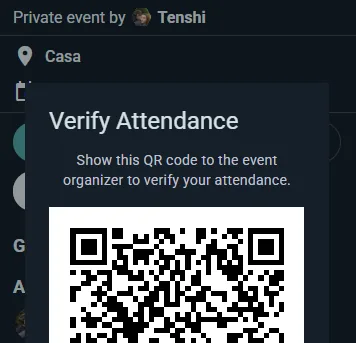
- Attendees open the event page, in the app or the website, and tap the RSVP button
- The RSVP button reveals a drop-down menu with options to change their RSVP, leave the event, edit their own attendance schedule, and show their QR code when asked
- The unique QR code is emailed to them when they sign up (and to each named guest who gave an email), and it's always there under Show QR code — nothing to print
- At the door, scan the code — Ludoya checks it against the RSVP list and shows whether the person is allowed in; Check in records them
QR Codes
- Each attendee's code is unique to the specific event, in their email and in the RSVP button's drop-down menu on the event page
- Pointing a phone's camera at it opens the attendee's own check-in page on Ludoya; at the door, scan it with Ludoya's scanner
- Scanning is instant
Benefits
- Fast, frictionless door checks without clipboards or paper lists
- Instant RSVP verification — is this person allowed in or not?
- Nothing to print: a lost email is no loss, the code is also on the event page
- Prevents non-RSVP'd arrivals from slipping in
Named Spots (Organizations)
Define named spots within your venue and assign events and scheduled games to them.
Locations and Spots
Locations (your venue, or any physical place the organization uses) can contain named spots that map to the real-world areas inside them:
- A café might have a spot for each table ("Table 1", "Table 2", "Window Booth")
- A convention hall might break down into rooms ("Main Hall", "RPG Room", "Demo Area")
- A multi-floor venue might label spots by floor ("Upstairs — Table A", "Downstairs — Back Room")
Setting Up Spots
- Open the location: from your club's console, Locations (or Settings → Locations for your own places)
- Create and name the spots for that location (e.g., "Table 1", "Back Room", "Main Hall")
Using Spots in Events
Any event at that location can claim spots — and it can claim several at once, not just one. A club night taking over the back room and two front tables picks all three.
How it usually plays out:
- A whole-venue event (a convention, a club night taking the place over) often skips spots entirely and just sits at the location. That's fine — spots are optional.
- Sub-events pick the rooms or areas their track occupies, so attendees know where to go: "Beginner track → Main Hall", "Advanced track → Back Room".
- Scheduled games pick the table they're played on.
One rule worth knowing: once a parent event has claimed spots, its children stop offering the spot picker — the parent's choice already describes where everything is happening. Leave the parent without spots if you want each sub-event and table to pin itself.
Attendees then see exactly where their track or table is, and two things running at once can't end up claiming the same table.
One Game per Table
A spot marked as a table seats one game at a time. When you pick a table for a game, the picker marks any table another game holds then ("taken 20:00–22:00"), and a taken table can't be saved. Back-to-back games are fine, a room seats several games side by side and is never checked, and a game inside an event that booked the table shares it with that event.
A club that wants every game at its venue to say where it's played turns on Games here pick a table under Rooms and tables in the location (club console → Locations). A new game there then can't be saved without a table; games already scheduled stay as they are.
Interactive Venue Floor Plans (Business plan)
Add a visual map layer on top of your named spots. Upload a floor plan image and place each spot on it — attendees explore your venue on a pannable, zoomable map with every table, room, or play area marked.
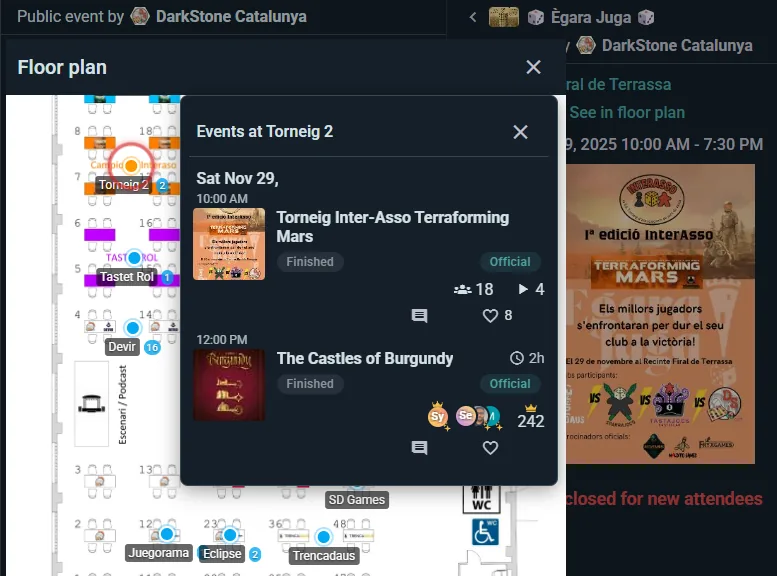
Setting Up a Floor Plan
- Open a location that already has spots (the console's Locations) and turn on its floor plan
- Upload a floor plan image (a photo, diagram, or architectural drawing)
- Click any spot to drag it onto the right area of the image
Without a floor plan, spots still work as plain text labels ("you're at Table 3"). The visual floor plan shines at larger venues where navigation matters.
A Town, a Square or a Park: a Real Map
A festival spread over a town, a fair of tents in one square, a trail through a park: there is no plan to draw. Their places go on a real map instead (Google Maps), pinned where they are.
- In the console's Locations, open the venue. A town picked from the suggestions (or a park or square Google knows as one) is a map venue on its own; for anything else (a fairground, a square Google calls a street) turn on Show it on a real map. The address has to come from the suggestions, so the map knows where it is. Use a picture instead goes back to a floor plan picture.
- Pin places on the map opens it. Tap a place listed as not on the map, then tap where it is; or tap an empty bit of map to add a new place there (Undo takes back a tap that was meant to pan). Drag a pin to move it; Take it off the map unpins it.
- A place can still have a plan of its own (a hall with its tables): add its picture in the place's details, and its tables are drawn on that picture as usual. Visitors reach it with See inside.
Attendees get the real map on the event's venue map: each place named on its pin, with how many activities are on there (places with nothing on at the time shown fade), a List of places to find one by name, a Satellite view for telling one tent from the next, and Show where I am, which asks for the phone's location only when they tap it. Tapping a place keeps the map and shows its card: what's on there, how to find it once there, See inside for a hall with its own plan, and Directions; an activity at a pinned place shows Directions too, and the event page shows a small picture of the map. A floor plan picture uploaded later replaces the map; places pinned on the map keep their pins until a shape is drawn for them on the picture.
The Venue Map on the Day
An event held at a venue with a floor plan has its own venue map view. Every table and room shows what's on there: tap one and its activities open in a drawer, with times, seats and a way to join. Table names shrink to fit their tables on a phone, so the map stays readable at arm's length.
A venue and each of its spots can carry a short text of their own: which door, what the room is for, "ask at the bar for the key". Spots also come through the public API, so your own site can show them.
Best For
- Large venues with multiple rooms or zones
- Conventions with dozens of tables
- Game cafés where regulars want to pick their favorite spot
- Any venue where "Where is my game?" is a common question
Custom Attendance Forms (free on every plan — up to 5 questions, unlimited on Club)
Ask attendees questions when they RSVP — collect information you need to run a better event, all without leaving Ludoya for an external form builder.
Creating Custom Questions
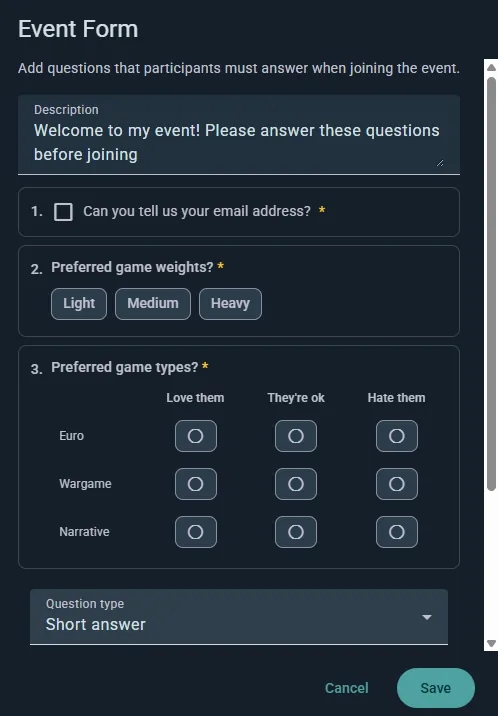
- Open the event's settings and pick the Form section
- Add your questions, dragging them into the order you want (or duplicating one you've already set up)
- Mark any question required
- Save — the questions appear when people sign up
Note the event must belong to a group, and adding a form turns off anonymous guests: if you're asking questions, Ludoya needs to know who's answering.
Question Types
- Short answer — a line of free text
- Paragraph — a longer written answer
- Single choice — pick one from a list
- Multiple choice — pick as many as apply
- Linear scale — rate on a range, with labels at each end
- Multiple choice grid — several questions sharing one set of answers, in rows and columns
- Personal information — ask for an email, phone number, date of birth or gender, validated properly instead of collected as free text
Example questions:
- "Do you have any dietary restrictions?"
- "How familiar are you with heavy euro games?"
- "Do you need a lift?"
- "First time attending?"
Ask Per Guest
Any short-answer, choice or personal-information question can be marked Ask per guest. It's then answered separately for every extra person an attendee brings — reserved friends and named guests alike — with the attendee filling it in on their behalf, and required ones blocking the booking until they're done. That's how you collect four sets of dietary requirements from one person booking a table of four.
Attendee Experience
People answer as they sign up, and required questions must be filled in before they can confirm. Answers are saved with their registration, visible in attendee management, and exported alongside the attendee list.
Use Cases
- Catered events — dietary needs and allergies
- Beginner nights — gauge experience to balance tables
- Corporate events — collect department or team info
- Themed nights — costume preferences, team assignments
Seeing Which Form Each Event Asks
You don't need to open an event's settings to know what signing up for it asks:
- In the club console, Events has a Form column once any event asks questions: the name of the template it follows, or Own questions.
- Forms names, for each template, the events asking it under Used by. Open a template's Answers and Asked by lists every one of them, each opening its event.
- In an event's console, the Form card on its overview, and on each part of a programme, says what signing up asks: a template's questions, its own, the parent event's, or none, with the questions listed. Change it right there with the same picker as the event's settings; on a date of a repeating event it asks how far the change reaches. Edit questions changes its own questions, and See all answers opens a template's answers gathered across every event.
- In a festival's Programme, each activity asking a form of its own shows that form's name, and the Form chip narrows the list to the activities asking one form.
Changing an Option After People Have Answered
The same editor shapes a club's join form and its saved form templates, and the rule is the same everywhere. To fix or reword a choice, edit its text where it is: everyone who picked it keeps their answer under the new wording, so the members table, its answer filter and the export count them straight away. Differences of capital letters or accents alone are matched on their own.
To offer something different instead, delete the option and add a new one. Answers to the deleted option stay as they were and are never moved to the new one, so nobody ends up having picked something they didn't.
Fixing Mistyped Addresses and Double Sign-ups
A mistyped email address fails quietly: the confirmation and its door QR go nowhere, and the person often signs up again, so they end up holding two places. When that happens anywhere in your event, a To check card appears above the list in your event console's Attendees, and a line under Needs attention on its overview leads to it.
- Addresses that look mistyped shows each address that can't work (gmail.con, gmai.com, hotmial.com, gmail.es…) beside the one that was meant. Fix opens Edit email with that suggestion filled in.
- Signed up twice? shows two places on one list that look like the same person: the Same address (a typo or Gmail's dots aside), or the Same name, one name being the other with more words after it. You see each side's address, who signed them up, the companions they bring and when they signed up. Keep this one frees the other place without telling anyone, since the person is still coming, and the companions it brought move to the one you keep. They're two different people stops showing the pair.
- Edit email is also in each row's menu of the list. You can correct the address of a companion (what your form asked for them) and of an account your integration created that nobody has activated yet. A Ludoya user's own address is theirs alone.
- Send their confirmation and QR to this address is on by default. Ludoya sends it, unless you sign people up through the public API and mail them yourself: then it waits in your mail queue, for you to send from your own address like the rest of their mail.
- If the corrected address belongs to a Ludoya account, the place becomes that account's, in their app. If that account is already signed up, it is the same person twice, and the card offers to keep one of the two.
Attendee Data Export (free on every plan)
Download RSVP lists and form responses as an Excel spreadsheet, or as CSV.
What You Can Export
One row per attendee, with these columns:
- name and username
- where — on an event with a programme, the activity they signed up for, with the sections above it ("Saturday: open tables › Azul")
- attendance — their RSVP status
- guests — how many anonymous guests they're bringing
- one column per question on your custom registration forms, with their answers
On an event with a programme, the first sheet lists everyone, each person once per place they signed up for, and each activity right under the event gets a sheet of its own with everyone inside it.
Two things worth knowing if you build a spreadsheet around this:
- Every question asked by any form in the event gets a column, answered or not, so two exports of the same event line up. Answers to a question you have since removed still export, in columns after the others named
removed-1,removed-2… - Multiple-choice answers arrive in one cell, separated by a
|, so "Vegetarian|No nuts" is a single field rather than two columns.
Check-in and no-show marks aren't in the export — the CSV reflects who signed up and what they told you, not who walked through the door.
Use Cases
- Email follow-ups or loyalty program tracking
- Your own analysis of who signed up for what
- Planning future events based on past attendance data
For the event in numbers, ready to hand a sponsor, see the Event Report below.
Event Report (free on every plan)
Once your event has started, its console's Report shows it in numbers, counted over everything inside it: every activity, stand, tournament, market and library. It keeps filling in while the event is on, and is there for good once it ends. Only whoever runs the whole event sees it, from the event's own console; a club hosting one stand sees that stand's console instead.
At the Top
People signed up (everyone signed up to the event or to anything in it, each counted once, companions included: the Overview's People coming), activities held, seats filled (how many of the seats offered were taken) and second-hand games sold. Each activity counts up to its seats, so people squeezed into a full table don't make up for an empty one elsewhere; they are shown apart, as people added to activities already full.
What Worked, and What to Look at Next Time
Two short lists pick out what to repeat and what to change, each with the number behind it: activities that filled every seat or had a waiting list (offer more of them), the busiest hour, people who had come to your earlier events too, a game lent so often it needs a second copy, activities nobody signed up for or that stayed nearly empty, people expected at check-in who did not turn up. A line only shows up once the numbers are big enough to mean something.
Charts and Figures
- Most popular and least filled activities, and seats filled by section of the programme (all the role-playing, all the tournaments)
- Seats taken by starting hour: a play stand's sessions count at their own times
- Most played games and the games most lent from the library
- Stand feedback: each play stand's results to its own after-session questions: how many of its players answered, each scale's average and the share of players who picked each answer of a choice question. On a question that lets players pick several, the shares add up to more than 100%; a long list shows its three most picked. Open a stand from its name to read its comments
- In numbers: people (companions, who signed up to the event itself, who came to your earlier events too, new Ludoya accounts, check-ins, waiting lists), the programme (activities that filled up, answers to the stands' feedback questions), the second-hand market (sold at the market stand and through online listings for the event, and what they sold for), the game library, messages in the event's chats and the announcements you sent, the quiz trail and tickets when the event had them
All Activities
Every activity with its section, start time, seats taken and how full it was, sortable, and downloadable as a spreadsheet. An activity nobody books (a demo table, open play) shows Open, no sign-up rather than a zero. A play stand counts as one activity, its sessions added up; a tournament counts once, its rounds inside it.
Compared With Your Other Events
The report sets the event beside your club's earlier events that people came to, newest first: people signed up, activities, seats taken, how full they were, plays and games sold. A festival is compared with your other events with a programme of their own, never with a weekly game night, and only with events you run too.
Download It as a PDF
Download PDF saves the whole report to send to a sponsor, a town hall or your own team. Totals only: nobody who came is named in it. The comments players leave stay on each stand's Feedback card.
Once a club's event has ended with 10 or more people, its admins also find Bring another club on the report: how many it drew, and Share for the club's invite link (see the club console).
Availability Heatmap (Club plan)
A per-event heatmap that shows when attendees will actually be present during the event, so organizers can plan scheduled games around the times when most people are there.
How Attendees Contribute
When joining an event, each attendee marks which time slots within the event's own schedule they'll be there. For a weekend convention running Friday evening through Sunday, one attendee might say "Friday 18:00–22:00 and Saturday all day", another might only be able to come Saturday afternoon. The RSVP button's drop-down menu lets them edit this personal attendance schedule at any time.
What It Shows
- A visual density strip laid out along the event's own schedule (not weeks or months)
- Peaks where most attendees will be present
- Valleys where few attendees can make it
- Updates live as attendees adjust their availability
How Organizers Use It
- Open the event's attendee list
- Tap View schedules
- Read the Availability Overview density strip for the slots where most people will be around
- Put your most important scheduled games, talks or tournaments in those peaks so the biggest audience can attend
- Below it, Individual Schedules lists every attendee by name with their own slot-by-slot bars — useful when you need to line up specific people, like a demonstrator for a heavy game or the players for a pre-arranged table
Who Can See What
Both sections appear together in the same dialog: the aggregate strip and the named individual schedules. On an event whose host group has the Club plan, anyone who can open the attendee list can see them — not just organizers.
Tell your attendees that, since the times they mark are visible to the rest of the event by name. If that's not what you want for a particular event, don't ask people to fill in a personal schedule.
Announcements to Everyone at the Event (free on every plan)
Tell everyone at your event something in one go: the tournament starts late, an activity moves to another room, here's the plan for the day. Open the event's console and pick Announcements.
Who Hears It
Everyone taking part in the event — not only the people who signed up for the event itself, but also everyone who:
- signed up for any activity, game or tournament inside it
- sells at its second-hand market, or had a box kept for them there
- borrowed a game from its library
You can also send it to one part only: a single activity (just the people at the gimcana), or a whole section of the programme with every activity in it (all the role-playing tables at once). Include the waiting list when the activity has one. Before you send, the page tells you how many people it reaches and how: with the app, or by email for whoever has no app. Companions someone signed up with them hear it through that person.
How It Arrives
- As a notification in the app, and by email for whoever has no app — each person's own notification settings decide, as for anything else
- It comes from your club (or from you, for a personal event), titled with the event
- Send a test to me first to see exactly what people will get
The Event's Notice Board
Every message you send also stays on the event's page, newest first, so anyone who opens it later — or arrives on the day — reads what was announced. An activity's page shows the messages for the whole festival, and for its section, too. When a message goes out of date, take it off the event's page from What you have sent: whoever already got it keeps it.
Limits
Up to 5 messages a day per event, a message to one activity or section included, so the ones you send get read.
Playtest Matching (Business plan)
For a day where designers bring prototypes and players test them. Instead of a rotation you plan by hand, Ludoya seats everyone at tables, slot by slot.
Turning It On
In an event's form (an ordinary event, not a tournament or game table), tap + Play matching and pick Ludoya matches playtesters. Slots, tables and the schedule are then set in the event's console, under Playtesting: how long a slot lasts, how many tables the room has, and how long each game's table runs (it starts from the game's play time).
Before the Day
- Designers add their prototypes from the event's page, with Bring a prototype.
- Players mark the prototypes they want to try, on the event's page. The console shows which are the most wanted.
The Schedule
When the prototypes are in, choose Generate schedule. Ludoya seats everyone over the slots, adds every table to the event's programme as an ordinary game table ("Table 3 · the game"), and sends each person one notification with their tables. The console then says how many wishes were met, and which pairs of people meet twice: a table or a slot more gives it room to mix.
If people join or leave, or new prototypes arrive, Update schedule keeps the tables already playing and the seats you pinned, and seats everyone else again. Regenerate shuffles every table that hasn't started. Either way, only the people whose tables change hear about it.
Turning playtest matching off removes the tables it scheduled that haven't started. Tables already played stay.
My Prototypes (for Designers)
A game that isn't published yet still gets a home. In Explore → Games, under Can't find your game?, choose It's a prototype of mine; from then on My prototypes is a card on your home page.
- New prototype: a name, a description, player counts, play time and minimum age, like any game. Keep it Private while you work, Unlisted to share it by link, or Public. A private prototype can't be brought to a playtest: make it unlisted or public first.
- Versions: add one each time the game changes (New version name), so feedback is filed against the version people actually played.
- Owners: Add co-owner for the rest of the design team; every owner manages the prototype.
- Feedback form: the questions testers answer after playing a version. After a playtest table, players see Give feedback on it.
- Feedback: each version's scores and comments, and how every question moved Across versions, so you can tell whether a change helped.
- Playtests: every event the prototype has been taken to. Bring a prototype on an event with playtest matching enters it there.
The Event on a Big Screen (Business plan)
Put the event up on the venue's projector or TV. Choose Show on a screen in the event's menu, or in its console, and Open the screen:
- A tournament shows the round's tables, the round's clock and the standings, updating as results come in. With Reveal standings only at the end on, the screen keeps them hidden too.
- A programme or a play stand shows what's on now and next, where, and the seats left.
- A QR code in the corner lets the room follow on their phone and join.
A festival's section or tournament can have a screen of its own, from its console: the role-playing room shows just its tables, the tournament hall just its rounds. It runs on the festival's plan.
Nobody needs to be signed in on the screen: the link is the key, so the laptop under the projector can be anyone's. Projector on another computer? Open the same link there, and press F for full screen. The screen reads the event again every few seconds and says so in the corner if it loses the connection, so an old screen never passes for a live one. If the link ends up somewhere it shouldn't, Make a new link; the old one stops working.
A Quiz Trail Across the Festival (Business plan)
A quiz trail (a gimcana) sends visitors around the stands: each stand taking part has a poster with its own QR and one quick question. Set it up in the event's console, under Quiz trail.
- Set up a quiz trail, then Add a stop for each stand: where it is, and what players do there: Pick an answer (mark the right one, or choose a poll), Type an answer (list every answer you take as right; case, accents and punctuation don't count) or Just find it.
- In Settings, write the Prize and draw line (what there is to win, and when and where it is drawn): it shows on every stop and poster.
- Print posters: one per stop with its QR and a short address to type when a camera won't read it. Choose the size: A4 for a wall or a stand front, A5 (two to an A4 sheet) for a stand's table, or A6 (four to a sheet) for a counter card. A poster got wet? Print this stop's poster, in that stop's menu, reprints just that one. Stops are found in any order, so posters carry no numbers. While it is a draft, only the hosts can open the stops, so try them first.
- Open the quiz trail when the doors open. The event needs a date first.
On a venue with a real map (a town, a square), each stop has its Place on the venue's map. A new stop starts at The place named after the stop: the venue's place of that name, or a new one that waits in the map editor to be pinned. Sixty shop windows? Add the stops, then pin their places in one go; Give every stop a place does it for stops added before, and the console says how many stops are still off the map, with Pin them to open the map editor. Players open See the stops on a map from any stop's page: the Quiz trail layer shows each stop as a flag to find or a green tick once found, how many they've found of how many, See them lists any stops the map can't show yet (those still to find first), and tapping a place names its stops, never what they ask. While you hide the list of stops, the map hides them too.
Visitors play on their phone's browser, with no app to install. The first stop they scan shows its question and asks for a name (or a team name: a family on one phone plays as one) and an email, and to confirm they are 14 or older or playing with their child. An email that already has a Ludoya account gets a code by email instead, so nobody can play as someone else. Every other stop goes straight to its question. Each stop takes one answer, and you choose whether players see right or wrong right after each answer or only when the quiz trail ends (which keeps answers from being passed around). Fixed a mistyped right answer halfway through the day? Everyone's answers at that stop are marked again. A stand that leaves mid-festival? Close this stop: its QR stops taking answers, whoever found it keeps the point, and it leaves the trail and the posters for everyone else.
The console shows how many answered each stop and the Ranking: most right answers first, then most stops, then whoever finished first. Volunteers can find a player by name, and the ranking downloads as a spreadsheet. To give prizes, add a raffle to the event and choose Quiz trail players as who enters, with a minimum of stops found or right answers; tick Each right answer is one more ticket to reward the best players without leaving the rest out. Every stop then tells players what gets them into the draw, and when they're in. Hosts and volunteers who played are in the draw too: if one of them wins, void the win and draw again. End the quiz trail when you draw: no more answers, and players see how they did.
Visitors who never finish setting up a Ludoya account have their details deleted 30 days after the event.