Ludoya connects with the tools and platforms you already use. Sync your collection and plays with other sites, link Telegram or Discord for group notifications, export your data, and share your gaming life beyond Ludoya.
BoardGameGeek (BGG)
Sync your collection and play history with BoardGameGeek, the world's largest board game database.
How to connect: Go to Settings → BoardGameGeek integration. Enter your BGG username. Importing needs only your username: your BGG password is asked for only if you also want Ludoya to send your collection or plays to BGG.
What syncs:
- Import collection — pull your BGG collection into Ludoya
- Import plays — bring your BGG play history into your Ludoya stats
- Export collection — push your Ludoya collection to BGG
- Export plays — send your Ludoya plays to BGG
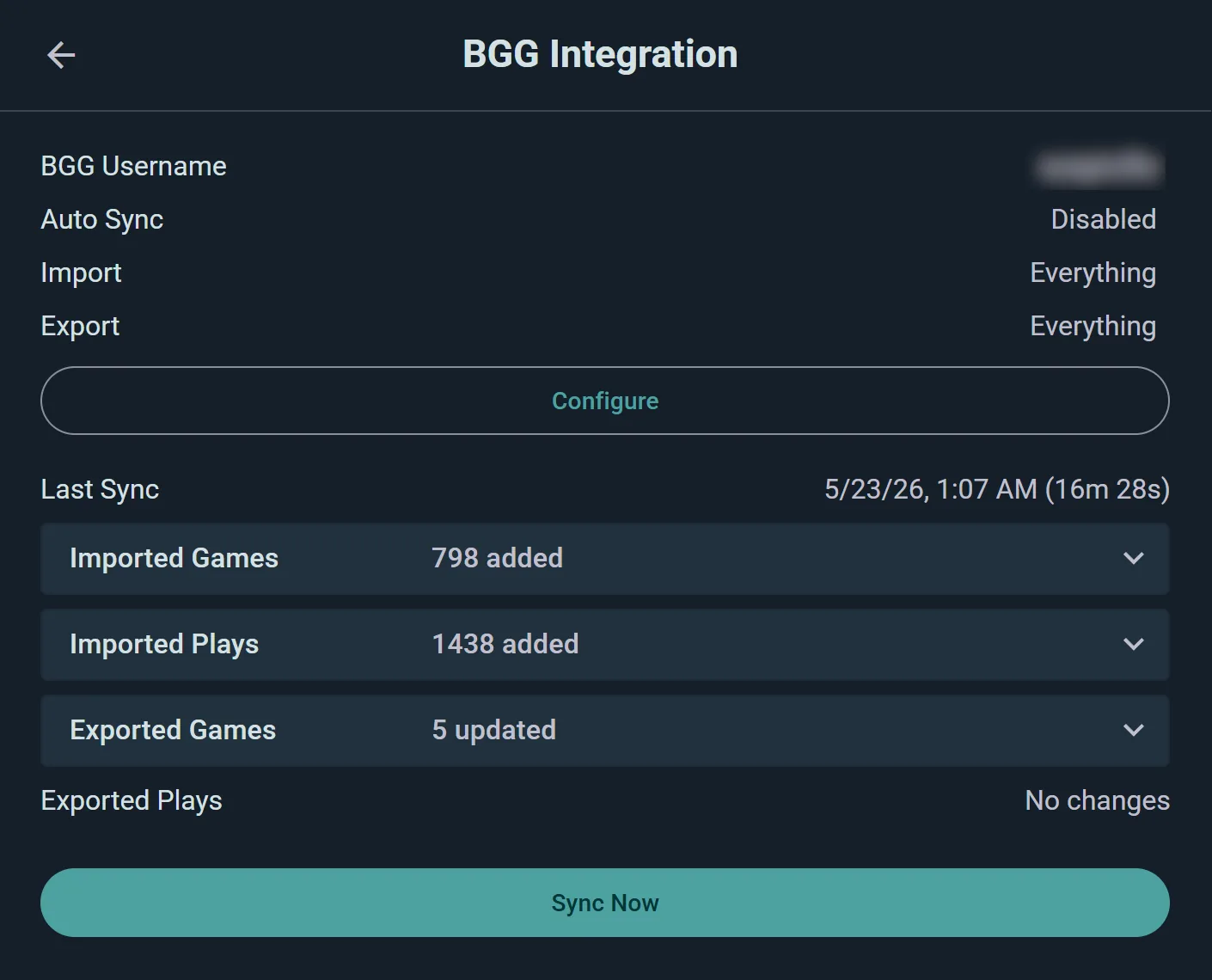
Start Sync From date filter: When importing plays, choose a start date. Only plays recorded on or after that date will import. Useful for picking up where you left off.
Sync status: Watch your sync progress in real time. You'll see:
- Pending — waiting to start
- Waiting for BGG — request sent, waiting for response
- Importing — downloading from BGG
- Exporting — uploading to BGG
- Completed — done, with counts (e.g., "Imported 45 games, 120 plays")
- Error — something went wrong; check your username and password
If it says BGG is temporarily blocking automated logins: that one isn't you, and your credentials are fine. BoardGameGeek periodically throttles automated sign-ins, and while that's happening Ludoya can't log in on your behalf. Leave it a while and run Sync now again — nothing is lost, and importing (which doesn't need your password) is usually unaffected.
Automatic or manual sync: BGG sync is managed server-side on a regular schedule, but you can also trigger Sync Now anytime to refresh immediately.
Board Game Arena (BGA)
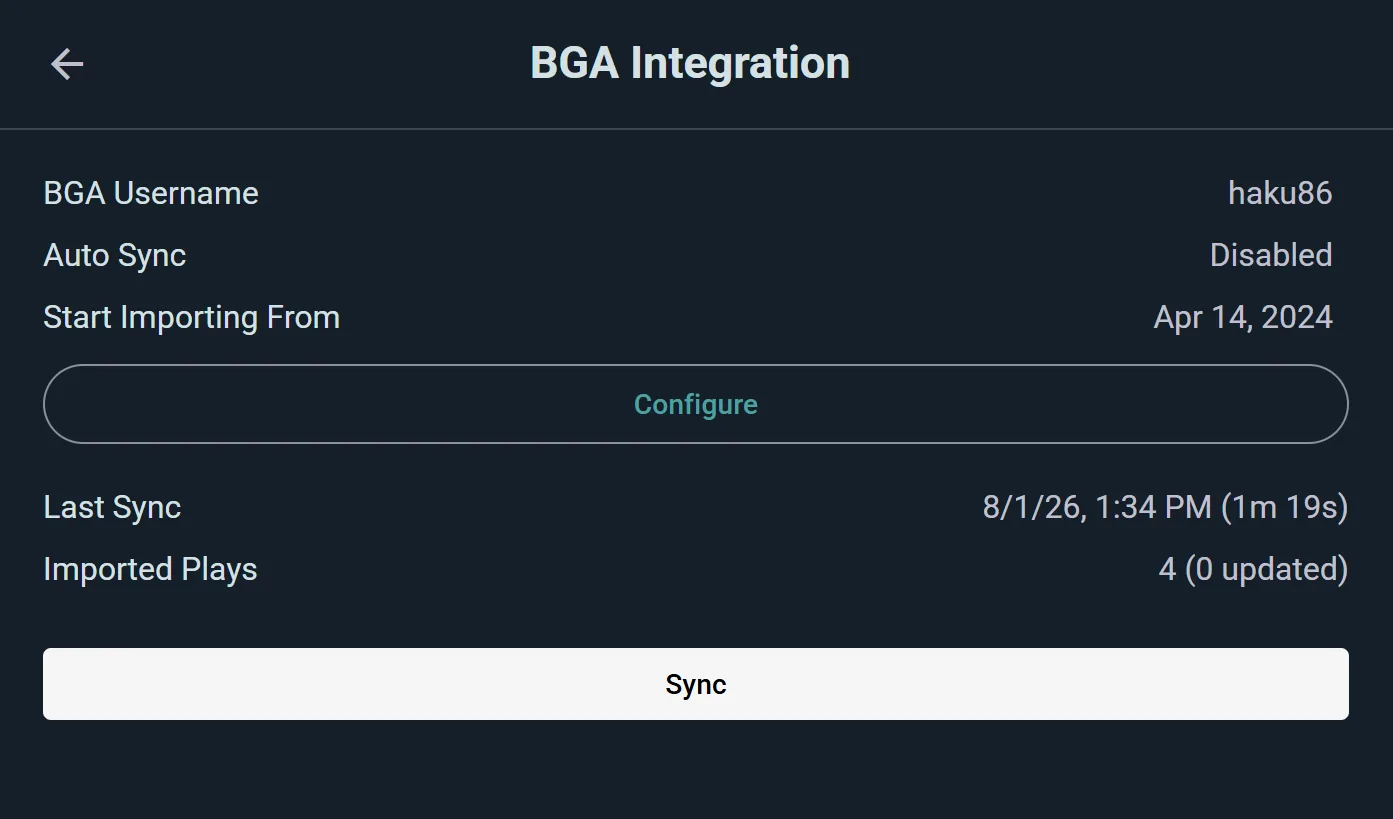
Import your play history from Board Game Arena into Ludoya (collection import is not available).
How to connect: Go to Settings → Board Game Arena integration. Enter your BGA username and password.
What syncs:
- Import plays — bring your BGA play history into Ludoya
Start Importing From: Choose a start date. Only plays after that date will import.
Automatic or manual sync: Like BGG, BGA syncs on a server-managed schedule. Use Sync Now to import immediately.
Telegram Bot
@ludoyabot brings your club into the chat your members already live in. Connect a Telegram group to your organization and it announces your events, answers questions about them, picks games off your shelf when nobody can decide, and lets people take a seat without opening the app.
Personal linking: to let Ludoya message you directly, start from Telegram rather than from Ludoya — talk to the bot, tap Start, and it hands you a link that connects the two accounts in one tap.
Connecting Your Group
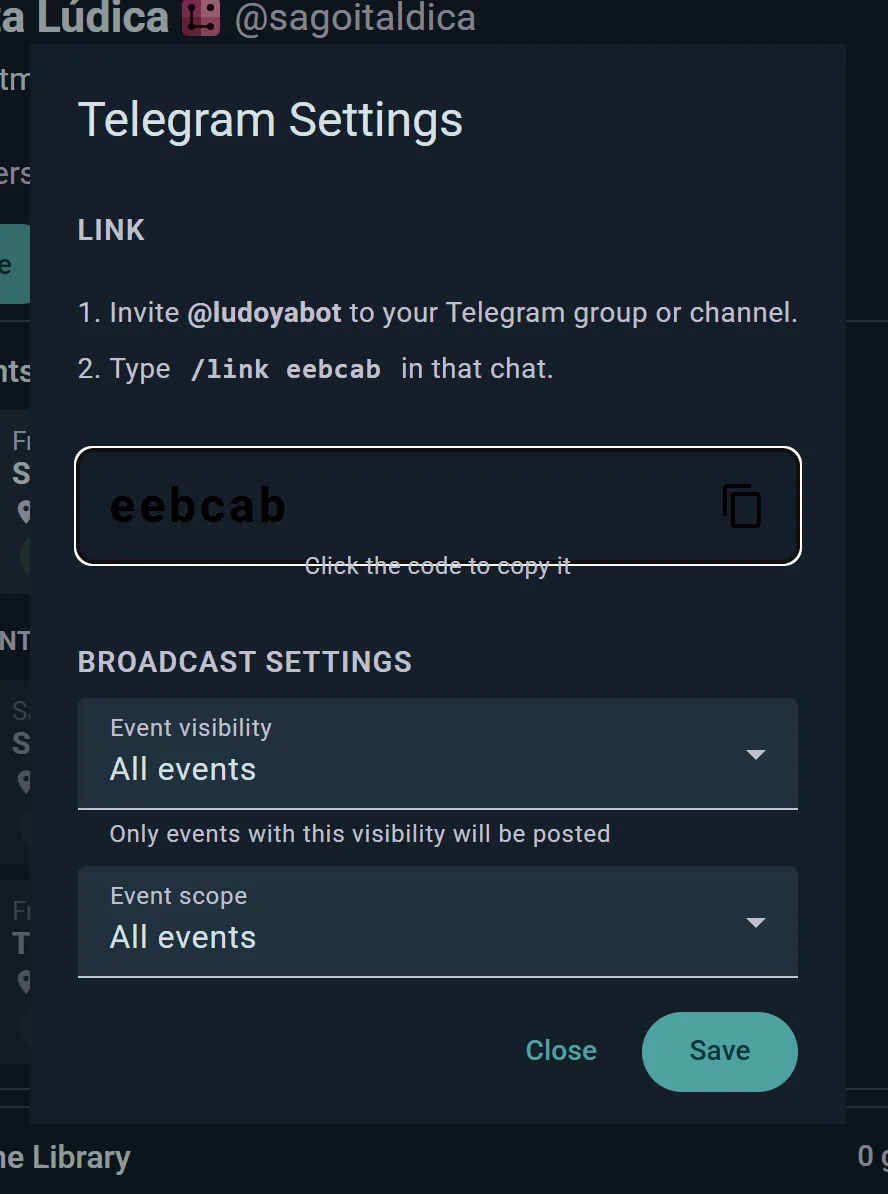
Linking needs the Club plan or above for the group or club — with or without a login of its own. Any of its admins can buy the plan for it.
- Open your organization's console and go to Integrations, then Telegram
- Generate a link code
- In Telegram, add @ludoyabot to your group, or to your channel as an admin
- Type
/link <code>in the chat - The bot confirms the connection
To disconnect later, type /unlink in the same chat. Announcements stop immediately and nothing on Ludoya is deleted — you can link it again whenever you like.
Ask the Bot
Mention @ludoyabot with an ordinary question and it answers in the chat, in your own language:
- "what events are there?" — your upcoming events
- "show me Friday's event" — date, venue and who's coming
- "who's coming?" — the attendee list
- "what will we play?" — the scheduled games people have put up
- "show me Scythe" — that game's details
- "something light and funny for six" — a shortlist off your club's own collection
- "something like Dune Imperium" — the games your club owns that people who like that one own too
Shortlists come with what actually decides a game at the table: player count, length, the youngest age it's for, a colour-coded complexity (green light, red heavy) and, when your club wrote one down, the shelf mark telling everyone where the copy lives.
No commands to memorise. It only ever answers about the group the chat is linked to.
Take a Seat Without Leaving Telegram
When the bot posts a scheduled game, it comes with a Join button. Tap it and you're in the seat — the message updates itself in the chat so everyone can see the list fill up. There's a View on Ludoya button too, for when you want the full page.
Anyone who hasn't linked their Telegram account yet gets told how, right there in the chat.
What Gets Announced
Two settings in Telegram Settings decide what reaches the chat:
- Which events — public events only, public and members-only, or everything
- Scope — main events only (the default), or all events including sub-events and scheduled games
Events are announced when they're created and when they change, so the chat stays right without anyone reposting. An event you bring into your organization by editing it is announced as new, and your members hear of it as they would of one created there; the chat of an organization it leaves marks its message as moved. A recurring event posts one occurrence at a time: the next goes out once the one before it is over, or straight away when you publish one created as a draft.
Separately from the chat, members who linked their account and have no app to get notifications on hear about their events (a new one from an organization they follow, a change, a reminder) in a private message from the bot. Installing the app moves these to the phone instead.
Discord Bot
The Ludoya bot does on Discord what @ludoyabot does on Telegram. Link a channel of your server to your organization and it announces your events there and keeps every announcement up to date, answers questions about them from any channel of the server, and lets members take a seat from the announcement's Join button.
Connecting Your Server
As on Telegram, linking needs the Club plan or above for the group or club.
- Open your organization's console and go to Integrations, then Discord
- Press Add to Discord and pick your server
- In the channel that should receive the events, run
/link <code>with the code from the settings - The bot confirms the connection
The console's Integrations section can send a test message to every linked chat and channel, to check the bot still gets through. Only members who can manage the server can link or unlink a channel. Run /unlink in that channel to stop the announcements — nothing on Ludoya is deleted. The same Which events and Scope settings as on Telegram decide what gets posted.
Linking Your Account
Run /start in the server or in a direct message with the bot. Only you see the answer: a Link Account button that connects your Discord and Ludoya accounts in one tap. From then on your seat is one Join away, and your name shows on the announcement's attendee list.
Ask the Bot
Mention the bot with an ordinary question — the same ones it answers on Telegram, from what's coming up and who's going to a shortlist off your shelf — or reply to one of its answers to keep the conversation going. Its shortcuts (/event_list, /planned_play_list…) show up as you type /.
WordPress Plugin
Your club already has a website? Put Ludoya on it. The Ludoya for WordPress plugin shows your events, your game collection, your play stats and your venues on your own pages, styled by your theme, and lets your team run events from WordPress's admin.
On your pages, add one of six blocks, or its shortcode:
- Events: a list of your upcoming events
- Event: one event, with its programme and sign-up form. One page can serve every event, sub-events included, so a whole convention stays on your site
- Sign-up form: just the form, for a page of your own words
- Collection, Stats and Locations: the games you own, how much you've played, and where you play
Event pages carry the structured data search engines use for rich event results.
In wp-admin, staff create, edit, publish, cancel and delete events, and sign people up, without opening Ludoya.
The plugin is free and open source, and uses the public API, so it needs the Club plan or above. Download it from its latest release on GitHub, install it under Plugins → Add New → Upload Plugin, and paste an API key from your console's Integrations → Keys and apps.
Google Sign-In
Sign into Ludoya using your Google account instead of an email and password.
How it works: On the sign-in page, tap Sign In with Google. If you don't have a Ludoya account yet, one will be created automatically. If you already have an account, your Google account will be linked to it.
Note: You must have an active Google account. Two-factor authentication on Google is supported.
Sign in with Ludoya
It works the other way around too: your Ludoya account can sign you into other sites. Clubs, shops, and communities can put a Sign in with Ludoya button on their own website or forum, so you get in with the account you already have.
When you approve, you're also linked to that organization on Ludoya — joining it, or requesting to join, depending on their join policy. So signing into a club's forum can make you a member of the club here at the same time.
Reviewing your connections: go to Settings → Connected apps to see every site you've signed into with Ludoya, when you connected it, and when it was last used. Tap Disconnect to cut a site's access immediately — you stay a member of the group, and can leave that separately if you want to.
Running a community? Adding Ludoya sign-in to your own site is part of the Public API feature on the Club plan and above.
Calendar Export
Export your Ludoya events to Apple Calendar, Outlook, Google Calendar, Thunderbird, or any app that supports iCalendar format.
Available formats:
- iCalendar (.ics) — download a file to import into Apple Calendar, Outlook, or Thunderbird
- Google Calendar direct link — subscribe directly from Google Calendar
What's included: Event title, date, time, location, and a link back to the event in Ludoya so you can check the guest list, discussion, and details anytime.
How to export: Go to the event page and tap Add to calendar. Note this drops a snapshot of the event into your calendar rather than a live subscription — if the organizer moves the event, re-add it to pick up the new time.
Embeddable Widgets
Embed Ludoya content into your own website or community forum using HTML iframe snippets. Widgets are styled to fit seamlessly and include a "Powered by Ludoya" badge.
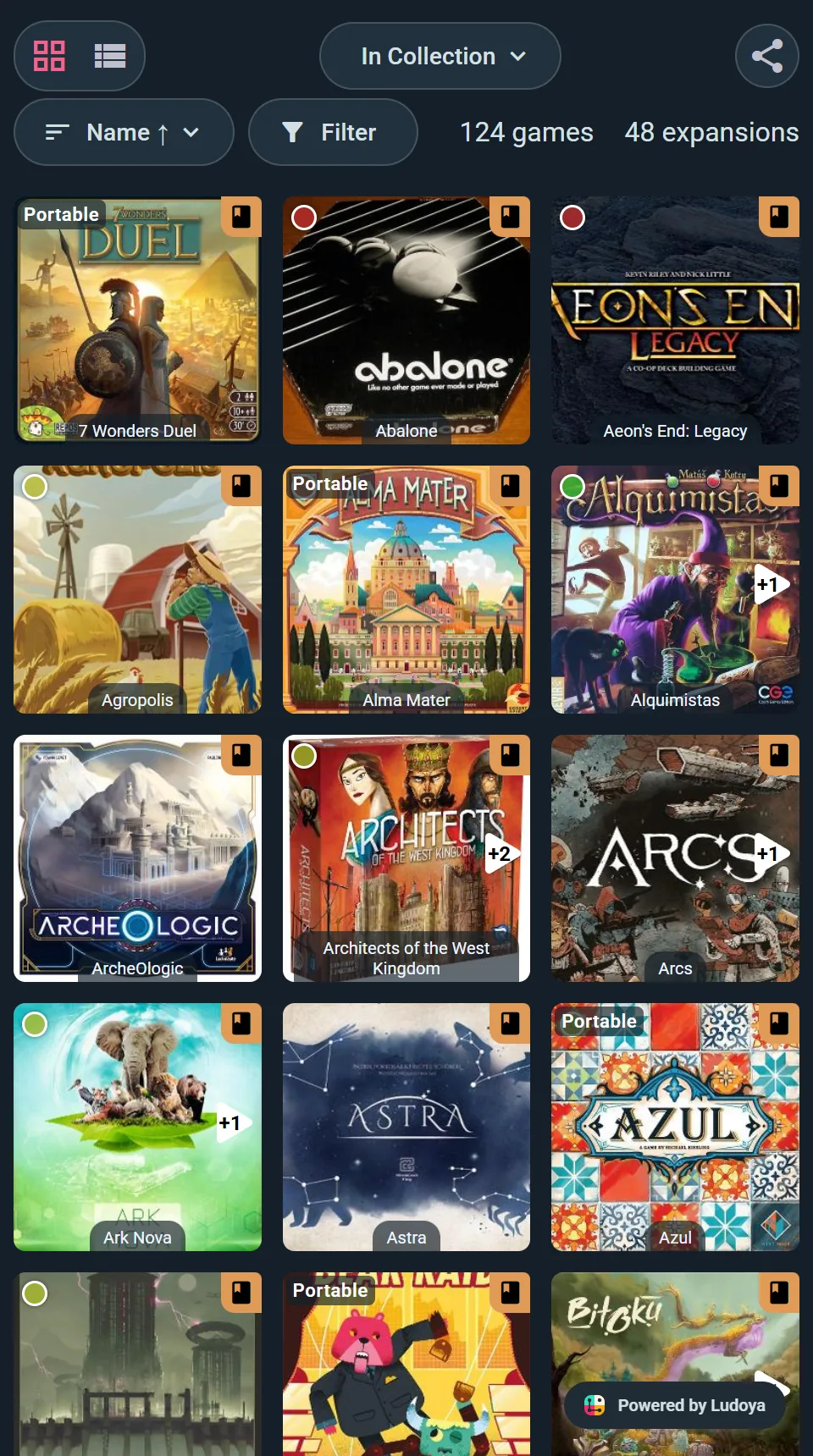
Available embeds:
- Collection — the games an account owns, respecting whichever filter or list you had applied
- Plays — recent plays from an account or group
- Events — upcoming events
The easy way: open the collection you want to share, and choose Create Web Embed from its menu. Ludoya hands you a ready-made HTML snippet that keeps your current filter — so you can embed just your wishlist, just one custom list, or a group's collective shelf.
Plays and events: these don't have a snippet generator yet, so point an iframe at the address yourself — /embed/YOUR-USERNAME/plays or /embed/YOUR-USERNAME/events on the app domain, using your account's or group's username.
Embed mode: In embed view, the Ludoya top navigation and footer are hidden, showing only the content you want to feature.
Turn Any Page Into an Image
Most of the pages worth showing off can be exported as a picture — for Discord, for social media, or for printing and pinning up at the club. Free on every plan, for everyone.
What you can turn into an image:
- Collections — a grid of your covers, respecting whichever filter or list you're looking at
- Play histories — your plays over a period, including the monthly and yearly summaries
- Replays — your year in games, and group and event Replays too
- A single play — the game, the players and the final scores
- Events — title, date, venue and who's coming
Look for Share, then Image — or Download if you just want the file.
Making It Yours
Tap Customize on the share sheet and a live preview updates as you change things:
- Title — your own text. Leave it empty to use the period, or drop
%PERIOD%into a longer title to place it exactly where you want - Background — the default, a plain colour you pick, or your own image URL
- What each game shows — toggle play counts, play times and game names
- Sort by — the options depend on what you're sharing; a collection sorts by name, date added, rating, BGG rating or year, while a play history sorts by play time, play count or name
- Item limit — cap how many games appear, up to 1000, for a cleaner image when you've played a lot
- Format — Square (1:1) for feeds, Story (9:16) for stories, Portrait (4:5), or Custom with your own width and height (512px minimum each)
- Quality — Normal, Big or Huge, depending on where it's going
Apply locks in your changes; Reset puts everything back to defaults.
Your Links Look Good Everywhere
Paste a Ludoya link into WhatsApp, Discord, Telegram, Bluesky or anywhere else, and it arrives as a rich preview instead of a bare URL — title, description and image, pulled from the page itself.
This works for the pages worth sharing: profiles, collections, play histories, Replays, reviews, events and games. The visual ones get a large-format card rather than a thumbnail, so a shared Replay or collection actually looks like something.
You don't have to do anything to switch it on. Copy the address from your browser, or use Share anywhere you see it, and the preview builds itself at the other end.
Sharing Into Ludoya Itself
Inside Ludoya it works differently, and better. When you share a play, review, event, marketplace listing, campaign, shop offer or game kit to your feed, the item is attached to your post as a card — not as a link that gets unfurled. The card stays live: an event card keeps showing its current date and attendee count, and a listing card keeps showing its status.
Use the Share action on whatever you're looking at and pick your feed. Add your own words above it, and people can like and comment on the post while still tapping through to the real thing.