
A scheduled game is a special kind of event focused on playing one specific board game. It has its own page, time slot, seat count, roles, and participant list. Scheduled games can stand alone ("Looking for 3 players for Gloomhaven this Saturday") or be nested inside a parent event as part of a larger gathering.
Creating a Scheduled Game
Within an Event
- Go to your event page
- Choose Schedule game
- Select the game
- Set the date/time (it can differ from the parent event's start time)
- Set Slots (total seats) and optionally Min. players, so the table shows how many more are needed
- Optionally name a Demonstrator — someone who'll teach the game — or a Game Master. One or the other, not both
- Set the estimated duration
- Save
Standalone
Tap the + button and choose Schedule game to create one without a parent event. It gets its own event page with the same features — RSVP, waitlist, calendar export, social thread.
Not Sure What to Schedule?
The first entry in the game list is Can't decide? — Deal me a game from the table's shelves. Give it the player count, an age if needed, and a duration and complexity to lean towards, and it deals suggestions from your collection, your game lists and the collections of anyone you have already added — one card at a time until you say This one!. The full walkthrough is in Play Logging.
Seats, Roles & Waitlist
Seat Management
Each scheduled game has a fixed seat count. As players join, available seats count down. When full, new players join the waitlist and are notified if a spot opens.
Demonstrator or Game Master
The organizer can name one person to fill a special seat at the table:
- Demonstrator — someone who knows the game and will teach it
- Game Master — for RPGs and anything needing a dedicated narrator or referee
It's one or the other, and the organizer assigns it — players don't pick a role when they join. Naming a demonstrator is the single most useful thing you can do for a heavy game: it tells newcomers somebody will walk them through it.
Experience Levels
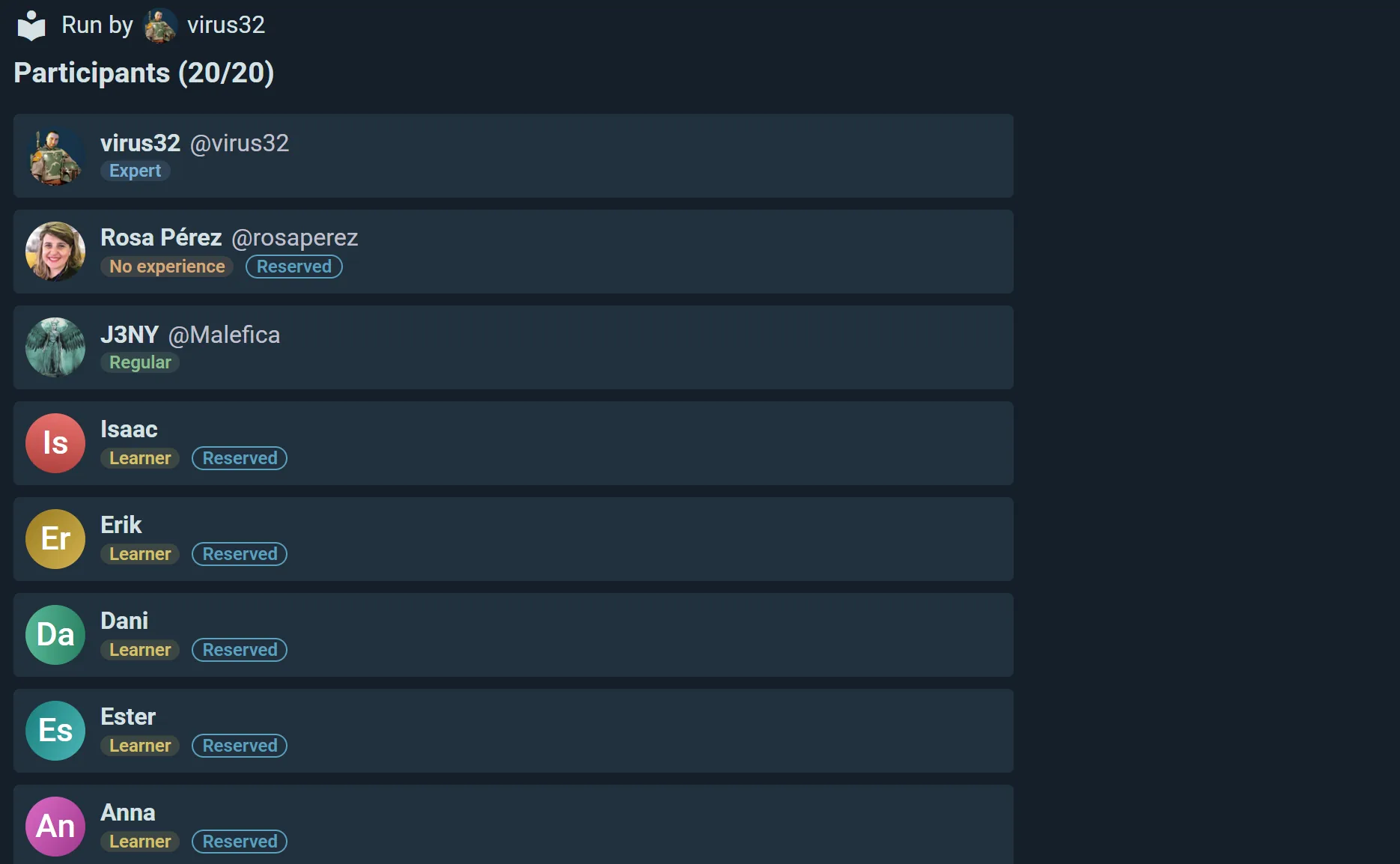
Each player says where they stand when they join, and it shows as a chip on their row:
- No experience — never played it
- Learner — knows the basics
- Regular — plays it comfortably
- Expert — knows it inside out
So it describes who's actually at the table, rather than setting a bar for entry. Anyone can change theirs later with Set experience. For an organizer it's the quickest way to spot a table full of first-timers that could use a teacher.
The Scheduled Game Page
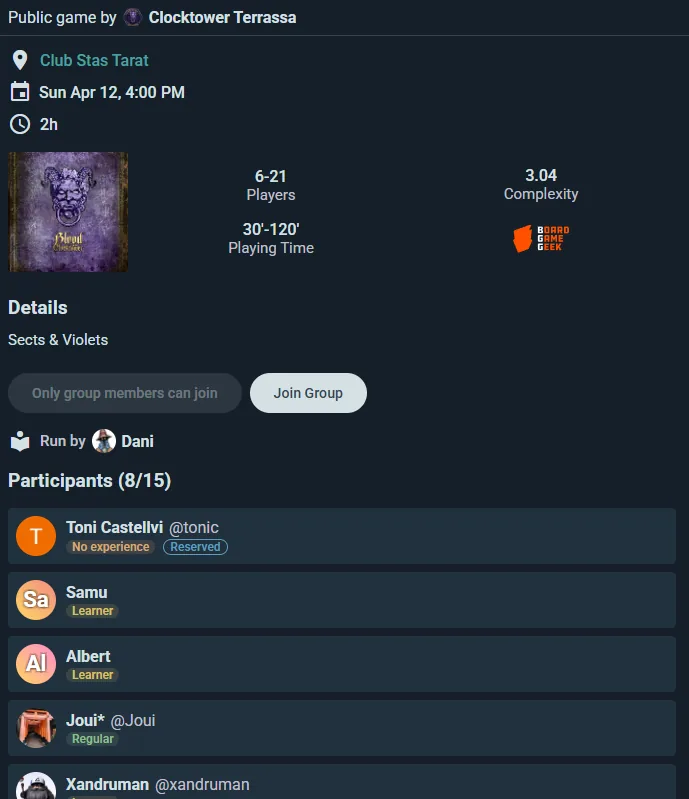
Each scheduled game gets its own dedicated page showing:
- Game name and box art
- Date, time, and estimated duration
- Seat status — filled seats vs. available, broken down by role
- Experience level indicator
- Participant list with roles assigned
- Join button — or Join wait list once every seat is taken
- Invite button — invite specific friends
- Calendar Export — iCalendar or Google Calendar
- Social thread — questions, discussion, and comments specific to this game
- Players chat — a chat for the people at the table, above the participant list. Players join it when they take a seat and leave it if they drop out
If the scheduled game is part of a parent event, a link back to the parent event page is shown.
When it's time to play, Start opens the live table with everyone who said they were coming already seated.
Curating the Lineup
For events with multiple scheduled games, the lineup builds as games are added. Organizers can:
- Review the Event Games list to see what attendees want to play
- Add scheduled games based on demand
- Balance popular titles with variety
- Stagger start times so players can join multiple games throughout the event