
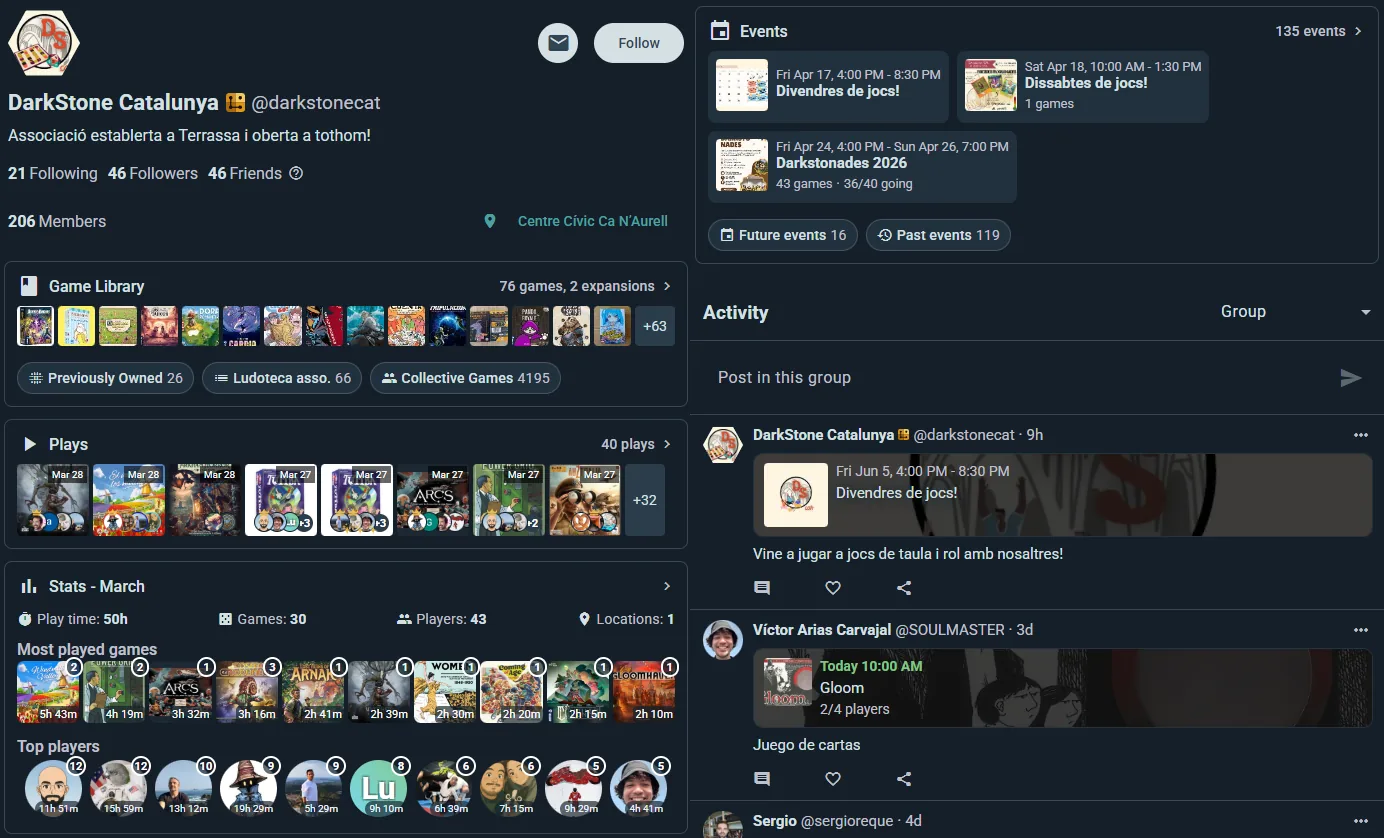
On Ludoya, an organization is simply an account that represents a community rather than a person — a club, a game café, a publisher, a festival. It works like any other account: it has a username and a profile page at ludoya.com/your-name, it owns a game collection, it posts, and it hosts events. What makes it an organization is that it has members.
There's no separate species of thing to learn. A group you create to organize your friends is the same kind of account, just without a login of its own — you run it from your profile. Give it an email and password when you're ready and it stands on its own, so staff can sign in as the venue without going through anyone's personal account. Members, roles, events, collection and history all carry over untouched, and it takes a couple of clicks.
Turning your own account into an organization is equally quick, though think before you do it on an account you play from — see below.
Why Give It Its Own Login
Two things change once the account has credentials:
- Staff can sign in as the venue. Nobody has to lend out a personal login, and someone leaving doesn't take the account with them.
- It runs things of its own: its game library synced with BoardGameGeek, and its own notifications.
Everything else — members, roles, a game collection, events, posting as the community — you already have without them. A premium plan doesn't need a login either: any admin buys it for the club on the Premium page.
Creating an Organization
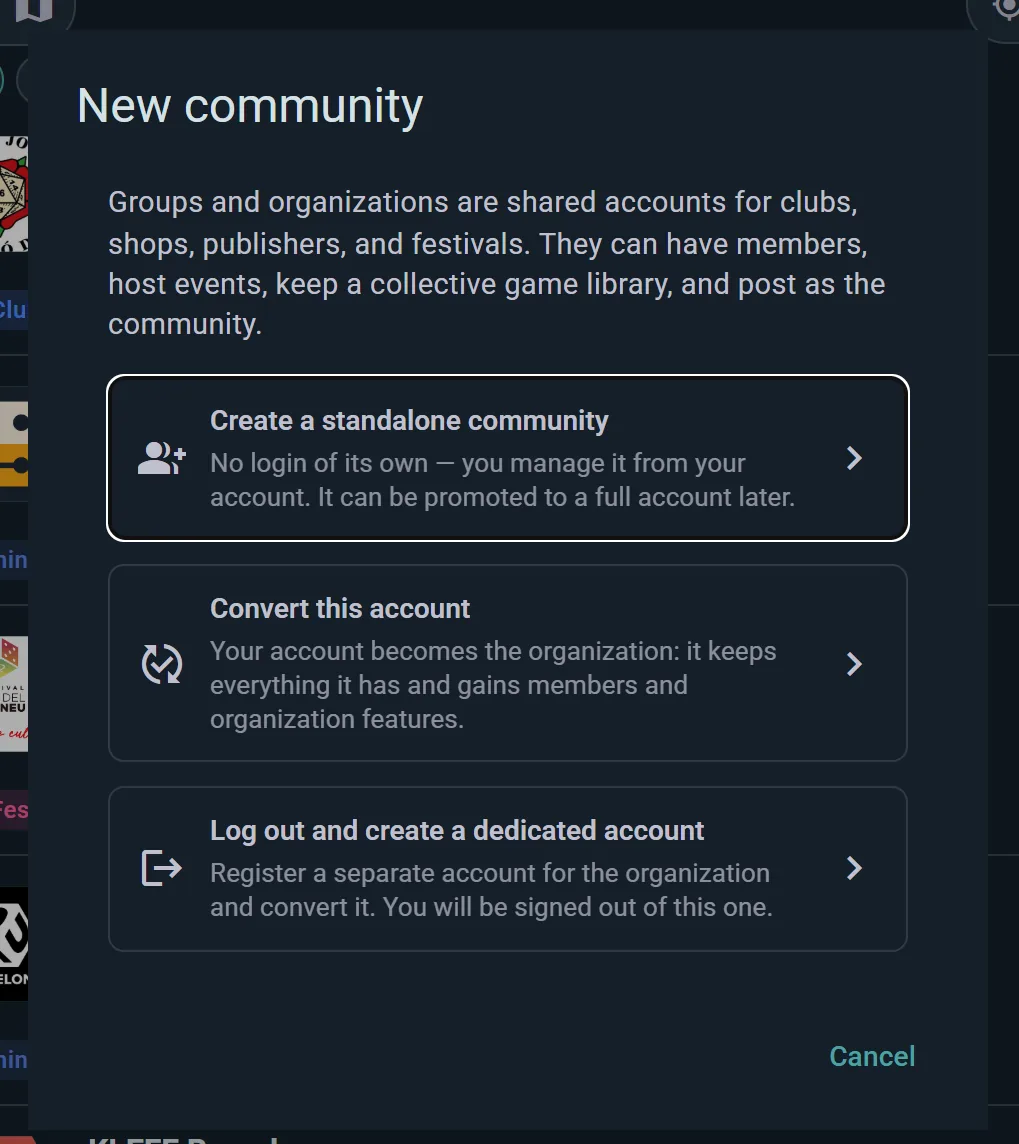
Option 1: From a User Account
You can turn a user account into an organization either by registering a brand-new account and flipping it into an organization during onboarding, or by converting an existing personal account you already have.
Register a New User and Set It Up as an Organization
The recommended path when you don't already have a suitable account: register a fresh user specifically for the organization and use the onboarding shortcut to configure it as one from day one.
- Sign up as a new user with the email and password you want for the organization
- At the "Who is this account for?" step, pick An organization
- The next step becomes Set up your organization: type its name, pick the type that fits (Club, Shop, Publisher, Festival or Other), and set its Join Policy and who can do what
- Finish onboarding
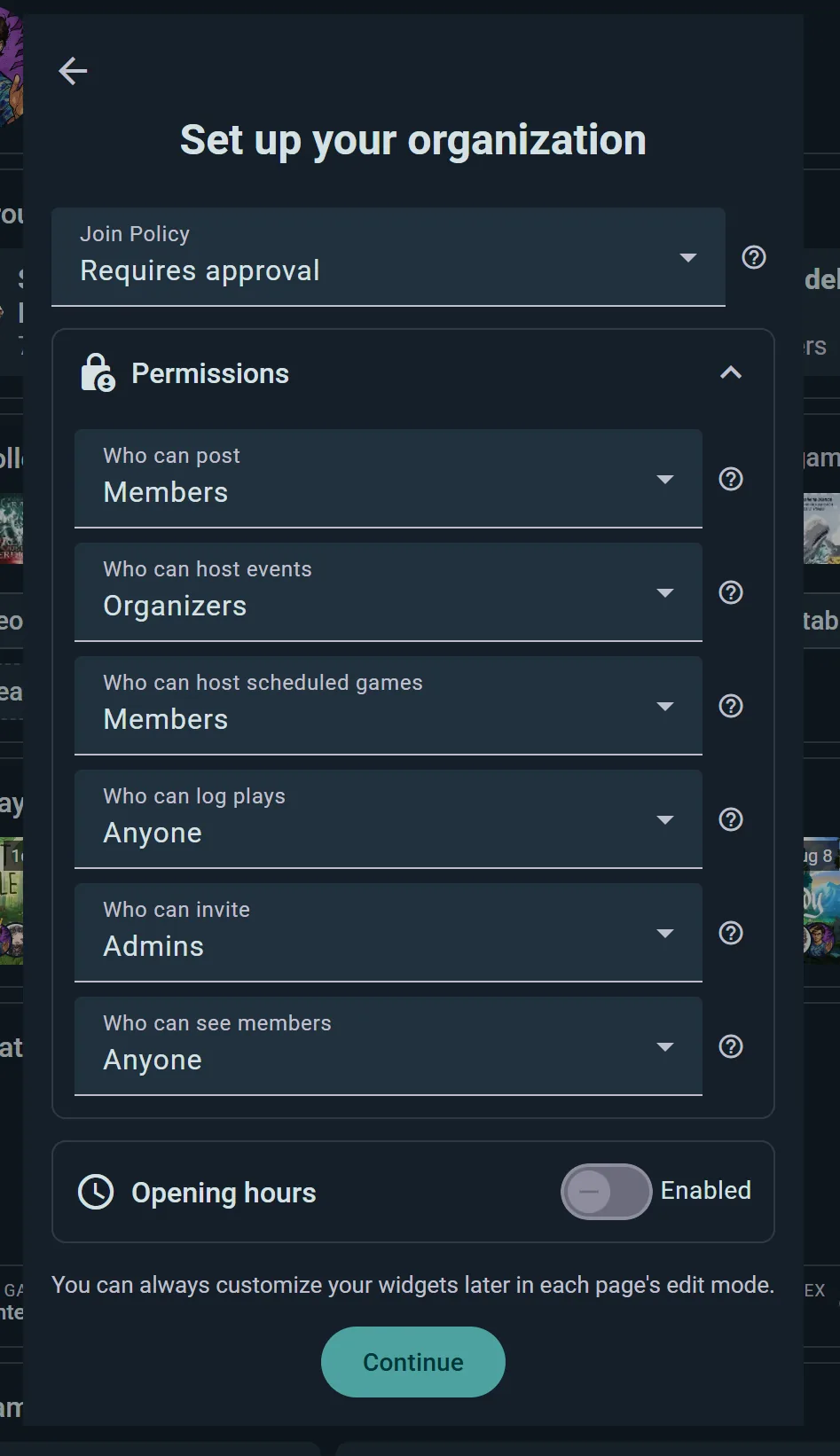
The name you type here replaces the one the account signed up with, which is usually a person's; the avatar is the one you gave the account earlier in onboarding, and the description can be added later. Permissions sets the minimum audience for each action (posting, hosting events, scheduling games, logging plays, inviting, seeing the member list). Every one of these is editable later. Opening hours belong to your locations: set them there, and they show on your profile and power the Open at filter in Explore.
The type you pick also decides which widgets your pages start with, so a shop leads with its inventory and events while a festival leads with events alone. You can rearrange any of it later.
The brand-new account is configured as an organization from the start, with no personal-use phase in between.
Convert Your Existing Personal Account
This flips your current account from a personal account to an organization account in place. Your login credentials (email and password) stay exactly as they are, along with all the plays, stats, friends, and collection already tied to the account. The organization's public identity — name, bio, avatar — is set fresh in the group creation form that appears during conversion, so you're not stuck carrying your personal profile details over as the org's branding.
- Go to Settings → Account Information, or Profile → Edit Profile — the option is in both
- Tap Convert into Organization
- Fill in the form (name, bio, avatar) — this becomes the organization's public face
- Confirm the conversion
You keep your account and everything in it; it simply gains organization features — members, events, and posting as the organization. Members you add can help manage it. You can turn it back into a normal profile later with Delete organization data, which removes everything the organization holds (see below).
⚠️ Think twice on an account you actually play from. Converting doesn't wipe anything — but it doesn't separate anything either. Every play, stat, review and game you've accumulated as a person stays on this account and becomes part of the organization's public history, and your profile now reads as the venue rather than as you. If you want your own gaming life kept apart from the club's, register a fresh account for the organization (above) or promote a group instead (Option 2). Converting really only suits an account that was created for the organization in the first place.
Your Own Account Beside It
An organization's account is the organization: what it posts, logs and collects is its own. Your own games, reviews and events belong on a personal account. When a new organization finishes onboarding, its welcome screen offers Create my personal account: sign up there, and the new account is an admin of the organization from the start, with both signed in on the same device. Switch between them from the menu.
Already have a personal account? Invite it from the organization's console under Members, then make it an admin from its row there.
Option 2: Promote a Group
If you admin a group and want to give it a login of its own, so staff can sign in as the venue:
- Open the group's page and choose Manage, then Settings
- Under Give this organization its own login, enter an Email and a Password, then tap Next
- Enter the Confirmation code sent to that email address and Confirm
The group keeps everything — members, roles, events, collection, history — and gains its own credentials. You stay signed in as yourself; the new login is there for whenever you want to act as the organization.
Organization Capabilities
Core Features
- Independent Game Collection: Maintain your own collection, separate from any member's personal collection. Perfect for stores showing inventory or publishers showcasing their games.
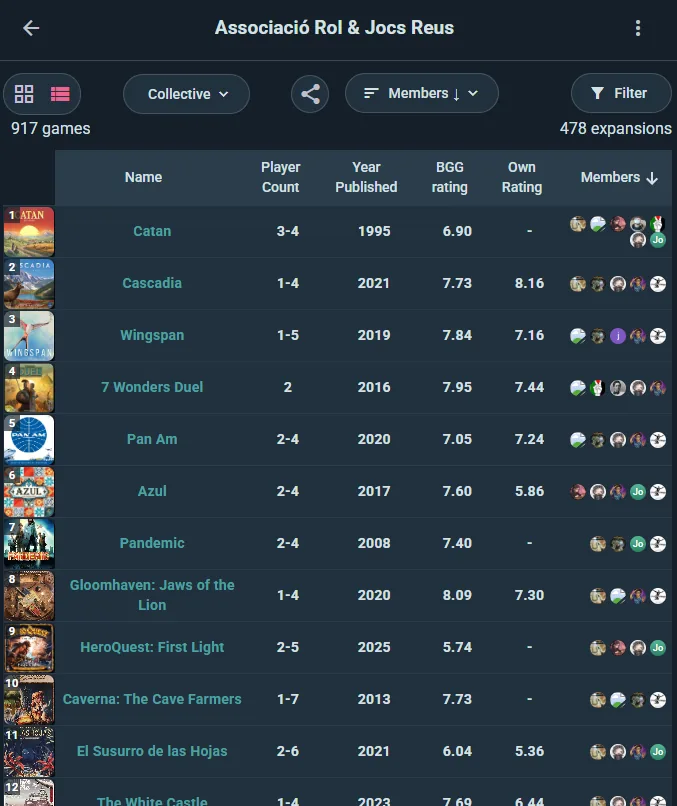
- Aggregated Member Collections: Alongside the organization's own collection, see a combined view of games owned by members — useful for planning events or understanding what the players have.
- Member Roles & Invites: Manage Admins, Organizers, and Members. Invite via search, link, or QR code.
- Event Hosting: Host events under your organization name. Members RSVP and attend.
- Activity Feed: Your organization's own feed of posts, plays, and events.
- Group Statistics: Play counts, most-played games, member activity trends.
- Embeddable Widgets: HTML snippets for your website showing events, games, or recent plays.
BGG Synchronization
Link your Board Game Geek account to auto-sync your collection. Games you add to BGG appear in your Ludoya collection automatically. Great for stores and publishers keeping inventory in sync.
Premium Features
Plans are bought for the club by any of its admins, on the Premium page — the club needs no login of its own for that. They are a ladder: each plan includes everything in the one below. On a club's event it's the club's plan that counts, not the organizer's own; the AI game assistant is the exception, and goes with each person's own plan.
Club plan
Everything in Player that a club's account uses (recurring events such as a weekly game night, events that call themselves off, campaigns and loan tracking), plus:
- Membership tiers and dues: a ladder of rungs with their prices, and dues recorded by hand or paid by card into the club's own Stripe account.
- Tournaments: Create a tournament-type event and run it as Swiss, mixer, or single/double-elimination — Ludoya generates the pairings and bracket and keeps live standings with tiebreakers.
- Raffles: Give away games and prizes to your attendees with a live, animated draw everyone can watch.
- Sub-events: Nest fully-featured events inside a parent event for multi-track gatherings.
- Festival teams: stand hosts who run stands of their own inside your event, helpers kept to some tables or stands, and join links with a QR code for a whole crew. Co-organizing an event with another club is free.
- Availability heatmap: See when your attendees will actually be present, and schedule the big games at the peak.
- Telegram and Discord: Connect the organization to a Telegram chat or a Discord channel for automated event announcements.
- The club's own badges: badges you design for your members and your rungs, worn on their profiles.
- A shared inbox: hand the club's messages between admins, with a log of who handled what. Reading and answering them is free.
- Analytics: your members, attendance, the nights that fill and the games that gather dust.
- Reviews of your games (publishers): who covered them, what reviewers praise and complain about, and how your main game rates next to others.
- Forms with any number of questions (forms of up to 5 are free).
- Game library lending: QR labels on every copy, so members borrow and return games themselves and reserve one that is out.
- Public API: an API key for your own website or app, and Sign in with Ludoya.
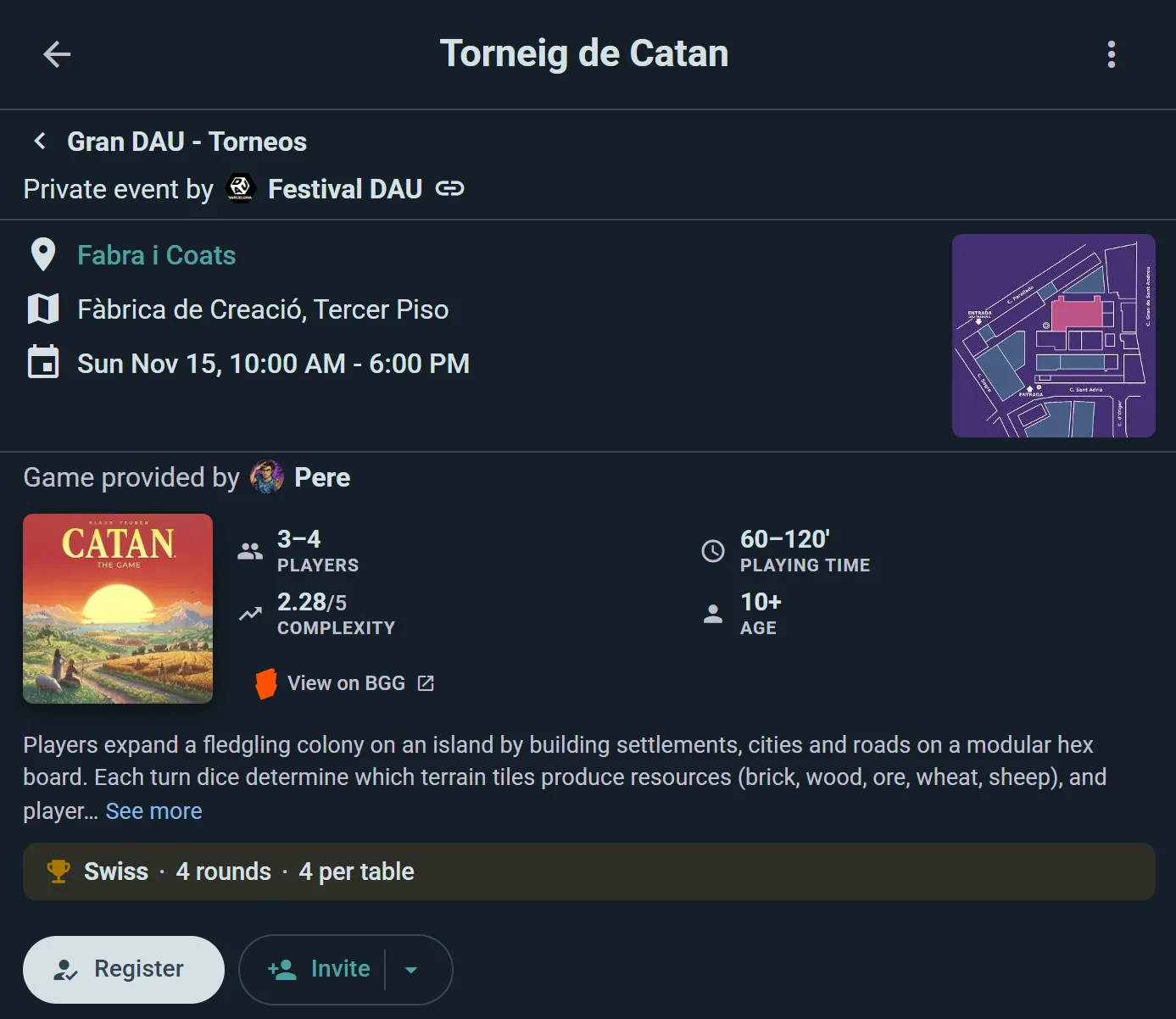
Business plan
Everything in Club, plus:
- Ludoya Tickets: Sell paid admission with on-platform checkout, per-ticket QR check-in, and sales tracking, paid out through your own Stripe account.
- QR Entry Verification: Attendees show a QR code from the event page; scanning it at the door confirms they're on the list, and one tap on Check in records them, building your attendance record as people arrive. Scanning works with any device with a camera, in the app or the browser, and the event must belong to a group.
- Interactive Venue Floor Plans: Upload a floor plan image for any of your locations and visually place your spots (tables, rooms, play areas) on it — attendees explore a pannable, zoomable map of your space. Named spots themselves are free for every club; this adds the visual map layer.
- Table bookings, for stores and cafés: players book a table, a time and games from your library from your profile.
- Auto open/close: Schedule registration to open and close on its own.
- A lending desk at your events, where staff hand every game over in person.
- A second-hand market at your events, run by you: take-in, till and payouts to the sellers.
- The event on a big screen: a tournament's round and standings, or the programme board.
- Every location on your profile, not just the main one.
- Higher public API limits: no daily cap.
Forms of up to 5 questions and the attendee export are free on every plan.
See Premium for subscription details and pricing.
Managing Your Organization
Everything you run for the organization lives in its console: open the organization's page and choose Manage. The dashboard shows what needs an answer today, and the sections down the side cover members and join requests, membership tiers and dues, events and series, the game library, announcements, permissions, the plan and payouts, integrations and data. See Club Console for a tour.
The organization's email and password live with the account rather than the profile, under Settings → Account Information — the same place as for a personal account, because an organization is an account.
Delete Organization
If you no longer need the organization, Delete organization data (in Edit profile) removes all of it and turns the account back into a normal personal account. A group with no login of its own is deleted outright with Delete organization, from its page's menu. Warning: neither can be undone — export anything you need first (the console's Data section exports members, events, the collection and plays).
Made It an Organization by Mistake?
An account converted into an organization that still has no members and no events a week later is asked at the top of its home and its own profile whether it really is one, in the word on its badge (Is … a club?, a shop?, an organization?…), and once by notification.
- Yes, it is answers for good: nothing asks again, and Your first steps takes the question's place.
- No, it's just me opens Switch … back to a player profile?. Type the name you want on your profile (a conversion may have put the organization's name there) and tap Switch back. The organization page and its tools are removed; your @username, bio, plays, collection, followers and messages stay, and you land on your player profile. You can make it an organization again in Settings.
A converted account can also switch back at any time with Revert to Normal User, under Settings → Account Information. That one keeps the name the account has; change it afterwards in Edit Profile.
Joining an Organization
The join process is the same as joining a group:
- Open organizations: Click Join and you're in immediately
- Request-only: Click Request to Join and wait for approval
- Invite-only: Use an invite link or QR code to request or join directly
When you join, a welcome dialog greets you with a short rundown of what you can now do in this community. You become a Member by default (Admins can change your role).
Organization Profiles
Your organization has a public-facing profile showing:
- Logo / avatar
- Name and description
- Upcoming events
- Recent posts and activity
- Member count
- Collection highlights (if public)
- Join button or request-to-join option
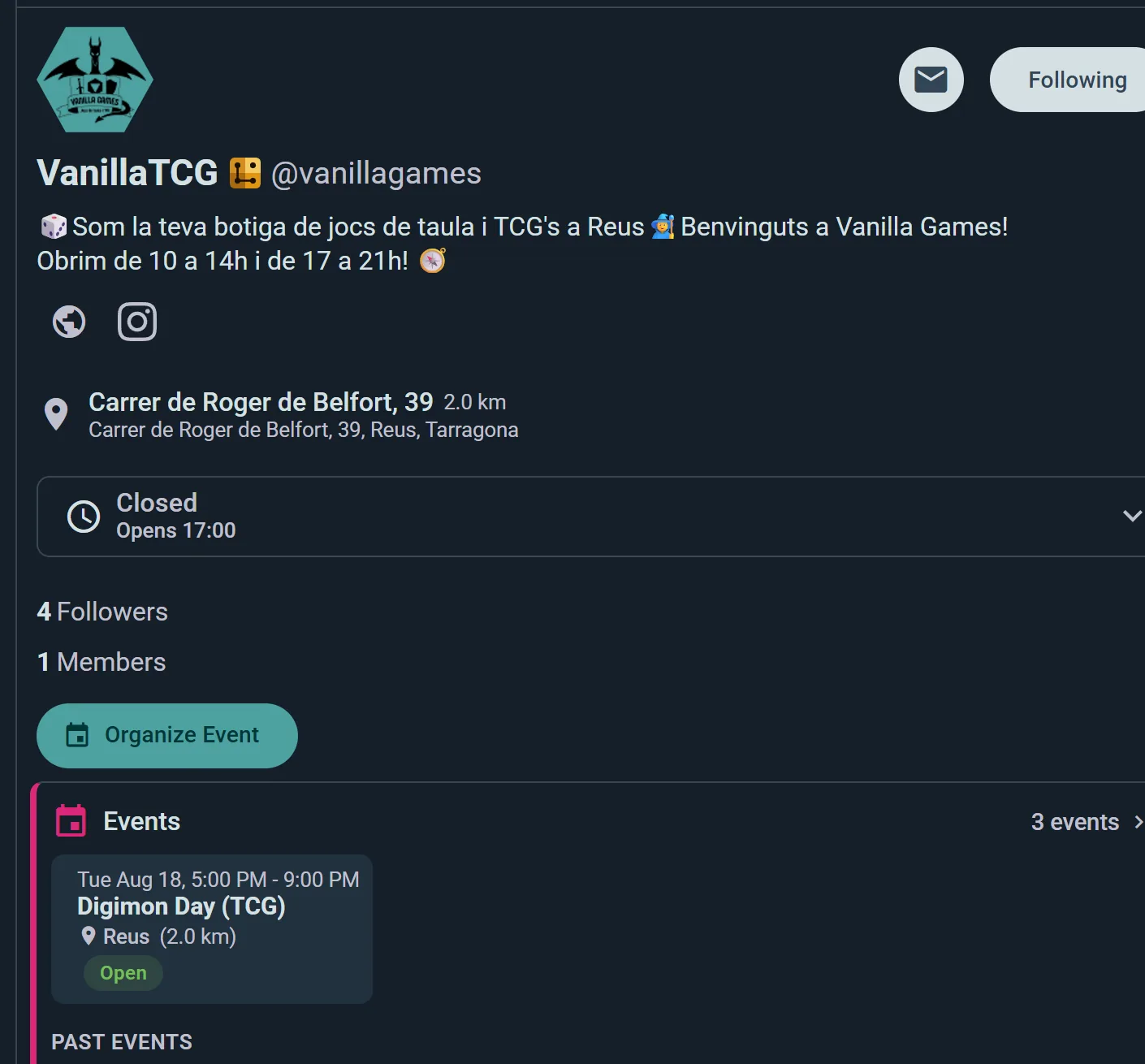
Great for attracting new members and showing what your organization is about.
See also:
- Groups — community spaces for gaming crews
- Events — hosting and joining events
- Premium — subscription features and pricing
- Integrations — connecting with BGG and Telegram