
Get your club running in four steps. Everything else is optional depth you can come back to.
Get Your Club Running — 4 Steps
1. Create a Group
Go to Explore → Communities, tap the + button and choose New community to create a Group. Set the name, description, avatar, and location. For join policy, Open works for most clubs — anyone can join, and you can tighten it later.
2. Invite Your People
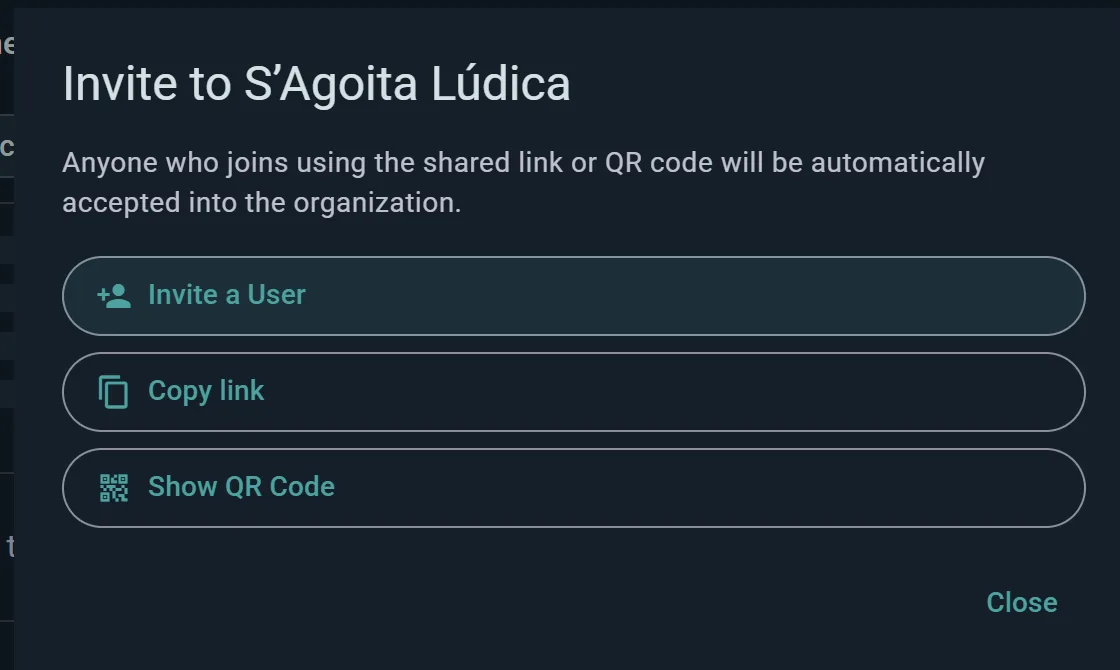
From your group page, generate a shareable invite link or QR code. Send it to your group chat, print it for your venue, or post it anywhere your people are. Anyone who taps it can join immediately (if the group is Open) or request to join.
3. Create an Event
From your group, create an Event. Set the title, date, time, and location.
An event is a gathering. It can be standalone — just a time, place, and attendee list — or it can hold scheduled games (sign-up tables for specific titles) and, for clubs on the Club plan or above, sub-events (separate tracks or rooms under one roof). You can also create scheduled games directly in your group without a parent event, which is handy when you just want to find players for a specific title without organizing a full night around it.
4. Share It
From the event page, copy the event link or grab the QR code. Share it wherever your members are. Members can also tap Add to calendar to drop your game night into their own calendar, as a download or straight into Google Calendar.
That's it. Your club exists, your people are in, and your next game night is on their calendars. Make it a weekly night with a recurring event, below.
Once Your Club Is Up and Running
Everything below is optional. Return to it when you need it.
Build Out Your Events
Recurring events (Player plan; a club gets it with any of its paid plans) — set your event to repeat every week, every two weeks, or any number of weeks, on the weekdays you choose. Future occurrences generate automatically and members RSVP to individual sessions. You can also have new occurrences created as drafts, so you get a final look before each one goes live.
Add scheduled games to give your members a structured lineup. Each scheduled game has its own game, time slot, seat count and waitlist, and seats can be marked as a Demonstrator (someone who'll teach the game) or a Game Master — one or the other, not both. Members browse the lineup and sign up for specific tables, noting their own experience level as they join.
Games at the Event — a shared list of what's in the room. Anyone attending can say they'll bring a title, and as an organizer you can bulk-add straight from your group's collection rather than one game at a time. Each copy is marked free to play or owner present, and you can flag the ones your club provides as official. Attendees swipe through the lineup reacting from "Need to play" down to "Pass", and you see the demand aggregated — the quickest way to decide which tables are worth scheduling.
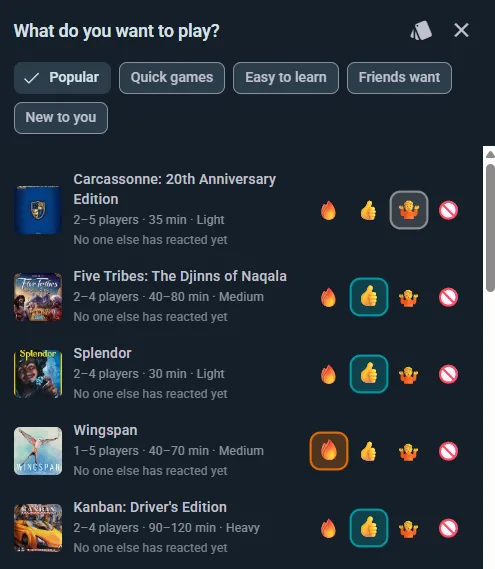
Ludoya plans the tables — for club nights where you don't want to plan a lineup at all. Members say when they're there and which games they want to play, and Ludoya proposes who plays what, when and at which table; they count themselves in, and you confirm the rest with one tap.
Capacity — cap your event, and set a minimum so the page shows how many more are needed until the night is viable. With the Player plan, which a club gets with any of its paid plans, Cancel automatically if the minimum isn't reached calls the night off for you if it stays short, a set time before it starts, and tells everyone who signed up; you get a heads-up first, while there's still time to recruit. Note a full event simply reads Full and the join button stops working; there's no queue to join, so reserve spots yourself for anyone you want to squeeze in.
One exception worth knowing: if someone joins while there are still seats but brings more companions than you have left, the extras land on a wait list instead of being refused, and Ludoya warns them how many before they confirm.
Manage Your Community
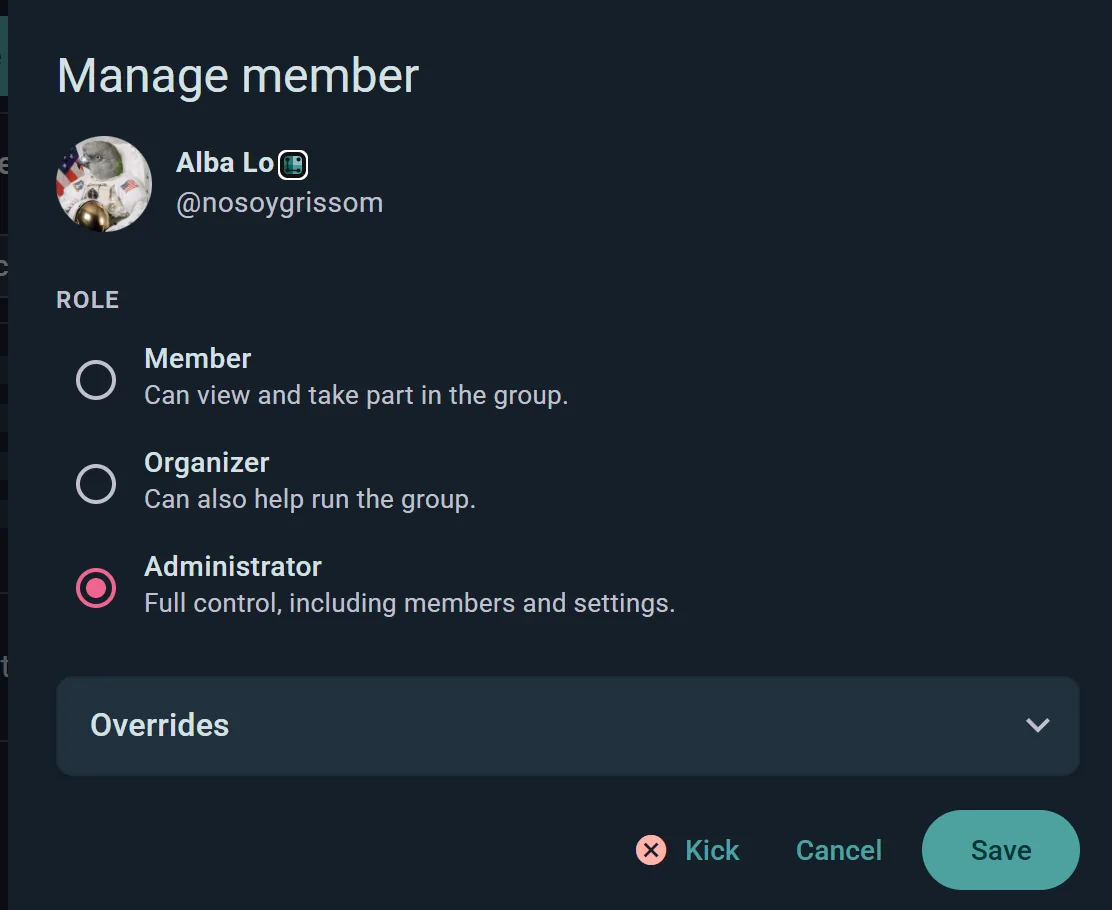
Roles — you start as Administrator. Promote members to Organizer to help run the group, or keep them as Member. Add as many organizers as you need. Any admin can change any other member's role, including fellow admins.
Customizable permissions — for each action (posting, hosting events, scheduling games, logging plays, inviting people, seeing the member list) choose the minimum audience: Anyone, Members, a membership tier, Organizers or Admins. It's one table in the club console.
Membership tiers and dues — put members on a ladder (honorary, member, supporter, youth…), each with its own dues and borrowing limits, and see at a glance who has paid and who owes. See Membership Tiers & Dues.
Per-member overrides — beyond roles, you can allow or deny hosting events and scheduling games for one specific person, and mark someone as always tentative so their RSVPs register as provisional.
Pin a post — Pin to Group keeps one announcement, the house rules, or the next big event at the top of your group profile. Pinning another replaces it, so it always points at what matters now.
Know Your Community
Group collection — see all games owned by all members in one searchable view. Great for answering "Does anyone own this?" instantly.
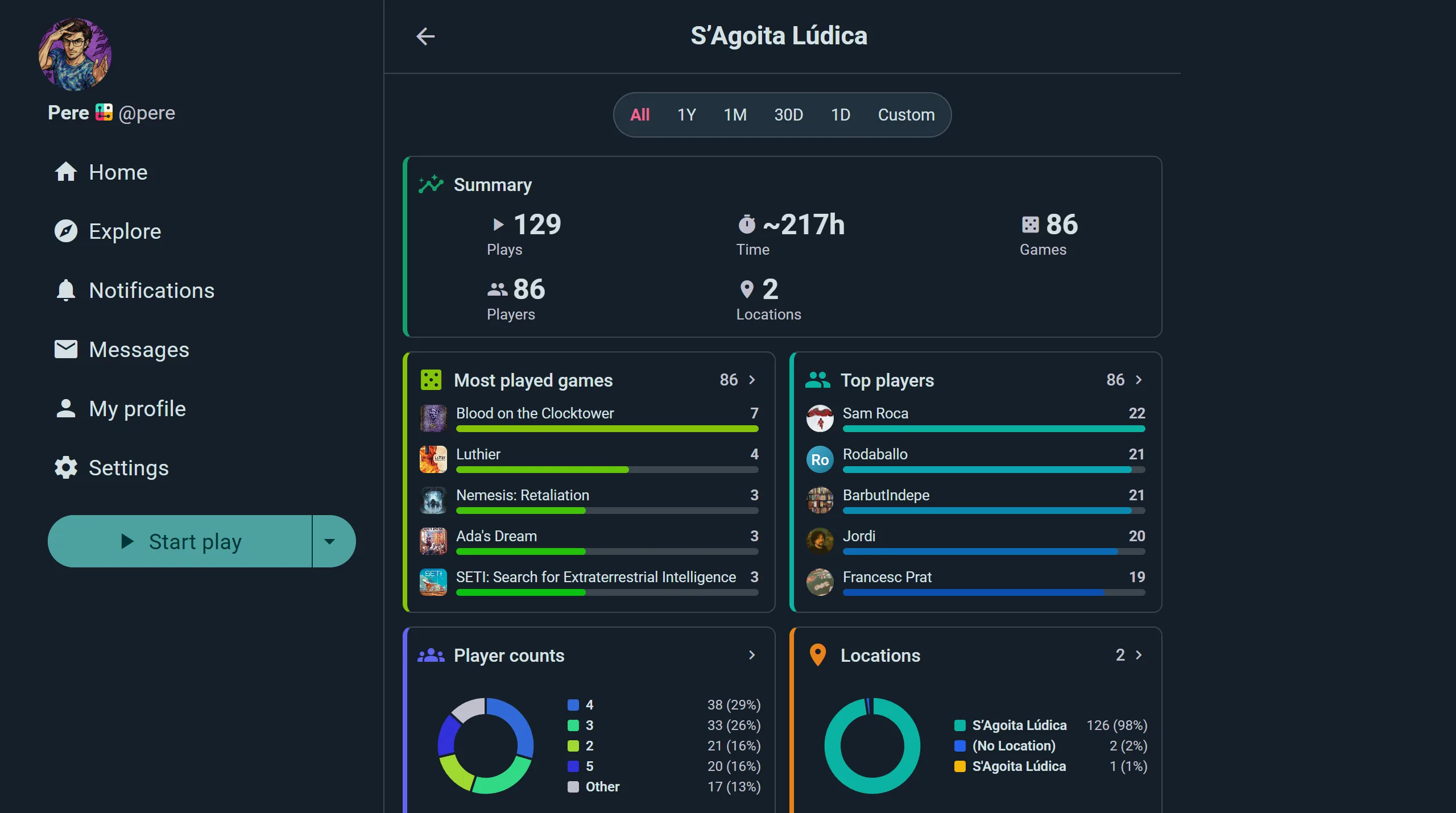
Statistics — total plays and hours, a most-played-games table with plays, time, average length and win rates per title, and a top-players leaderboard ranking members by plays, hours, or wins. Filter by period to see what your club actually enjoys, then plan future events around it.
Group Replay — an animated recap of your community's year (or month) that you can share with members. Individual events get their own Replay too, which makes a nice send-off after a convention or a big game day.
Promote Your Events
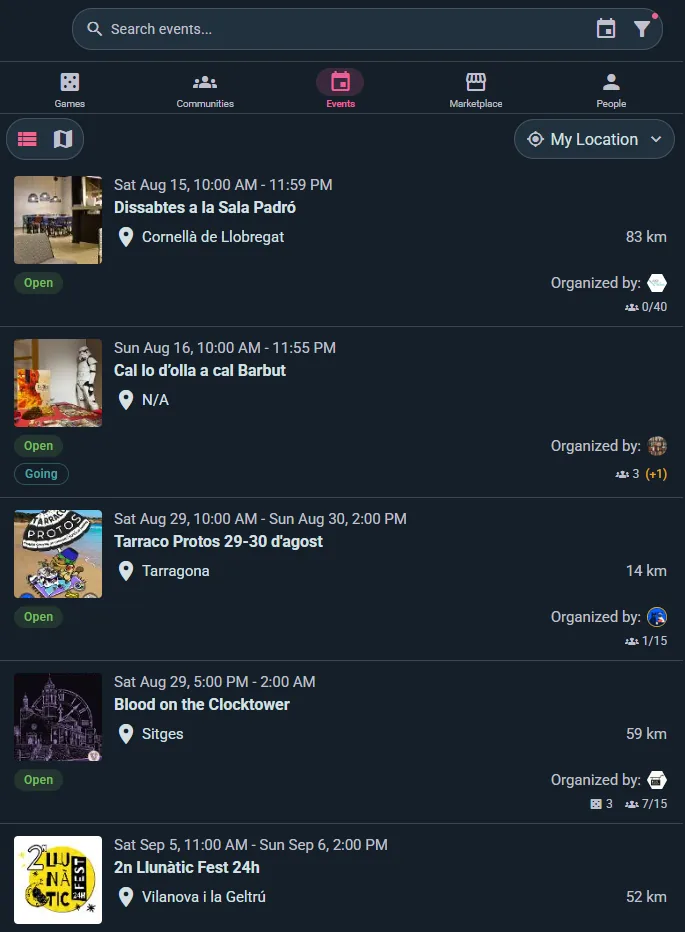
Image exports and QR codes — create shareable visuals of your events, group stats, or game lineups. Post on Discord, Instagram, or print for your venue.
Calendar exports — members add your events to their personal calendars in a tap, as an iCalendar file or a Google Calendar link.
Organic reach — when members RSVP, the event appears in their followers' feeds, spreading the word naturally.
Embeddable widgets — put your group's collection, plays, or upcoming events straight on your own website or forum. The collection has a Create Web Embed button that writes the snippet for you; see Integrations for the plays and events addresses.
Run Tournaments
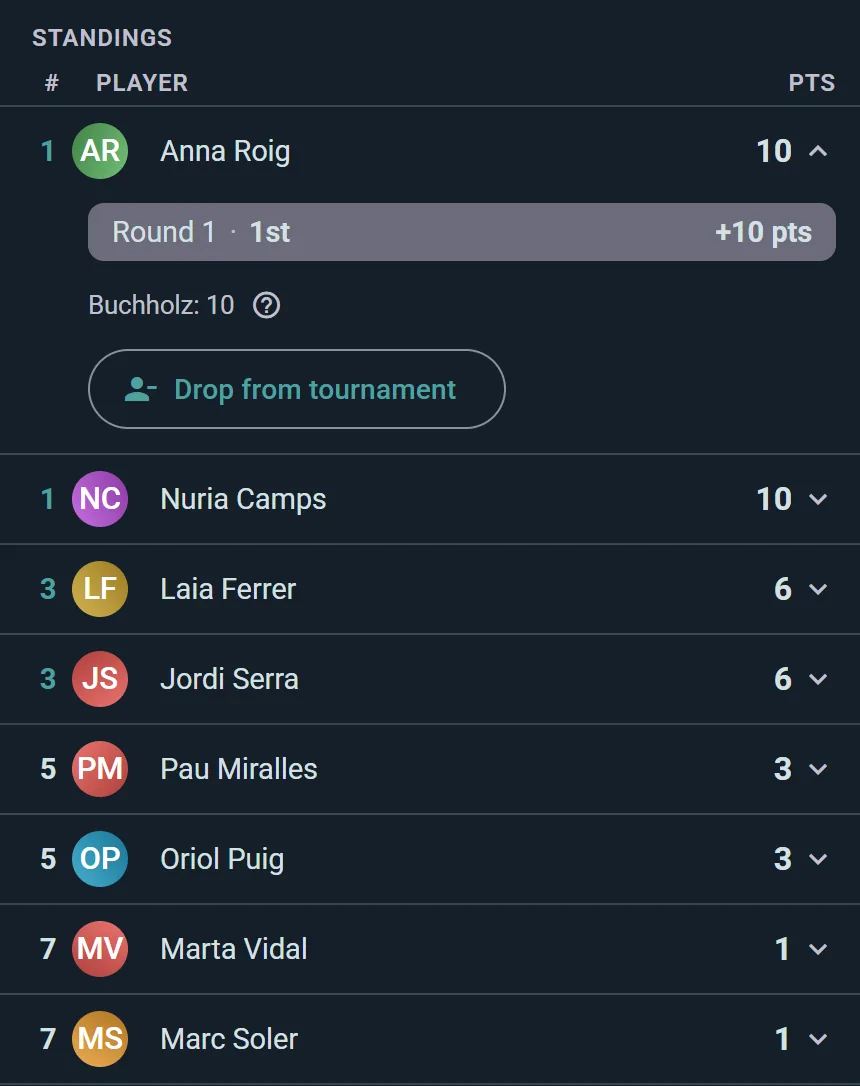
From your group page choose Organize Tournament (Club plan, for the group — any of its admins can buy the plan). Pick a format — Swiss, mixer, or single/double elimination — and Ludoya generates each round's pairings, keeps live standings with tiebreakers, and draws the bracket as matches resolve.
Every pairing becomes a scheduled game your players report like any other, and byes advance automatically. Great for league nights, store championships, and knockout brackets alike.
Operations and Data
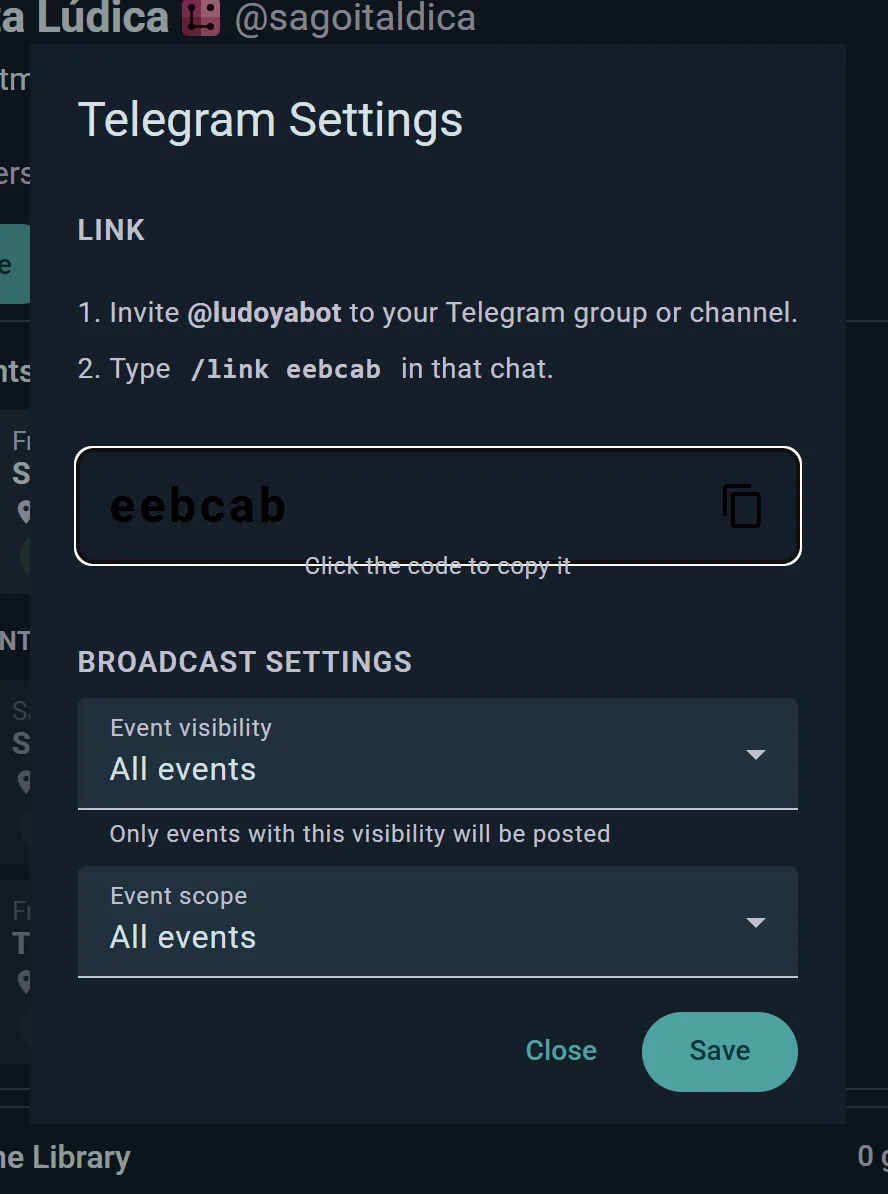
Telegram and Discord (Club plan) — connect your Telegram channel or group chat, or a channel of your Discord server. Ludoya auto-posts event announcements when you publish a new event.
Custom attendance forms (free, up to 5 questions; unlimited on Club) — ask members questions when they RSVP: "Will you bring snacks?", "What's your experience level?" See Event Operations.
Attendee data export (free) — download RSVP lists and form responses as CSV.
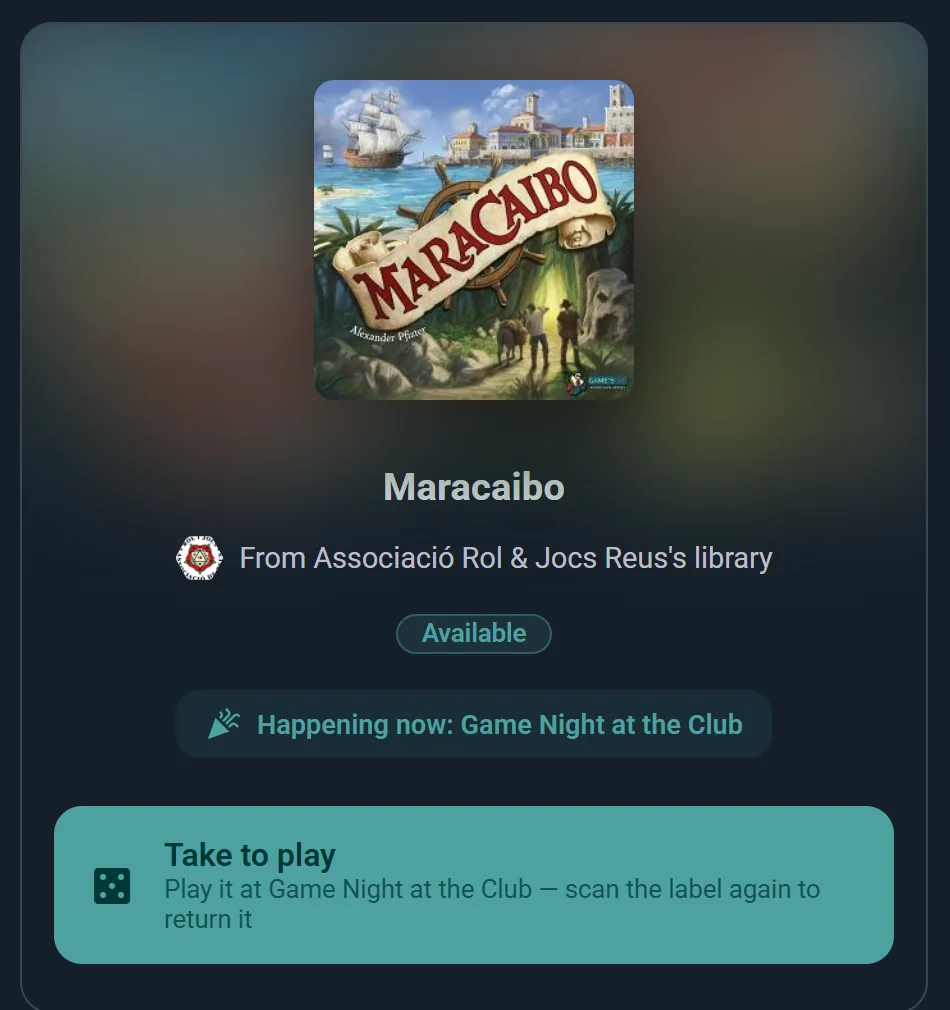
Game library lending (Club plan) — print a QR label for every copy in your club's library. Members scan a box to borrow it self-service, reserve a game that is out, and attendees at your events take and return games right at the table. Every loan is tracked automatically — no librarian on duty required.
What's Free, and the Plans
Running your nights is free: the club, its members and its events, sign-ups with seats and waitlists, scheduled games table by table, forms of up to 5 questions, exporting who's coming, and answering the club's messages.
Start as a group, with no decisions up front. Any admin can buy a plan for the group, as it is. Give it a login of its own whenever you want staff to sign in as the club: it becomes an Organization, and its members, roles, events and history all carry over. The people who run it still play and take seats from their own accounts.
The plans are a ladder: each one includes everything in the one below. On a club's event it's the club's plan that counts, not the organizer's own; the AI game assistant is the exception, and goes with each person's own plan.
- Player: recurring events such as a weekly game night (so the Club plan has them too), the AI game assistant, campaigns and loan tracking.
- Club: membership tiers and dues, recorded by hand or paid by card; tournaments with Swiss, mixer and elimination brackets; prize raffles, sub-events, stand hosts and join links for your event team; Telegram and Discord; availability heatmaps; the club's own badges; a shared inbox for several admins; the club's analytics; forms with any number of questions; QR labels on every copy, with members borrowing games and reserving the ones that are out; and the public API.
- Business: Ludoya Tickets for paid admission, QR check-in at the door, venue floor plans and table bookings, sign-ups that open and close on their own, a staffed games library desk at events, a second-hand market at events, the event on a screen, every location on the profile, and the public API without a daily cap.
Plans are bought here on the website: prices and every detail are on the Premium page.
Event Day Checklists
Before the event: Create the event and add scheduled games. Invite organizers. Pin announcements. Share the event link, QR code, and calendar export. Check the Games at the Event list and the aggregated wishes to plan which games to highlight.
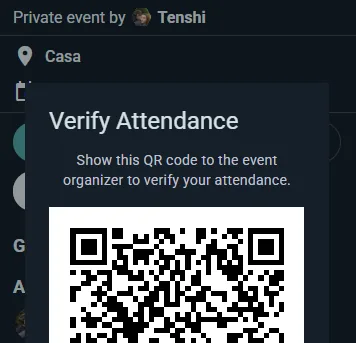
During the event: Have organizers start live sessions as games begin. Scan attendees' QR codes at the door if you're on the Business plan. Answer questions in the event's social thread. Update tournament scores as results come in.
After the event: Open the event's Report in its console: who came, what filled up, what sold, what worked and what to look at next time, beside your earlier events, with a PDF to send to sponsors. Thank attendees in the feed. Plan the next event from there.