
Play matching is how an event gets people to its tables. Pick one when you create or edit an event: tap + Play matching and choose from the list.
- Ludoya plans the tables — for club evenings and open play. People say when they're here and which games they want to play; Ludoya proposes who plays what, when and at which table
- People book a timetable — for a play stand, like a publisher's demo tables at a fair. Every table runs sessions at set times, and visitors book a seat
- Ludoya matches playtesters — for prototype days. Designers bring their prototypes, and Ludoya matches everyone into tables, slot by slot
Visiting a stand? Jump to Booking a session.
Each choice in the list says what it is for, and the plan it comes with when yours doesn't have it. An event runs one of them at a time, or none. Ludoya plans the tables comes with the Club plan; People book a timetable and Ludoya matches playtesters come with Business. An event that already has one keeps it.
Each of them seats the people who sign up on Ludoya, so an event with a play matching always takes its sign-ups here: the attendance mode is not a choice. If you turn one on for an existing event that signed up elsewhere, the editor says its sign-ups move to Ludoya before you save.
Ludoya Plans the Tables (Club plan)
Built for club evenings and open-play corners, where people come and go and nobody wants to plan a lineup by hand.
As an attendee
- Attend the event and say which hours you're there
- Rate the games on its list: Need to play, Interested, Maybe or Pass
- Ludoya proposes tables. They show in the event's schedule with a Proposed chip, and the ones that include you offer Count me in or Skip this game
- My tables narrows the schedule to your own, with who you sit with, and the bar on top says what's next: "Your next: Cascadia · 6:00 PM · 3 more tables"
A table is set once everyone at it counts in, or a while before it starts (the organizer picks how long). You're never seated at a game you passed on, never at two tables at once, and the plan spreads the seats so everybody plays something.
As the organizer
- In the event's settings: how many tables at once the room holds, when proposals are confirmed, and the setup time between games
- The console's overview has the plan at a glance under Run it: how many people, how many tables are confirmed or proposed, and the most tables out at once
- The console's Programme lists proposals as ordinary rows. Set now confirms one, Set all confirms them all
- Needs attention on the console's overview names who has no seat at a game they need to play, and when another copy of a game would seat them
- Attendees shows each person's tables, free time and the games they have no seat at, and Remind to rate nudges the people who still have games to rate
- On the games page you can change how long a game takes here, or Plan one anyway
People Book a Timetable (Business plan)
Built for a play stand that demos games all day: a publisher at a fair, a store's demo corner. Every table runs one game in sessions at set times, and visitors book a seat from their phone.
Setting up the stand
Create the stand as a New event, tap + Play matching and pick People book a timetable. Inside a club's festival, add it with Add → Activity (on the event's page or in its console) and pick the same. On a festival of your own, Organize a play stand under the play button opens the form with the timetable already picked. Then set its rules:
- Sessions per person per day — how many sessions one person can book each day
- Booking opens — when each day's sessions open for booking, or as soon as they're published
- Hold a booked seat for — how long after the start a booked seat waits for its owner to check in
- Walk-up seats — seats in every session that can't be booked ahead, for people who come to the stand
- Where at the fair — the hall and booth, shown on every session
- Ask for feedback — your own questions, asked of everyone who played once their session is over. The console's Feedback card sums the answers up game by game, for the whole stand or one day or table, and Download all answers (or, once narrowed, Download these answers) gives you every answer as a spreadsheet (the stand's day and time, table, game, language, one column per question), without the players' names, and Download PDF gives the same answers as a document to send the publisher (each question's totals, how a scale's answers spread, the comments with their day, time and table); each day and table in the pickers says how many answers it has, By day compares the days on any scored question, and the card refreshes on its own during the fair. A line on top says how many of the players answered (everyone asked once their session was over, and anyone who answered unasked), and each written comment says the day and table it was about
Then build the timetable from the stand's page in the console, with Build the timetable (later, Add sessions). Add the tables (the game, the seats and the language of each), drag along each day to draw the stand's hours (drag a stretch's ends to change them, tap it and its × to clear it), and set how long a session lasts and the break between them. A table can have a length of its own, a 20-minute filler beside an hour-long game, and a break of its own, a long reset after a heavy game: its Length and Break fields, left empty, run the stand's. Give a built table a new length or a new break and its sessions off the new rhythm are offered, apart, to be replaced by sessions on it (a session you lengthened by hand shows there too: leave it unticked to keep it); the line under the hours gives each rhythm's sessions a day; when its tables differ, the stand's schedule shows each session's length. A gap you leave in a day is a pause; a day you draw shorter has its own hours; a day you leave empty gets no sessions. The builder counts what it will add before you confirm, and never makes the same table at the same time twice. It never puts a new session on top of one already at that table. When the hours or lengths you set leave out sessions already built (a lunch break drawn over them, or a day drawn shorter), it names them by time and table, says who is booked or waiting on them, and offers to remove them: whoever had a seat or waited is told which session went and can book another time, while guests booked at the desk by name are yours to tell. Removing them can't be undone.
Booking a session
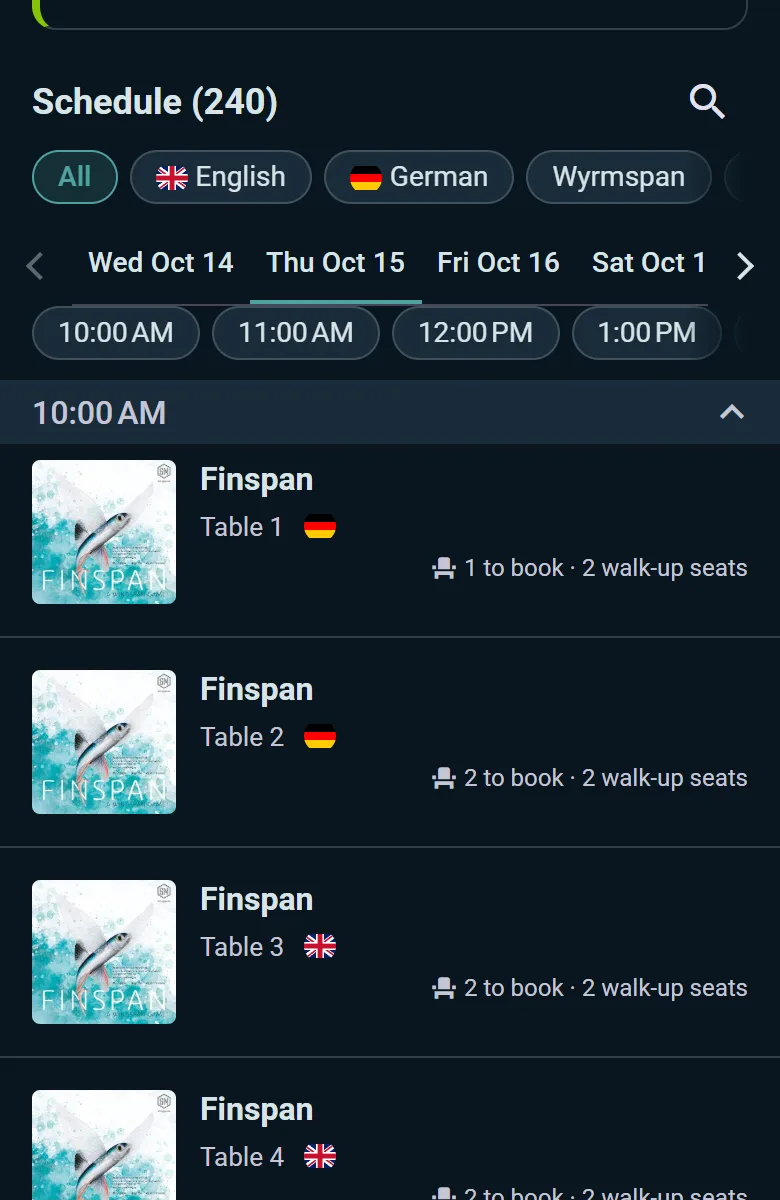
A stand's schedule lists its sessions hour by hour, with what is left: "2 to book · 2 walk-up seats", "Booked up · 1 walk-up seat", or "3 free until 11:19 AM" on a session that has started. Its games page says where the next free seat is. Pick one game on the schedule's chips (or open a stand that demos only one) and the game is named once at the top, each session one line: its table, its language and what is left.
- Book today's session (or tomorrow's, or Book your Fri session) books a seat. One booked session a day is the usual rule, and the stand's page says how many. My tables in the stand's schedule lists the ones you booked
- A booked session shows My check-in code: show it at the stand within the hold time after the start, or your seat goes to the wait list
- A session booked up ahead offers Join wait list, with how many are ahead of you. At the start, the wait list gets the walk-up seats first, and whoever moves up is told: check in at the stand within the hold time, as with any booked seat
- Once a session has started, its free seats are taken by walking up to the stand: the desk seats you there during the session's first minutes (15 for a 45-minute session). A walk-up seat doesn't use up your booking for the day
- After playing, the stand's questions appear on the session's page, and your answers are not shown to the stand with your name
Running the desk
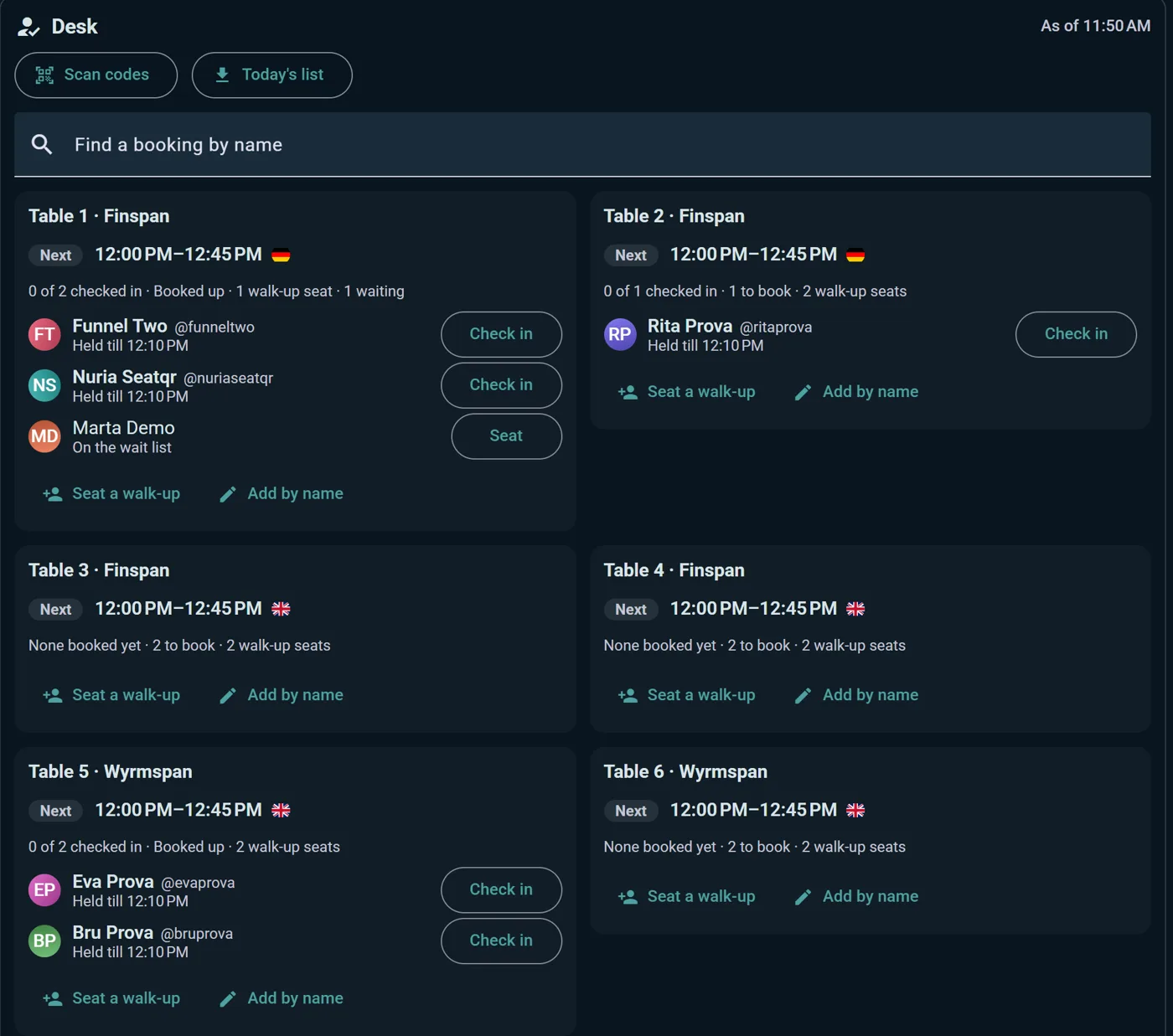
The stand's page in the console is the Desk your staff work from:
- Every table with the session on Now and the Next one, and who has checked in
- Check in for each booked person, Seat for someone on the wait list, and Seat a walk-up (or Add by name) for whoever is standing at the table. Undo check-in and Remove walk-up put a mistake right
- When a booked seat isn't claimed in time it goes to the wait list on its own; Give to wait list now hands it on early
- The tables that need someone are listed at the top, with Needs you on their card
- Find a booking by name looks someone up on any day; if they have nothing, it offers the tables with a free seat. Scan codes checks people in from their code, and Today's list downloads the day on paper for when the Wi-Fi goes
- Below the desk: the timetable's numbers, the wait lists, the stand's rules, and what players answered to your questions, game by game
Desk helpers
The volunteers at your stand don't need the whole console: they're your stand's team, as Helpers. The stand's Desk helpers card shows them, with Add a helper and Invite with a link (a link and QR code for the whole crew, Club plan). Once they accept, the stand's page shows them Run the desk, which opens the desk on a page of its own, on their own phone:
- Everything the desk does: Check in and Scan codes, Seat from the wait list, Seat a walk-up, Give to wait list now, Find a booking by name and Today's list, with the timetable to read
- Nothing else: they can't edit, cancel or delete the stand or its sessions, build the timetable, change its rules, see what players answered or add helpers
- The line under a helper's name (All tables at first) keeps them to some tables (Club plan): their desk shows those alone, and a lookup or a code scanned from another table says which table it is and who runs it. When every helper is kept to some tables, the card says which tables nobody runs
- Their access ends when the stand does. Remove takes a helper off sooner, and a helper can leave with Stop helping at this desk
Desk log
Below the timetable, the Desk log says what happened at the desk, newest first: for when you need to know who let someone in, who was removed, or where a booked seat went.
- Every check-in, by name or with their code, undone check-in and absence; everyone seated from the wait list, moved up from it as a seat came free (or into a walk-up seat as the session started), or seated on the spot; every removal; everyone who gave up their seat; and every booked seat handed on, with who moved up into it, or that it opened to walk-ups because nobody was waiting. A move up sits next to the line that freed its seat
- Who did it, at which table's session, and when. Lines nobody did by hand say Automatic: a booked seat is handed on by itself once the stand's hold time after the start has passed with nobody checked in to it, and the wait list moves up into it
- Counts at the top for what you are looking at: people checked in and no-shows (each counted by where they ended up, so an undone check-in doesn't count), check-ins undone, from the wait list, walk-ups, removed. Tap a count to see its lines alone. Narrow it by day, table or who did it, or search a visitor or a helper; Clear filters shows everything again, Show older shows more
- The clock button on a table on the desk opens the log on that table's day, for whoever comes back to the desk asking what happened to their seat, during the session or after it
- The download button saves the lines you narrowed it to, all of them, as a spreadsheet: the exact time, the action, the visitor and their account, the table, the game, the session's start and who did it, each in a column of its own. It has visitors' names in it: keep it for settling what happened at the stand
- The people who manage the stand and the event it is part of see it; desk helpers don't. Nothing in it can be changed. A deleted account's lines lose its name, walk-ups keep the name the desk typed, and the whole log is deleted 30 days after the stand ends
Ludoya Matches Playtesters (Business plan)
Built for prototype nights and design meetups. Designers bring their prototypes to the event, players attend, and Ludoya matches everyone into tables, slot by slot, so every prototype gets played and every player gets a seat.
Pick Ludoya matches playtesters in the event's settings, then run it from the event's console, under Playtesting: set the slot length and how many tables there are, and Generate schedule once the designers have brought their prototypes. When attendance or the prototypes change, Update schedule fits the new picture into the tables that aren't playing yet.
Players rate the prototypes they'd like to try on the event's page, with the same four answers as any game (Need to play, Interested, Maybe, Pass), and Ludoya seats them at those first. Their tables show in the event's schedule under My tables.