Welcome to Ludoya! This guide walks you through setting up your account and getting ready for your first game night.
Creating Your Account
You can join Ludoya with just a few clicks using one of two methods:
Email Sign-Up
- Visit the Ludoya homepage and click Sign Up
- Under Create your account, enter your name and email address and Continue
- Verify your email: type the code we email you (Send me a new code if it doesn't arrive)
- Set a password, and you're in
Google Sign-In
- Click Sign In with Google on the sign-up page
- Authorize Ludoya to access your Google account
- You'll be logged in immediately
Choosing Your Account Type
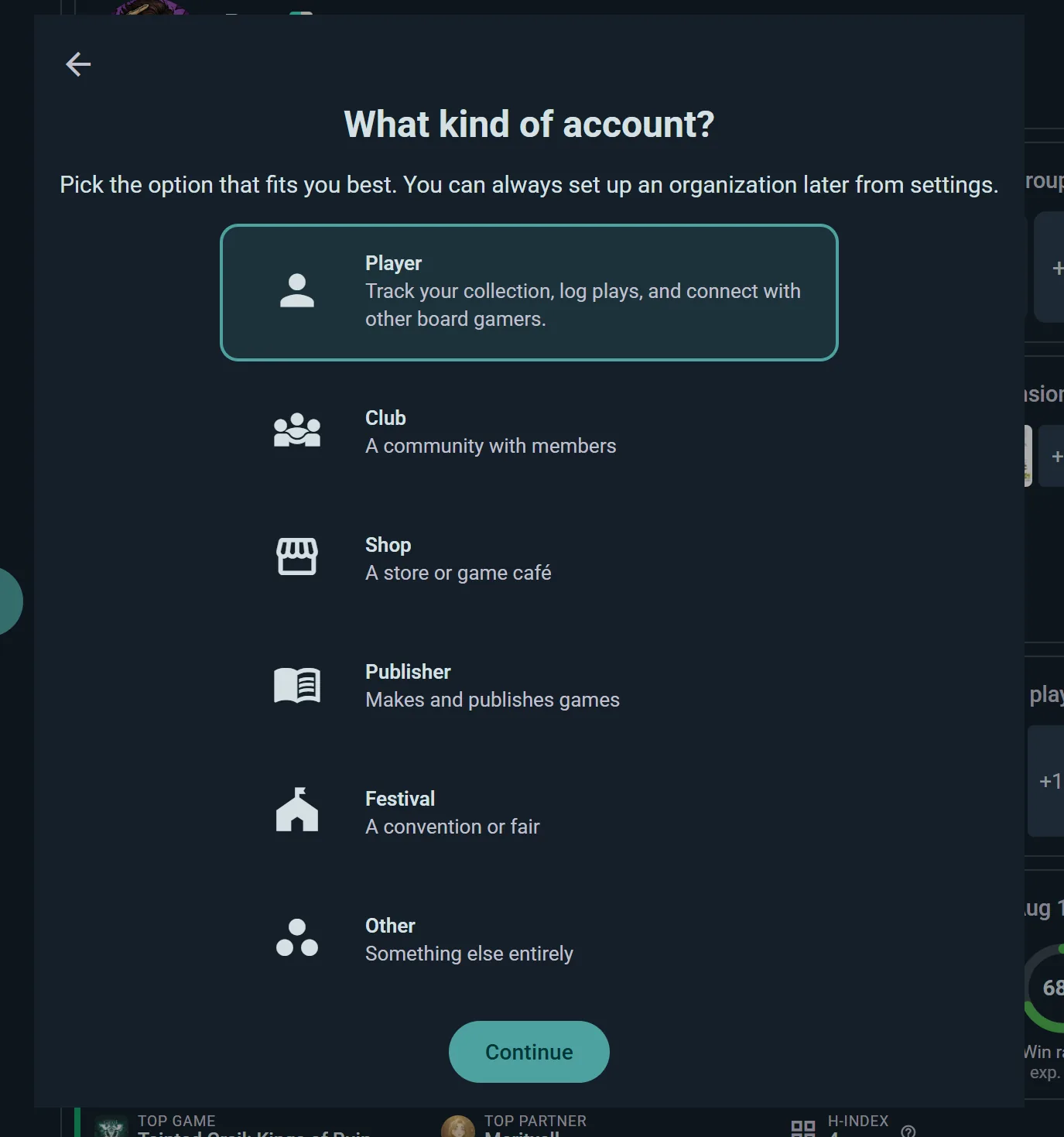
Once you're in, Ludoya asks who the account is for. Most people pick Me. If you're signing up for a club, a store, a festival or a publisher, pick An organization: this account then becomes its organization page, with its own profile and premium options. Nothing is locked in — you can set one up later from settings.
First-Login Setup
On your first login, a short wizard sets you up. It's four screens and takes about a minute.
- Terms of service — review and accept
- Who is this account for? — see below
- How will you use Ludoya? — see below. Skippable
- Welcome! — you land on your home dashboard
You can step back at any point before the last screen, and if you close the wizard partway through, it opens again next time. Your picture, bio and the rest of your profile come afterwards, from Set up your profile in Your first steps on Home.
Who Is This Account For?
Two options, and you can change your mind later:
| Me | Track your collection, log plays, join events and connect with other board gamers |
| An organization | A club, shop, festival or publisher you run. This account becomes its page, not your profile |
An organization turns this account into an organization: an account that represents a community rather than a person. The next screen asks for its name, since the one you signed up with is usually your own, and what kind it is: Club (a community with members), Shop (a store or game café), Publisher, Festival (a convention or fair) or Other. From then on, what the account posts, logs and collects is the organization's. Signed up for yourself after all? It's just me, not an organization takes you back.
It's not a different kind of account, just a different shape of the same one, and a personal account can become an organization at any time from Settings → Account Information.
How Will You Use Ludoya?
If you picked Me, this is where you tell Ludoya what you're here for. Select as many as apply — Social starts selected:
- Social — join groups, discover events near you, and connect with other board gamers
- Collection — track your owned games, manage wishlists, and buy or sell on the marketplace
- Play Companion — log your plays, track scores, and explore your gaming statistics
Your picks decide which widgets appear on your home screen, your game pages and your profile, and which first steps Ludoya suggests. Nothing is locked away — a Collection person can still log plays — it just means the app leads with what you actually care about. You can rearrange any of it later in each page's edit mode.
A Simpler App to Start With
Your answers also shape what a newcomer sees for the first few days, so the app isn't a wall of options on day one:
- The create button offers three things, named the way you'd say them, like Find a game night, Record a game you played or Add a game you own, picked from your answers. More… holds everything else. On Home, until your first play, the button says what it does instead of being a bare +.
- Explore opens on the tab that fits you: events if you came to meet people. Until Ludoya knows your taste, it suggests Great first games instead of recommendations.
- Your profile explains itself. Empty areas show a card saying what will go there and how to fill it; they go away once you've filled a couple.
- Picking players is simpler. The player search comes first; teams and anonymous seats sit behind one row until you need them.
After you've done four different things, the create button grows to the full list. Switch between Simple and All tools any time in Settings → Create button. Accounts that existed before keep the app they know.
If You Picked an Organization
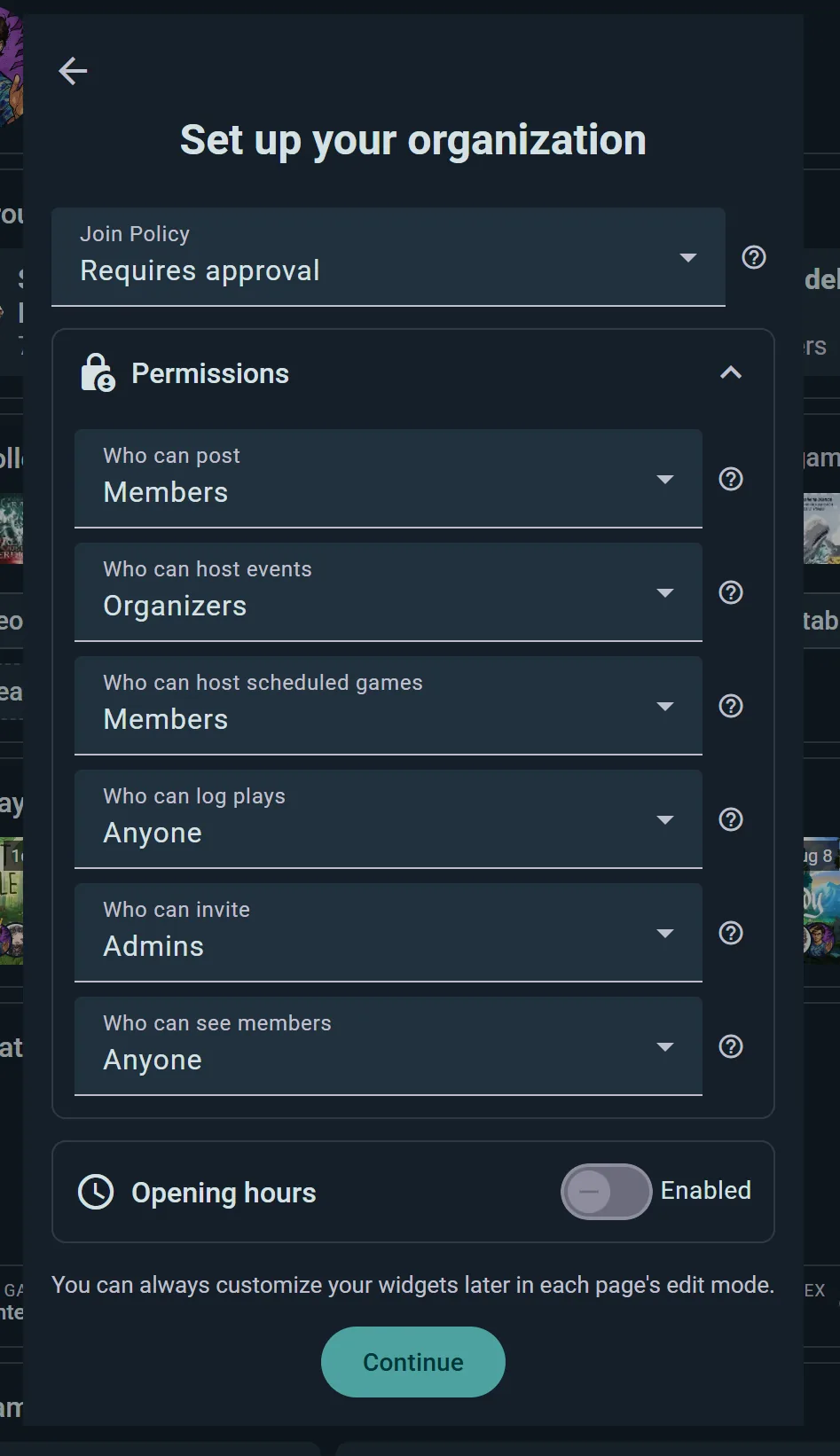
Organizations skip the question — their type answers it. Instead you go straight to Set up your organization, where you type its name, pick its type, and choose its Join Policy and who can post, host events, log plays, invite and see members, and Ludoya applies the widgets that fit:
| Type | Set up for |
|---|---|
| Club, Other | Events, inventory and play stats |
| Shop | Events and inventory |
| Publisher, Festival | Events |
As with everything here, it's a starting point, not a cage — rearrange it whenever you like.
Your Home Dashboard
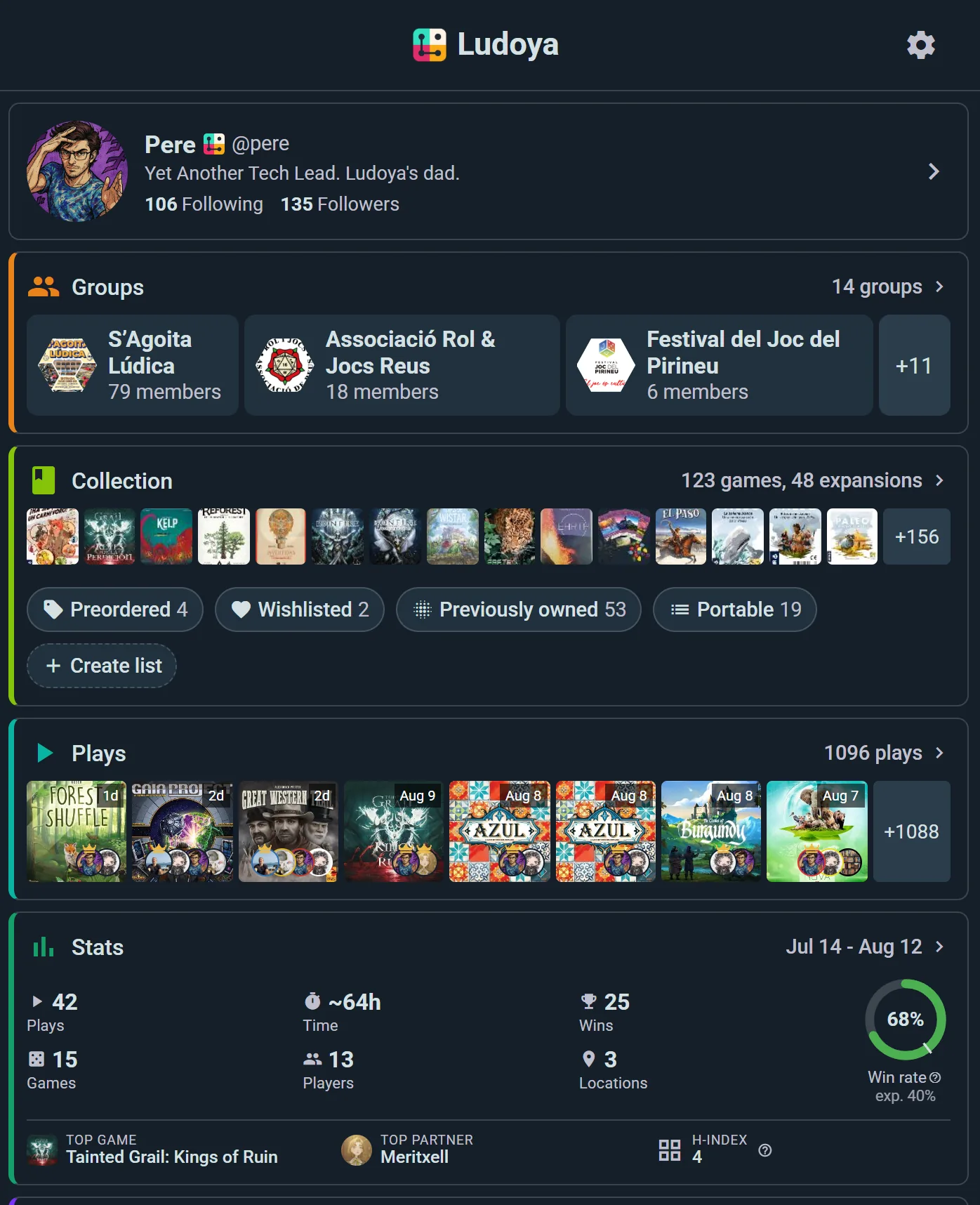
Your dashboard is your personal command center. It displays customizable widgets showing:
- Groups — Your gaming groups at a glance
- Events — Game nights and events you're attending
- Collection — Featured games from your library
- Plays — Games you've played lately
- Statistics — Quick wins, play counts, favorite genres
- Marketplace — New listings and items you're watching
- Game Kits — Score sheets and play aids you use
- Campaigns — Your ongoing multi-session games
At the beginning it will all be empty, but you'll start adding content to it as you play — widgets stay out of the way until they have something to show.
Three Pages, Same Controls
Your home dashboard, every game page and your profile are all built from widgets, and all three work the same way — drag to reorder, toggle to hide, each with its own arrangement. Learn it once here and you know it everywhere.
Reordering & Toggling Widgets
Click the gear icon in the top right corner to trigger the widget editing mode. Here each widget will become:
- Draggable move it anywhere on the dashboard
- Toggleable if you don't use it, you can hide it
Organize your dashboard to match how you play.
The Getting Started Card
Above your widgets sits a Your first steps card with a progress counter, tailored to how you said you'd use Ludoya.
On a personal account it can include: set up your profile · import from BGG · start your first play · share your plays · add your first game · share your collection · browse the marketplace · find a group near you · join an event · follow someone · start a campaign.
On an organization you get a different list entirely, aimed at getting a community off the ground: set up your group profile · create your first event · invite members · log a group play.
Two things that look like bugs but aren't:
- The list grows as you go. "Share your plays" only appears once you've logged one, and "share your collection" once you've added a game — steps that depend on something else stay hidden until it exists.
- Skipping optional items costs you nothing. Anything marked Optional or Premium only counts toward the total once you've completed it, so ignoring them can't drag your progress down.
Dismiss the card whenever you're settled in. Once dismissed — or once every required step is done — it's gone for good and won't come back.
Setting Your Location
Ludoya shows you events and communities near you based on your location. To set it:
- Go to Explore and pick the Events or Communities tab
- Use the location chooser in the toolbar above the results
- Enter your city, neighborhood, or coordinates
- Set your distance filter (e.g., show events within 10 km)
- The list refreshes instantly to show what's nearby
You can also switch to the map and drag it somewhere else entirely, then tap Search in this area.
Building Your Collection
Your game collection is the heart of Ludoya. Start adding your games using one of these methods:
Speed Add
The fastest way in. Go to Settings → Speed Add for a filterable list of games with a checkbox beside each one — tick a game and it's in your collection immediately, no dialog per title. You can also reach it from Collection → Add Game → "Add multiple games at once".
Import from BoardGameGeek
- In Collection, choose Sync with BGG. You can reach the same screen from Settings → BoardGameGeek integration.
- Enter your BoardGameGeek username
- Ludoya will import all games from your BGG collection
- Review and adjust ownership types if needed
Importing is a great way to get started quickly if you already catalog your games elsewhere.
Import Your Board Game Arena Plays
- In Settings, go to Board Game Arena
- Set up with your BGA username, and choose where to Start Importing From
- Ludoya imports your BGA plays, and keeps syncing them while Auto Sync is on
Board Game Arena brings your plays, not a collection.
Following People & Groups
Building your network helps you discover games and events:
Finding People
- Go to Explore and pick the People tab
- Search by name or username — or just browse who's nearby
- Click a profile to view their collection and reviews
- Click Follow to see their activity in your feed
Finding Communities
- Go to Explore and pick the Communities tab
- Search by name, filter by distance, or explore the map
- Click a community to see its members and upcoming events
- Click Join to become a member
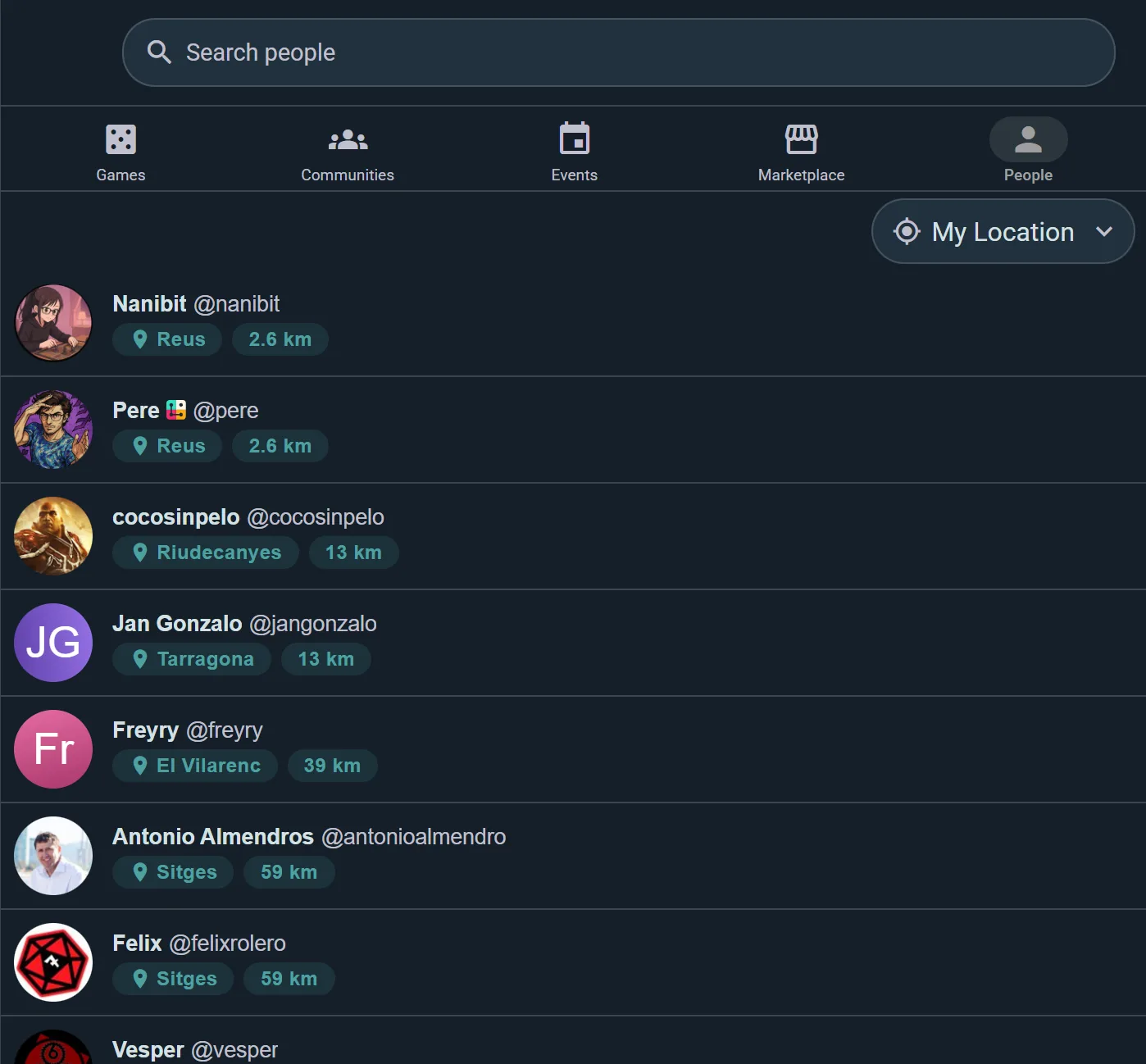
Your feed will now show reviews, plays, and events from people and groups you follow.
Finding Your Way Around
On a computer, the side menu on the left is always there:
- Home, Explore, Notifications and Messages, then My profile
- Manage group, if you run a club, store or organization: with one it opens its console, with several it lists them so you pick one
- Settings, for your account, privacy, notifications and the rest
- More, for the occasional things: Saved players, Locations, the Dark mode switch, What's new, About Ludoya and Send feedback
- The create button, to log a play, start one, create an event and more
- Help at the bottom, where you can ask how to do anything and it shows you where it is
- Your name and picture at the very bottom: switch to another account you're signed in to, Add account, or Log out
On a phone, Home, Explore, Notifications and Messages are in the bar at the bottom of the screen. Everything else is in the side menu behind the menu button, with your account at the top, More's entries listed right in it, and Log out as the last row.
Still deciding, or no account yet? On this website, the round button at the bottom right of every page answers what Ludoya can do for you, and points you to the guide to read or the place in the app to start.
Personalizing Your Settings
Open Settings from the side menu:
- Help — Ask how to do something, and Send feedback
- Account Information — your email and username, Convert into Organization if you ever want one (Revert to Normal User on an organization account), and Delete Account
- Manage Premium — your plan and the invoices for it, or Learn about premium if you're on the free one
- Privacy — who can see your collection, plays and stats, and who can message you
- Connected apps — sites you've signed into with your Ludoya account
- Notifications — pick a delivery channel for each kind of alert
- Language — your app language, and Languages I understand, which controls what gets auto-translated in your feed
- Change password — or Set password, if you signed up with Google and never had one
- Play stats — how play time is counted and how your most played are ranked
- Create button — Simple or All tools
- Players — the people you log plays with who aren't on Ludoya
- Locations — where you play
- Shared collection — one collection shared with someone you live with
- Speed Add — the fastest way to build a collection, covered above
- BoardGameGeek and Board Game Arena — collection and play syncing
- Export & Import Data — your collection and plays as a spreadsheet, out or in
Dark mode is a switch in More (on a phone, a row of the side menu), and Appearance in Settings does the same. It switches between light and dark; there's no follow-my-system option.
See Privacy & Visibility for the full detail on the privacy settings.
First Game Night Checklist
You're almost ready! Before your first game night, make sure you've:
- Created your account and completed setup
- Set your location in Explore
- Added your first game to your collection
- Imported from BoardGameGeek, if you catalog your games there
- Followed at least one player or community
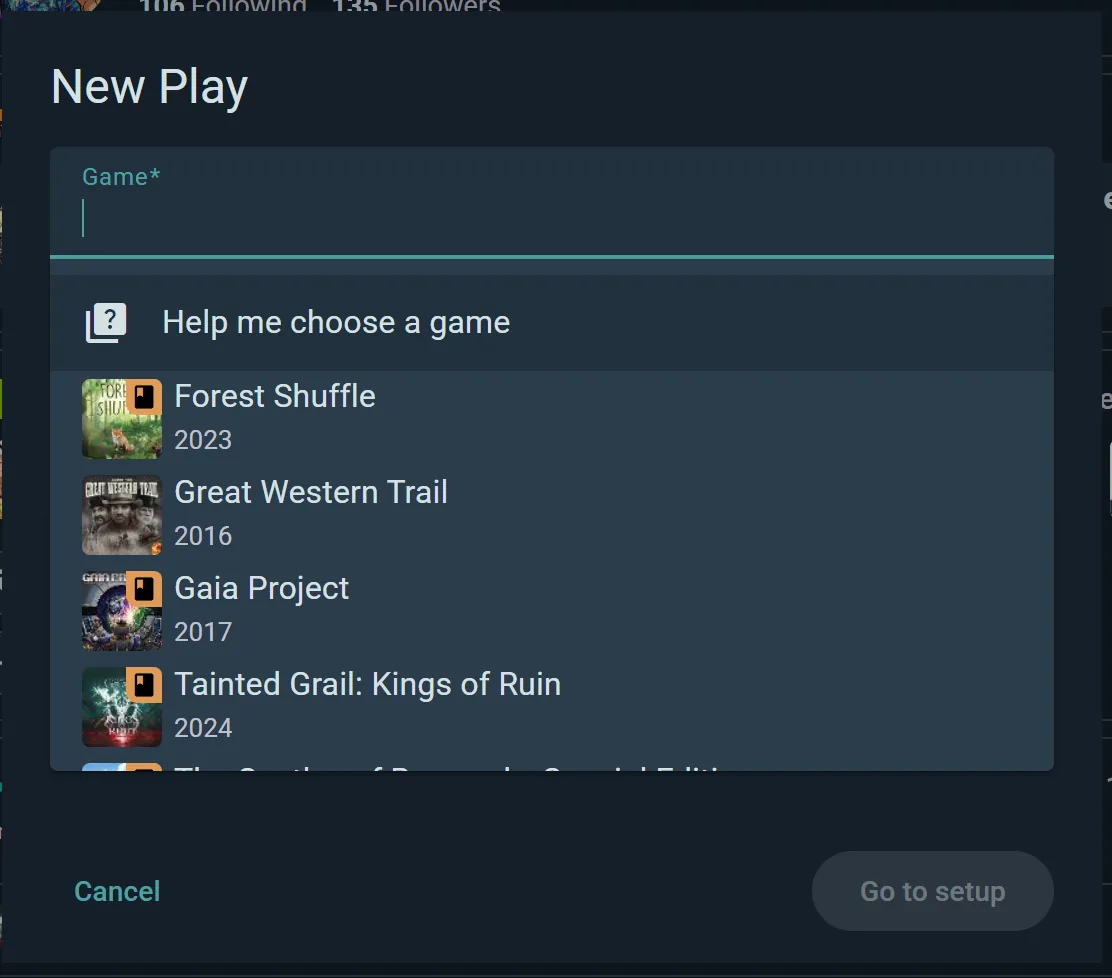
- Logged or started your first play
- Joined an event, or created your own
The Your first steps card on your home screen tracks most of this for you, and ticks items off as you go.
What's Next?
Pick the guide that fits you
These walk you through Ludoya from a specific angle, end to end. Start with the one that best matches how you'll use the app:
- Players — you mainly want to find game nights, log your plays, and track your gaming life
- Collectors — you want to catalog, rate, and review your game library (and maybe sell or trade)
- Clubs & Organizers — you run a group or club and need to schedule events, manage members, and announce to your community
- Stores & Venues — you operate a venue (store, café, convention) and need professional event operations
Or dive into a specific topic
- Ready to find a game night? Check out Events
- Want to learn more about your collection? See Collection
- Curious about discovering new games? Visit Search & Discovery
- Want to connect your BoardGameGeek account? Read Integrations
- Need privacy controls? Explore Privacy & Visibility
Welcome to the Ludoya community. Have fun!