
Every time you play a board game, log it. Your play history becomes a record of your gaming life — what you play, who you play with, how you win, and all the memories along the way.
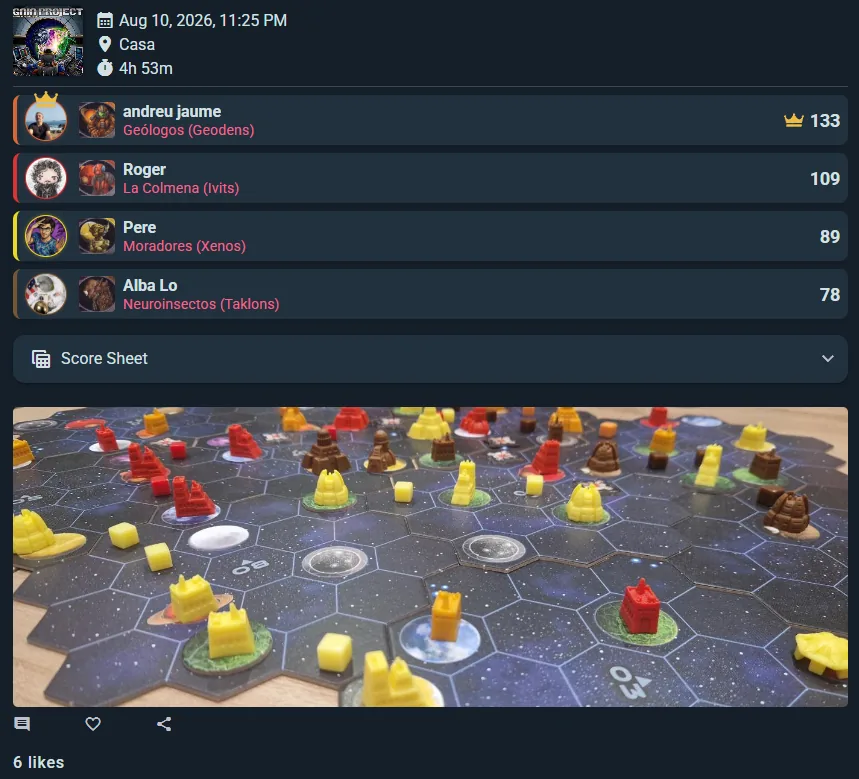
A play and a live session are the same underlying object. The only difference is how it gets filled in: quick logging is a single form you complete after the fact, while a live session populates the same data interactively together with the other players during the game. Both produce an identical play entry in your history and can be viewed, edited, and shared the same way.
Quick Logging
Tap Play and switch the top of the dialog to Already played for a game that already happened (Now starts a live table instead). Then capture the essentials:
- Game — Which game did you play? Press Enter to take the top match
- Players — Ludoya users, or players of your own who aren't on Ludoya. The people from your last table today are already there; teams and anonymous seats sit behind one row until you need them
- Results — Each player's score and where they finished. Places follow the scores until you set one by hand, a co-op game wins or loses together, and it's fine to leave places empty if nobody remembers
- Event (optional) — Was it at one of your events? The chip shows while one is on or for a month after. Picking it fills in the event's place and group, with a line saying both, and moves the date into the event if it isn't already (for one that's over, to the time it started; change it if your game began later)
- Location (optional) — Where did you play?
- Group (optional) — Does it count for one of your groups? See Playing on Behalf of a Group below
- Campaign (optional) — A session of one of your campaigns? The chip shows once the game has an active campaign you're in, whichever group the play is for. A club's campaign fills in its club too, and No campaign takes it back off
- Duration (optional) — How long did it take?
- Notes (optional) — Any memorable moments or house rules?
- Public post (optional) — a few words and photos for your followers, posted with the play
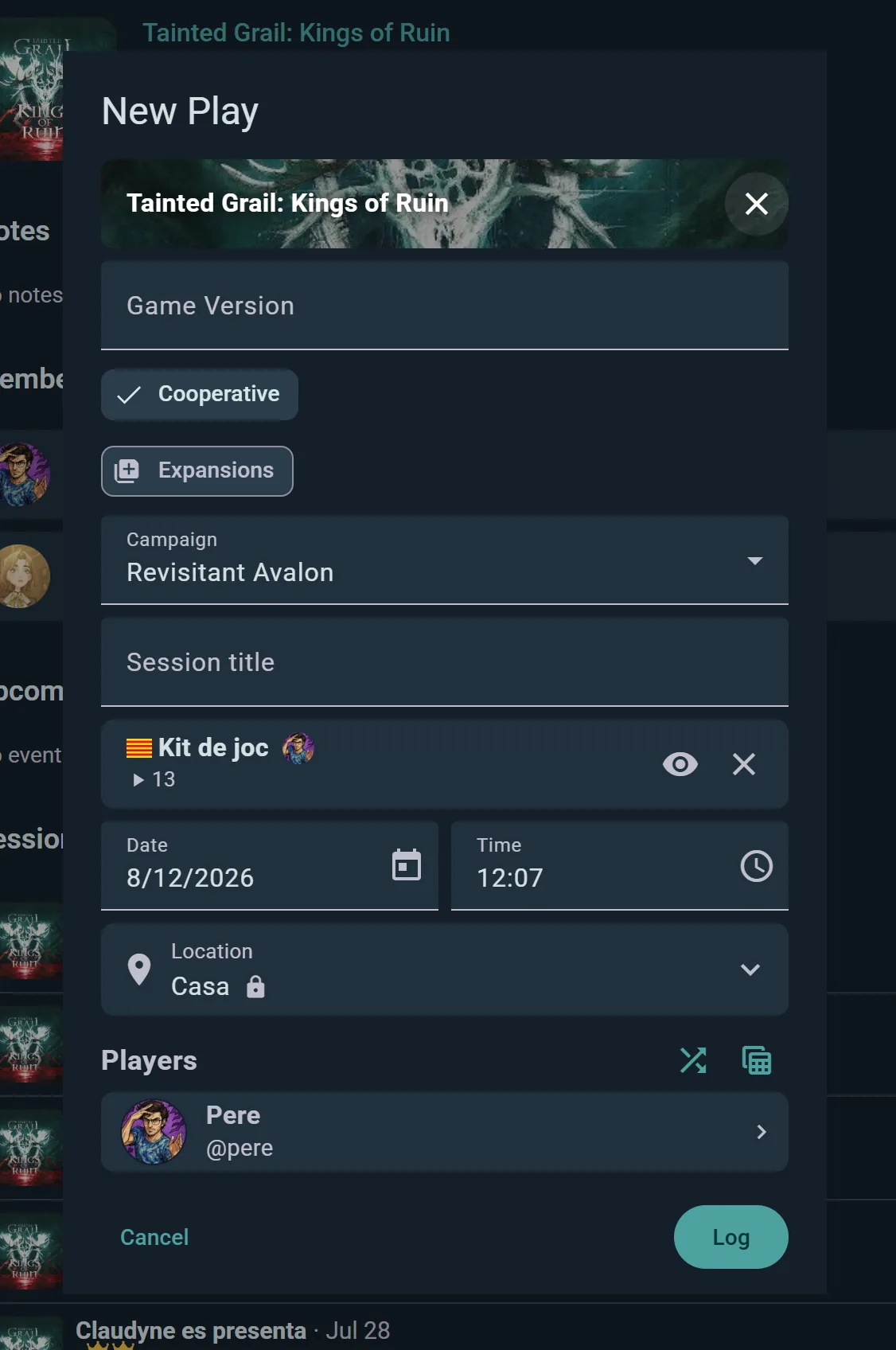
Once you save, the play is in your history forever.
Can't Decide? Deal Me a Game
The first option in the game list, whenever you log a play or schedule a game, is Can't decide? — Deal me a game from the table's shelves. It deals you cards from your own shelves until one wins the table.
- Add the players first — the chooser draws from their collections as well as yours, and from any of your game lists you tick.
- Set the player count (or Solo) and, if children are at the table, the age. These are hard filters.
- Set a duration and complexity. These are hints, not filters: the chooser leans towards games that fit, without hiding the rest.
- Tick Only my Shelf of Shame to draw from the games you own but have never played.
- Press Suggest a game. Each card shows the game's player range and best count, playing time, age and weight. This one! picks it and fills the form; Next deals another.
Tell it Suggest it less often or Never suggest it again and it listens — a game you rule out stays out until you actually play it again, then it comes back. Your duration, complexity and age settings are remembered for next time.
Repeat a Play
Playing the same game with the same group again? Open a finished play and choose Play again. The new play takes the same players, expansions, kit and venue, and tonight's event if the play was from today. Pick Now to run it live or Already played to record it, adjust the scores and notes, and you're done. It's the single biggest time-saver if you have a regular game night with the same crowd.
A Player's Details
Tap a player in the play form, or a player's name at the top of their column on a score sheet, and their details open. The arrows at the top step through the other players (inside a team, through its members). The back arrow returns to the play with your changes, and they're kept when the play is saved.
- Score — type it, or add it up on the calculator keys: enter 12+7+3 and the box shows 22 once you move on. Hidden for a game whose kit says it isn't scored
- Winner — tap the crown. Not for a player who isn't competing, and not in a co-op game, where the whole table wins or loses together: the crown under the play's player list sets Victory or Defeat
- Colour — the kit's own colours when it has them, Ludoya's otherwise, and it can be cleared
- Role — the faction, character or class they played, from the game kit: a Root faction, say, or a Frosthaven class. Add multiple roles, beside the field, gives someone more than one. Other…, at the end of the list, lets you type one the kit doesn't list, and the list icon beside it brings the kit's roles back. Without kit roles, type a role and press Enter, as many as you need
- Player flags (the sliders icon) — Not competing: they took part but don't play for the win. Game Master: they ran the game, which also marks them not competing and takes them off any team. Demonstrator: they taught it
- Play time — when the play used player timers: their own clock, to correct or clear if it kept running through dinner
- It's their first time playing this game — a tick that puts sparkles on their avatar on this play
- Play edit permissions — for another Ludoya user: View only, Edit own score or Full access. Who can edit by default is under Permissions & Edit History
- Edit User Player Profile — for a saved player, one you added by name (even if they've since been linked to a Ludoya account): rename them or change their picture, mark them as a bot (an automa or AI opponent), link them to a Ludoya user or merge them with another saved player (link and merge aren't offered for a bot)
- Notes — anything about how their game went
Roles do some of the work for you. Only the roles of the expansions and modules in the play are offered; a role with a colour colours the player, replacing a colour picked by hand (several roles mix their colours); and a role the kit marks as not competing marks the player too.
On a live table, tapping a player in the table's list opens everything but the score, the crown and the flags. Those are on the score sheet: tap the player's name at the top of their column.
A team opens the same way, with its name editable at the top. Its score, winner and colour go to every member, and its notes to every member who hasn't written their own. Team Members opens each member's own details, where their role, flags, first-time tick and notes are set.
When you can't edit a play, the score sheet still opens a player's details, read-only: score, place, team, start position, play time, score per minute, role, flags and notes. Tap the avatar or name to go to their profile, or to the saved player's page for someone not on Ludoya. For a player of yours who isn't on Ludoya, Invite finds their Ludoya account to link them to, or gives you a link or QR code to send them, so they can join and claim their plays.
Play History Views
Access your play history from your profile or dashboard. Switch between three views:
Grid View
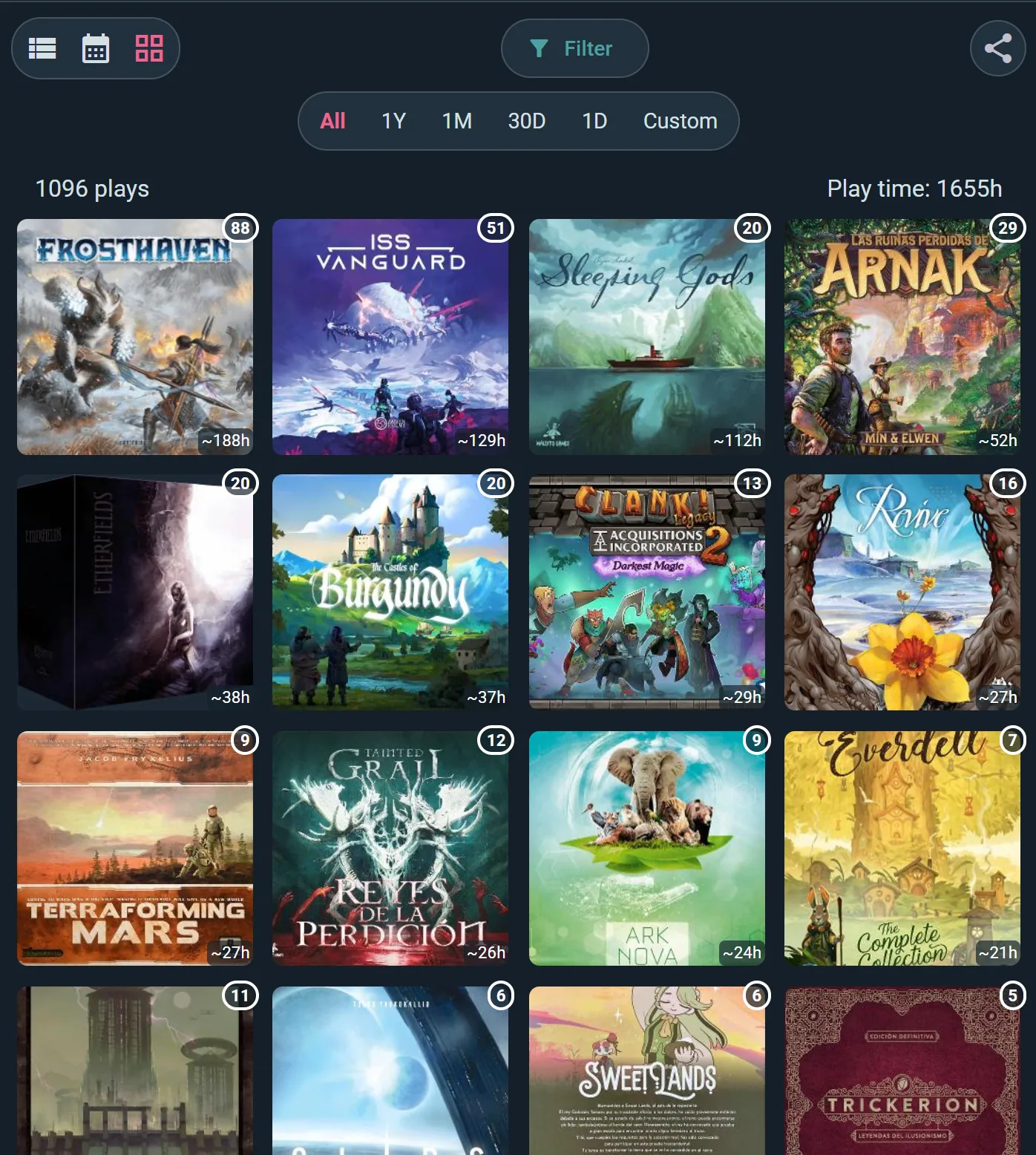
Box art tiles for each game you've played in the period, under its play count and total play time. Great for a visual scan of your play patterns. Tap a tile to see only that game's plays.
List View
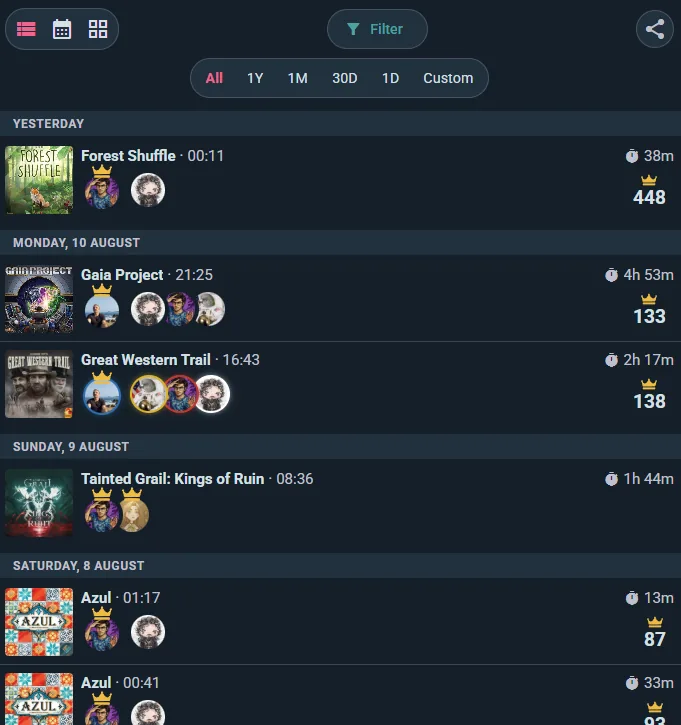
Entries group under the day they happened. Each row carries the box art, the time it started and how long it ran, the players around the table with a crown on the winner, and the winning score where you recorded one. The Filter button and the period chips above (All, 1Y, 1M, 30D, 1D, Custom) narrow the list without leaving the page.
Calendar View
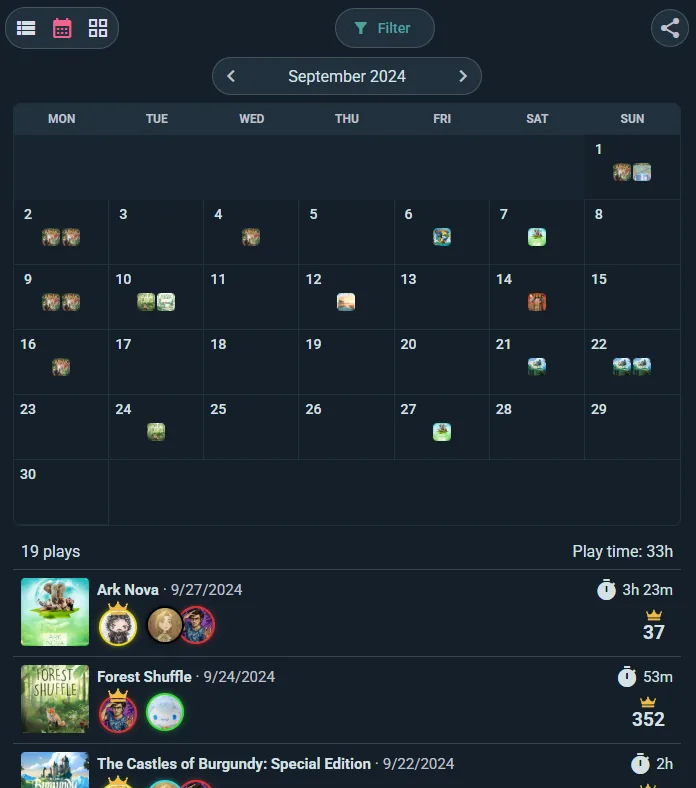
See your gaming life plotted across a calendar. Each day shows games played and total session count. Click a day to see details of all plays that day.
Filters and Search
Narrow down your history:
Time Period Filters
- Presets — a row of chips: All, 1Y, 1M, 30D, 1D
- Custom — pick any start and end date
- Step backward / forward — arrows either side move the window through time, so you can walk month by month and compare like for like
Game Filter
Zero in on a single game — every session of the one you can't stop playing.
Played With
Filter to the plays that include a specific person. A quick way to answer "how do I actually do against them?"
Group Filter
Show only the plays that belong to one of your groups.
Location Filter
Show only plays at a specific location, or all locations.
Player Count Filter
Show only plays at a specific table size — e.g., just your 2-player sessions or just your 5+ player nights.
And More
Where played splits in-person plays from online ones, Origin shows only the plays that came from one source (logged here, or imported from BoardGameGeek or Board Game Arena), and Categories and mechanics narrows to a kind of game.
Manage Your Plays
Manage your plays, in the menu (⋮) of your plays page, lists them as a table: select several to set their location, file them under a club, change who sees them, or delete them, and import or export plays as a spreadsheet.
Play Tags and Confirmations
When you log a play, you tag the people who were at the table — and each of them decides whether that play joins their own history. It works the same in reverse: when a friend logs a game you played together, the tag lands with you.
Tagged plays wait on a Play Tags screen, grouped by whoever tagged you ("Alex tagged you in 3 plays"). For each one you choose:
- Add to my profile — the play joins your history, and counts toward your stats and badges
- No, thanks — the play stays on their record, not yours
Always add plays from someone you trust: turn on auto-accept for a specific person, and everything they tag you in is added automatically from then on. Perfect for the people you play with every week.
Until you decide, your profile shows a banner with the number of plays waiting — so nothing is silently added to your history, and nothing is silently lost.
Claim Your Seat by QR
Played with people who aren't on Ludoya yet? Save a play from the table with named players in it and Claim your seat opens straight away: one QR code for each named player you added, so everyone can scan their own before the box is packed. Tap a name in the row above the code to show theirs.
Scanning opens that player's page on Ludoya. They log in, or create an account with a name and an email (or with Google), and confirm Link to …: the named player becomes them, with every play you logged with it, not only this one. Include in profile, ticked unless they untick it, adds those plays to their own history and stats.
- Not here? Send the link under a code shares the same claim link, for someone who has already left.
- A code turns into Claimed by … the moment it's used, and the dialog counts how many seats are claimed. Done closes it.
- Missed the moment? Claim your seat stays in the play's menu (⋮) while the play has named players of yours, and Invite your players to Ludoya after a play has a QR button beside each player's Invite. A play saved offline offers the codes once it has synced.
- Only whoever added the named players can show their codes: the names are theirs.
Monthly & Yearly Play Summaries
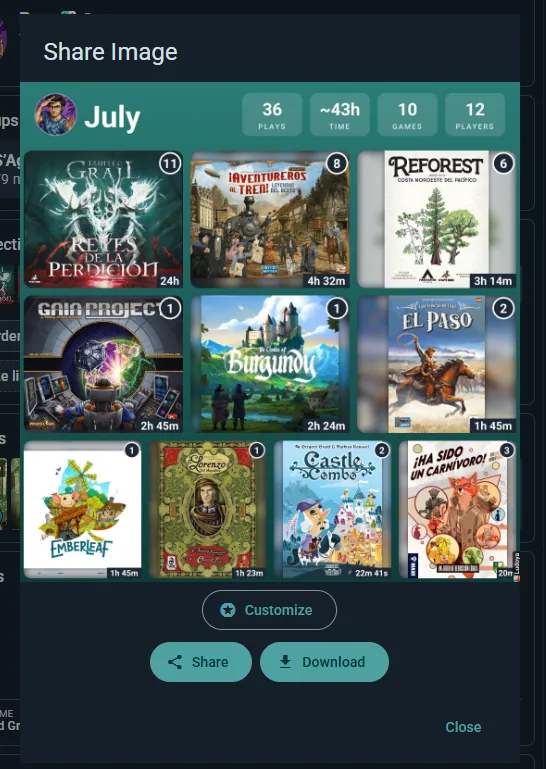
Ludoya automatically generates a shareable visual recap of your gaming (see Statistics):
- Every month — a summary for the month that just ended, ready on the 1st, with a notification to tell you
- Every 1 January — a yearly summary covering the year just finished, alongside the usual monthly one
A period needs a few plays before it gets a summary, so a very quiet month may not produce one.
What the Summary Shows
- A title with your name and the period — e.g., "Pere's Plays | March" for a monthly recap, or the year for a yearly one
- Total play count — how many plays you logged in the period
- Total play time — cumulative hours you spent playing
- A grid of game covers for every game you played in that period
Share & Download
From the summary sheet you can Share it directly to a feed or messaging app, or Download it as an image — great for social media posts or just looking back on a good month of gaming.
Customize the Image
Tap Customize on the share sheet and you can change the title, the background, which numbers show against each game, the format and the size before you post it. See Image sharing for the full set of options — the same ones apply to your collection, your Replay and any single play.
Playing on Behalf of a Group
When you log a play — or edit one you already logged — you can attribute it to one of your groups: tap Group in the play form and pick it, or pick No Group (Personal Play) — the default — to take it off. A new play at a place that belongs to one of your groups still counts for it when you can log plays there, and a line under the Location field says so. The chip shows when at least one of your groups lets you log plays there; if yours doesn't, a group admin can change who may.
If the play has no place yet, or only your default one, the group's address becomes the location, and taking the group off puts your place back. When it replaces your default place, a line under the Location field offers to keep your place (Keep Casa, say) with the group still set, for a club play at someone's home. A place you chose yourself stays where it is, and so does an event's or one read from your location. When you played at the group's own place, the Location field's Groups tab sets both at once, and the place stays even if you change the group later.
Attributing a play does two things. It gives the play a community byline, so the group's name and avatar appear on it, and it rolls the play into that group's statistics and leaderboard rather than only your own. It's how a club builds a shared record of what actually got played, without every member having to remember to do anything unusual.
Plays created from a group's event pick up that group automatically, and so does a play you put in the event with the Event chip or the Location field's Events tab, so in practice the club's game nights attribute themselves.
When more than one community is behind an event — a co-hosted convention, say — the play shows a Hosted by row with each host's avatar, and it counts for all of them.
Attribution isn't a quiet setting either: changing which Community or Hosts a play belongs to is recorded in its edit history, alongside every other change.
A club can ask for a play. When a member logs a game played at the club but forgets to attribute it, a group admin can claim it from the play with Claim for my organization. Whoever logged it sees the request on the play and accepts or declines it.
Permissions & Edit History
Who Can Edit
The Ludoya users on a play when it's logged can edit all of it — fix scores, adjust duration, add notes, or correct mistakes. Someone added later can edit their own score. For tighter control, open a player and set their Play edit permissions: View only, Edit own score or Full access.
Editing After the Fact
Plays stay editable long after they're saved. If you later spot a wrong score, a missing player, or a forgotten house-rule note, you can go back and fix it — whether the play came from quick logging or a live session.
Notes are quicker still: once a play has some, the pencil next to Private notes on its page edits them right there, without the play's whole edit form. To add the first ones, use Edit in the play's menu (⋮). Only the play's participants see its notes.
Edit History
Every change to a play is tracked. View History in the play's menu (⋮) shows who changed what and when, so nothing changes silently. That keeps scores honest for statistics, player profiles, and group leaderboards while still allowing real fixes.
Deleting Plays
Delete, in a play's menu (⋮), always removes a play only you have. A play other players also have is removed for everyone only within an hour of logging it, long enough to undo a mistake; after that it is shared history: deleting it only takes it off your profile, and they keep it, with their posts in the feed. A play a friend logged and only lets you view has no Delete: Remove from my profile takes it off yours. The dialog says which one will happen before you confirm. Bulk delete, in the menu of your plays page, does the same for every play you tick, view-only ones included, and tells you afterwards how many were deleted and how many only left your profile.