
Your profile is your identity on Ludoya. It shows what games you own, how often you play, who you follow, and what groups you're in. Other players use your profile to find you, follow you, and coordinate game nights.
Profile Header
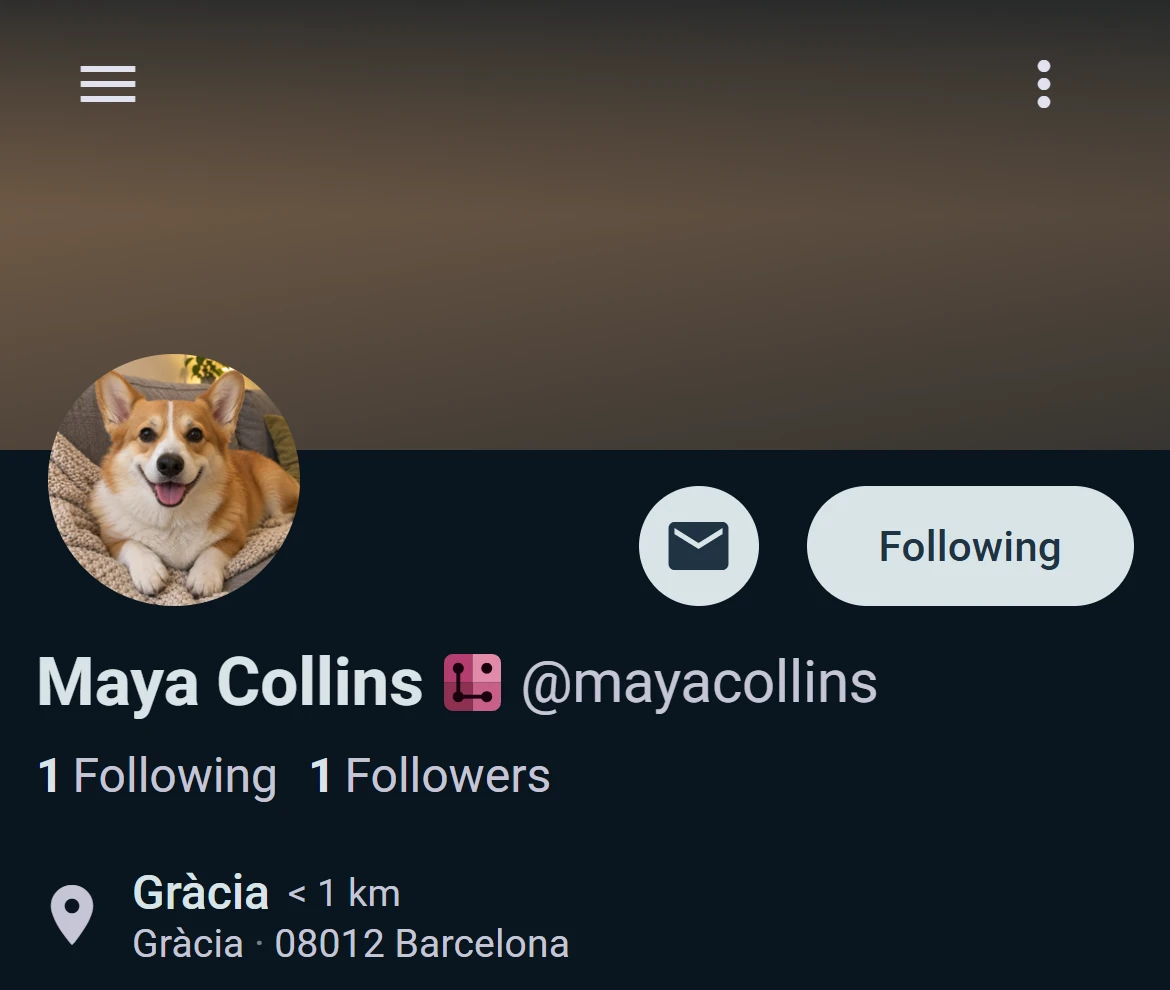
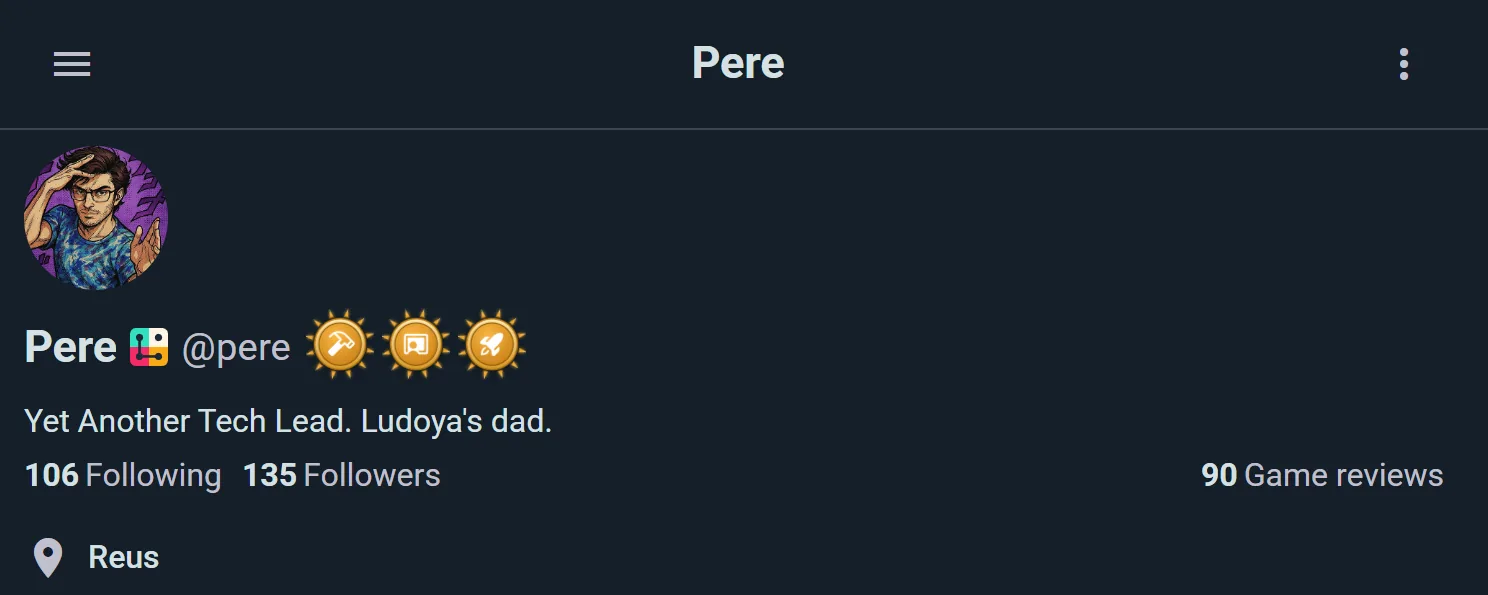
At the top of your profile, you'll see:
- Cover: a wide band behind your avatar. Upload a picture of your own, or leave it and Ludoya fills it with your favourite colour if you picked one in Edit profile, or else a shade of your avatar's colour. Groups and organizations have one too
- Avatar: Your profile picture
- Display Name: How others know you (can be your real name or a handle)
- Premium Badge: A badge if you have an active subscription
- Badge Showcase: Up to 3 achievement badges you pick to headline your profile, and a club badge as a crest on your avatar if you wear one
- Username: Your unique username (used for mentions and links)
- Bio: A short description of yourself with links if you like
- Location (optional): Where you're based (shows a map)
Your header is visible to everyone (unless your profile is private).
Following System
Ludoya uses a one-directional following system:
- Follow someone to see their posts, plays, and activity in your Following feed
- Followers are people who follow you
- Friends are mutual connections (you follow them, they follow you)
Tap Follow on any profile to add them to your Following feed. Tap Following to unfollow.
Following & Followers
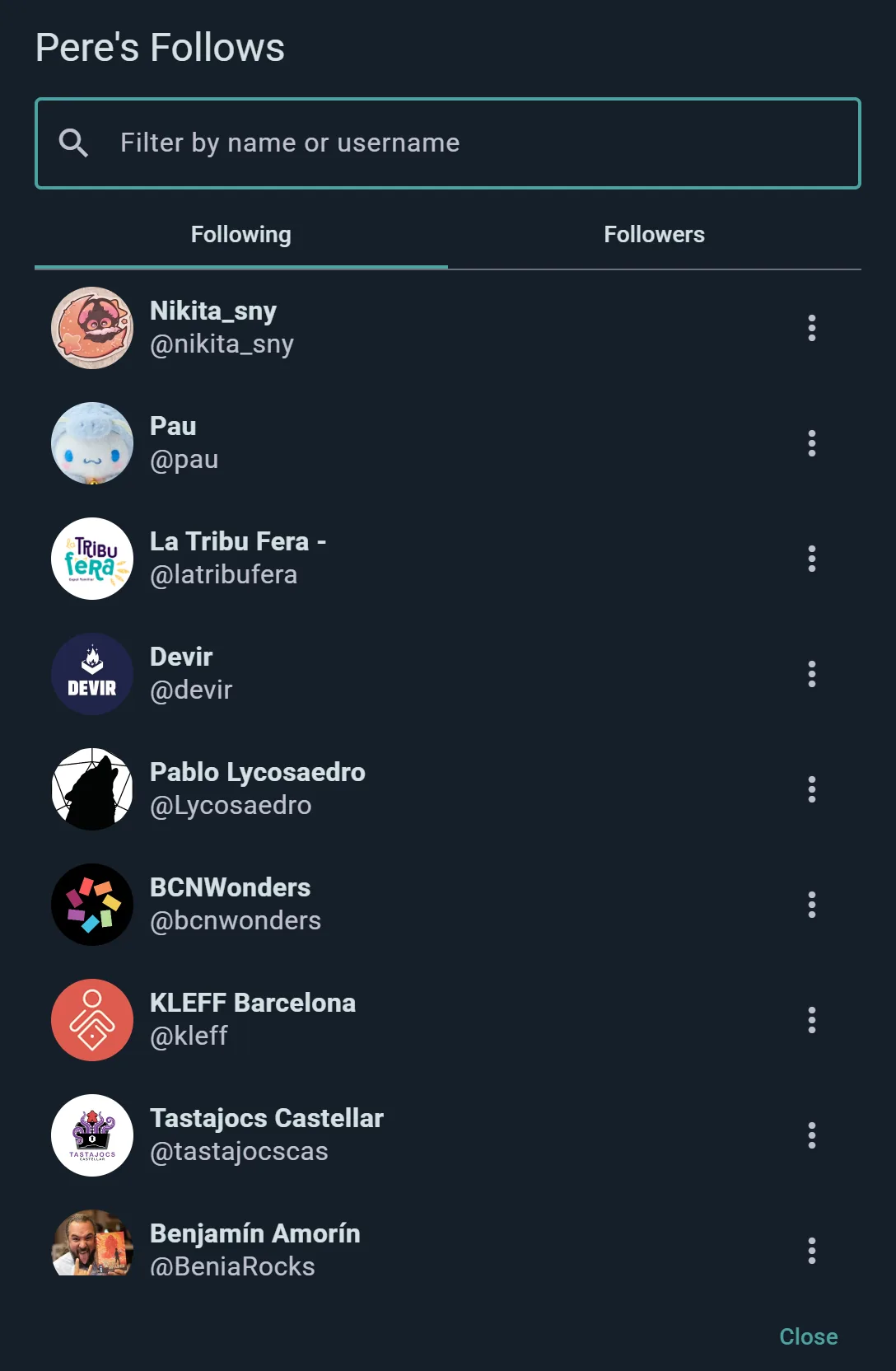
Tap the counters to open a two-tab list — Following and Followers. From there you can:
- View their profiles
- Follow or unfollow without leaving the list
- Search for a specific person
- Block someone, if it comes to that
Attendance Reliability Rate
If a player has a no-show rate above 5%, an attendance reliability badge appears on their profile (color-coded from red to yellow). This helps organizers and groups know who's likely to actually show up to events.
Customizable Profile Layout
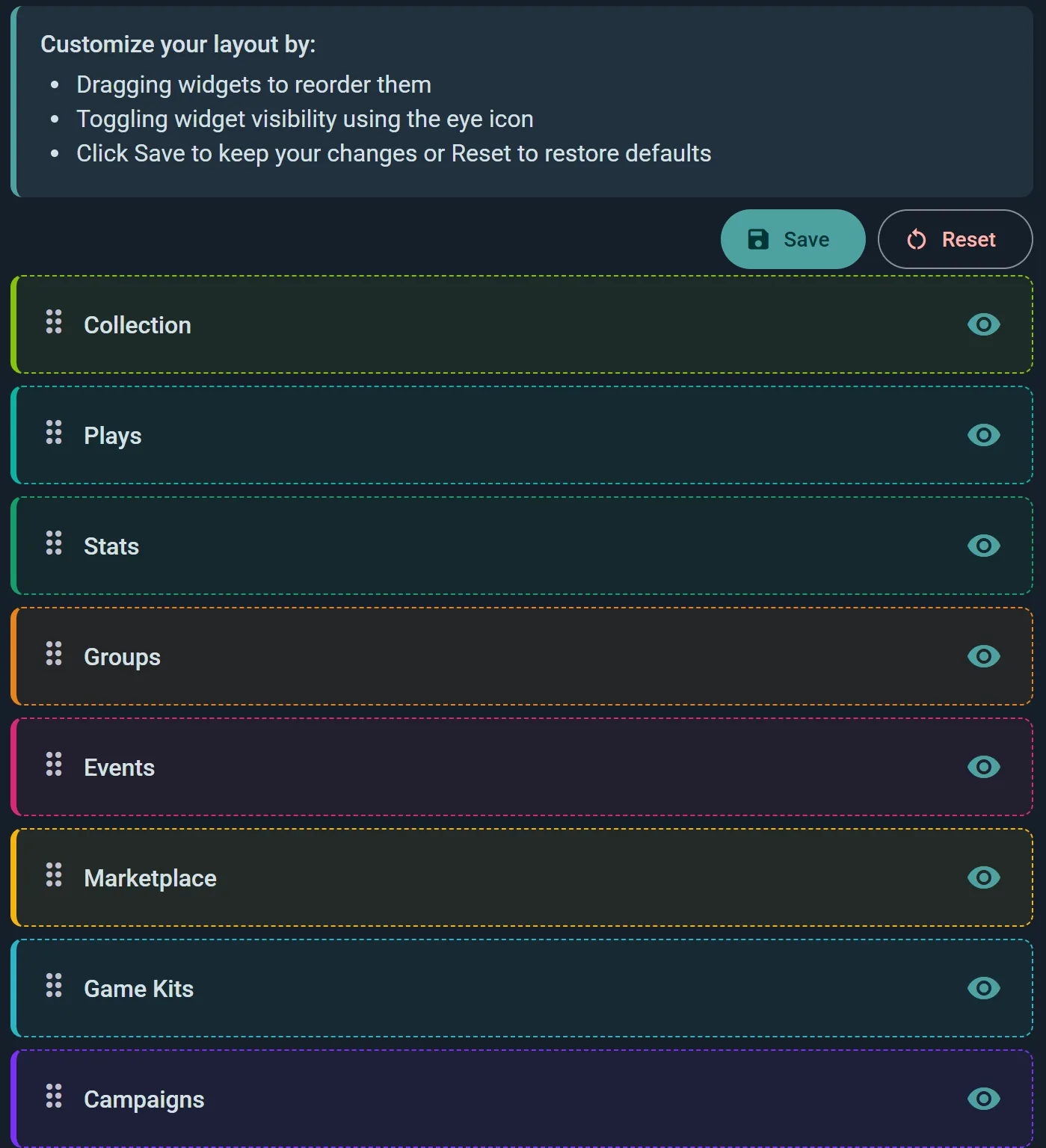
You can drag-and-drop profile sections to customize what people see and in what order. Choose from:
- Storefront (for shops): what you sell
- Created Games (if you're a designer/artist/publisher)
- Collection: Your owned games
- Plays: Recent games you've played
- Statistics: Your play statistics and trends
- Taste in games: Your taste as a star (see below)
- Communities: Groups you belong to
- Events: Upcoming and past events you've attended
- Marketplace: Games you're selling
- Club market (for clubs): the members' own market
- Game Kits: Game kits you've created
- Campaigns: Active campaigns you're running
Toggle Visibility & Reorder
For each section, you can:
- Toggle on/off: Hide a section completely
- Reorder: Drag sections to change their order
- Save or reset: Save your layout or reset to defaults
Hiding vs. Privacy
Toggling a section off in the layout editor changes your profile's layout — it's about presentation, not permissions.
Real visibility controls exist for three areas: your collection, your plays and your stats, each of which can be set to Anyone, Friends, People you share a group with, or Hidden under Settings → Privacy. If you want something genuinely restricted rather than just tucked away, that's where to do it. See Privacy & Visibility.
Taste in Games
Answer ten quick questions about the games you enjoy, each a slider between two ends, with a couple of well-known games at each end to show what it means:
- Weight: light (Uno, Dixit) or heavy (Terraforming Mars, Brass)
- Co-op or competitive: together against the game, or against each other
- Length: quick or long
- Players: solo or two, or a big group
- Classic or new: proven favourites or the latest releases
- Interaction: take-that and direct conflict, or peaceful, each building their own thing
- Luck or skill
- Abstract or thematic: pieces and patterns, or a world to be in
- Story or systems: living a story, or mastering how the game works
- Campaign or one-shot: a story over many sessions, or a fresh game each time
Set them in Settings → Taste in games, with Find out in the What kind of player are you? notice on your own profile, or from the Set your taste in games first step. Every change saves itself. Skip any that don't matter to you with Skip this one. Answer at least four to be compared with other players.
Your taste gets a title from your two strongest leanings, like The Fellowship Gamer (Thematic and Co-op) or The Engine Tuner (Heavy and Systems). On your own profile the card is one line: your title and the ends you lean to hardest (Heavy, Skill…; fewer on a narrow screen). On another player's, once you have both set yours, the header says how alike you are (for example 54% alike), and two sliders follow: where you are alike (=: close answers, or both leaning the same way) and where you are furthest apart (≠), their answer a filled dot and yours a ring. With fewer than four answers in common there is no number, because it would mean nothing. Tap the card to open it in full: the title, how alike you are and your own title, every question they answered as the same kind of slider (with yours on each when you can be compared, marked the same way), each with a ? that says what the question asks and gives example games for each end, what doesn't matter to them, and Show as a star for the same answers as a star. In Explore → People, each player whose taste you can compare shows the same % alike.
Until you set your taste, your own profile shows a What kind of player are you? notice in its place, with a Find out button; its ✕ hides it, and Customize brings it back. Setting your taste is also one of your first steps on your home.
It is what you say, not something worked out from your plays, so you can change it any time. A player whose profile you cannot see shows you no taste either.
Section Previews
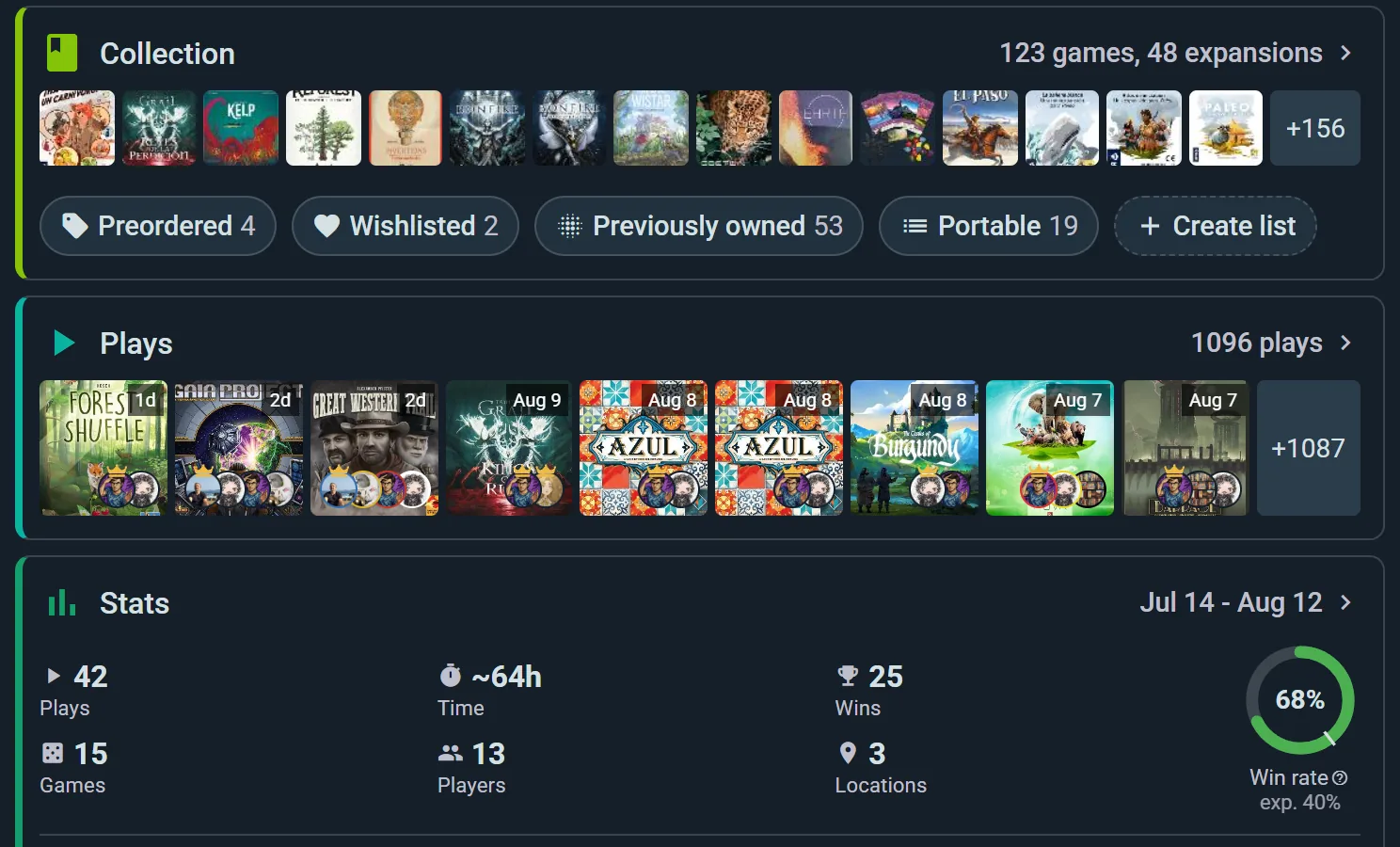
Sections stack down the page in whatever order you've set, each showing a summary with an arrow through to the full thing. Here's what shows in each section:
Collection
All games you own. Shows owner vs. played counts. Taps through to full collection filtering.
Recent Plays
The last 5-10 games you've logged with scores and photos. Shows an "unconfirmed" count if plays are awaiting confirmation from other players. Only the profile owner sees unconfirmed plays on their profile.
Stats
A snapshot of your statistics: plays, time, wins, games, players and locations, plus three highlights — your top game, your top partner (the person you play with most), and your H-index.
Groups
All groups you're a member of. Tap to jump to a group's page.
Upcoming Events
Events you've RSVP'd to attend, sorted by date.
Marketplace
Games you're selling or trading. Tap to see listing details.
Game Kits
Game kits you've designed. Shows the kit name and games included.
Active Campaigns
Campaigns you're running. Shows participants and progress.
Activity Feed
All your recent posts, play logs, and interactions. Infinite scroll to see your history.
Editing Your Profile
Tap Edit Profile to update:
- Display Name: How you appear to others
- Bio: Tell people about yourself (you can include links)
- Avatar: Upload a new profile picture
- Cover: use the button on the band itself to upload one, crop it, or remove it
- Location: Set your location using a map picker
- Date of birth, Gender and Phone number: never shown on your profile. They're there so an event's sign-up form that asks for them can be filled in for you
You can also reach Get Premium or Manage Premium, and Convert into Organization (what that means), from Edit Profile.
Named Players (Players Without a Ludoya Account)
When you log plays, not every person at the table will have a Ludoya account. For anyone who doesn't, you add them as a named player — a lightweight entry that's just a name (and optionally an avatar) attached to your play history. Named players let you keep a complete record of who you played with, even when half the table isn't on Ludoya.
Named players are yours: you created them, they belong to your play history, and they're distinct from full Ludoya user accounts. A Ludoya user with their own login is never a "player" in this sense — the two concepts are separate.
Linking a Named Player to a Real Ludoya Account
If a friend you've been logging as a named player later joins Ludoya, you can link the named player to their new account:
- Tap the named player entry in your play history
- Tap Link
- Search for their Ludoya username or share your invite link/QR code for them to accept
Once linked, the past plays you logged with the named player get credited to their real account, so their profile reflects the full shared history.
Linking a Ludoya User to a Named Player
The reverse direction applies. For example, when you import play history from BoardGameGeek, your BGG plays come in with the named players you used over there. If one of those imported named players turns out to be a real Ludoya user, you can link the Ludoya user to the imported named player, merging the imported BGG history into their account.
Merging Duplicate Named Players
If you've created multiple named players for the same person (e.g., "Alex" and "Alexander"), you can merge them:
- Go to one named player entry → Merge
- Select the duplicate
- Confirm — all plays consolidate under a single named player
Creator Profiles
If you've designed games or created artwork, Ludoya recognizes you as a creator:
- Designers get a dedicated "Created Games" section
- Artists get listed as artists on game pages
- Publishers get their own game page linking all published titles
Tap your profile to see all games you've created—great for showcasing your work.
Privacy Settings
Your profile, collection, plays and stats each have a visibility setting. See Privacy & Visibility for the full breakdown, but here's the quick version:
- Anyone — public, everyone sees it
- Friends — only people you follow who follow you back
- People I share group with — only your group mates
- Hidden — only you
Collection, plays and stats can never be more open than your profile itself.
Blocking & Reporting
You can:
- Block a user: Hide their content from you and yours from them. Both are removed from follow lists.
- Report a user: Flag inappropriate behavior for the Ludoya team to review.
Auto-Accept Plays
This is set per person, not globally. When someone tags you in a play, you can tick the option to always add that person's plays in future — ideal for the people you play with every week. To switch it off again, open their profile. See play tags.
See also:
- Privacy & Visibility — control who sees your profile and data
- Social & Feeds — activity streams and discovery
- Play Logging — recording games you've played
- Statistics — your gaming data and trends
- Organizations — creating a dedicated account