
Every club, group or organization on Ludoya has a console for the people who run it. Open your club's page and choose Manage, or go straight to ludoya.com/your-club/manage. Only the club's admins, and members you've given extra access, can open it.
The console is split into sections down the side: Core (dashboard, settings, integrations, data), People, Game library, Activity, Insights and Money. Every section works the same way: tables you can sort and filter, a drawer that edits a row without leaving the page, and the same toolbar at the top. On a phone, the side list becomes a section picker and tables turn into cards.
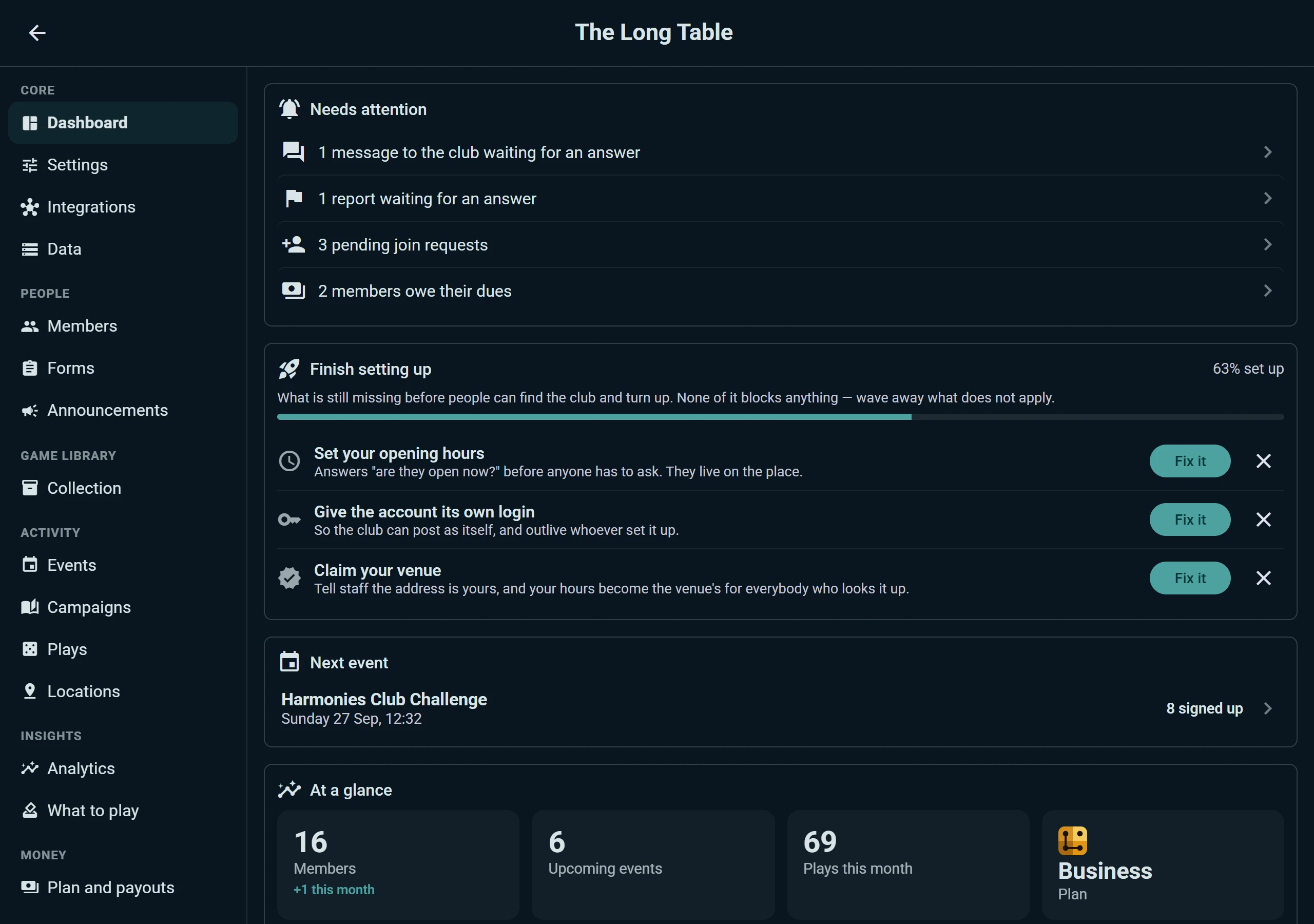
The Dashboard
The first thing you see is what's waiting on you:
- Needs attention: messages to the club with no answer yet, reports to review, overdue loans, members who owe their dues, upcoming events nobody has signed up for. Each line opens the place where you deal with it.
- Finish setting up: what's still missing before people can find the club and turn up, like opening hours, the club's own login or claiming your venue. Each step has a Fix it button, and you can wave away the ones that don't apply for good.
- Next event, with how many have signed up.
- At a glance: members (and how many joined this month), upcoming events, plays this month and the club's plan.
- Bring another club (for admins): the club's invite link for another club, to share or copy. When that club runs its first event with 5 people, a free club gets a month of Club and so does the club it brought (up to 12 months a year); a paying or Business club gets the Ambassador badge instead. Below it, the clubs you brought: waiting, earned, or expired after 90 days.
Members
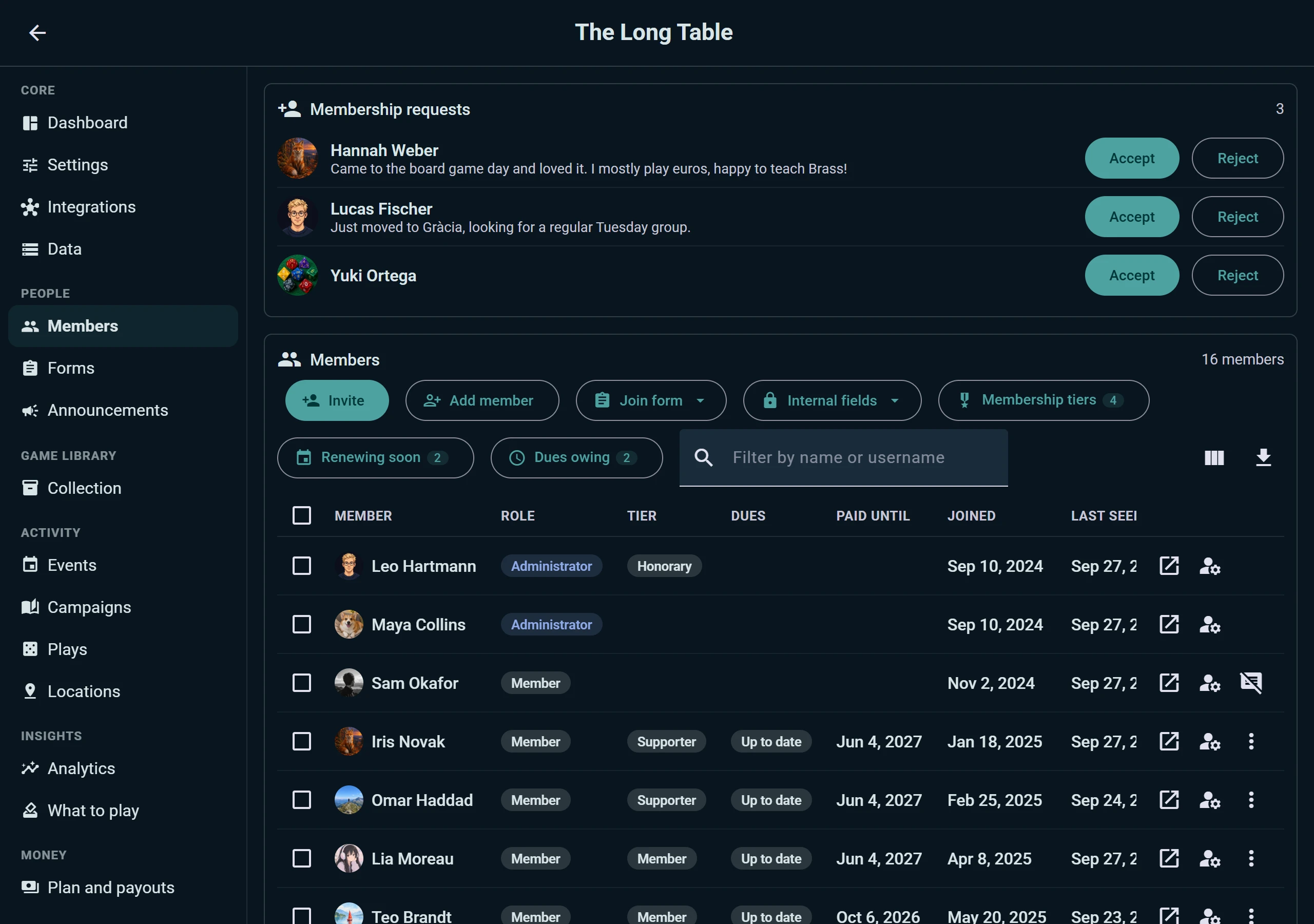
Membership requests sit at the top with the message each person wrote, and Accept or Reject beside them. Below is everyone in the club: role, membership tier, whether their dues are up to date and until when, the date they joined and when they were last seen. Filter by name, pick the columns you want, or download the list.
From the toolbar:
- Invite by link or QR code, to print for the club's noticeboard.
- Add member for people who don't have a Ludoya account. They count as members, the club keeps their details, and if they sign up later they link up with their own account.
- Join form: the questions people answer when they ask to join. The answers become columns in the members table. Forms can be saved as templates and reused for events.
- Internal fields: the club's own columns, like a member number or a note. Only admins see them.
- Membership tiers and the Renewing soon and Dues owing filters: see Membership Tiers & Dues.
Every member opens in one dialog: change their role or tier, record their dues, message them, or remove them from the club. When someone who joined matches a member you added without an account, Merge with them so the club keeps one record.
Forms has its own section too, with every template the club uses for joining and for event sign-ups.
Messages, Reports and Announcements
The inbox and moderation live on the Dashboard; announcements have their own section, under People.
The club's inbox. Messages sent to the club land in one shared inbox. Pick a conversation to read it and answer as the club, and Mark handled when it's done, so two admins never answer the same person twice.
Moderation. Reports on posts inside the club show up with the author and the text that was reported. You can mute a member until a date, with a reason they'll see, and see who has been blocked.
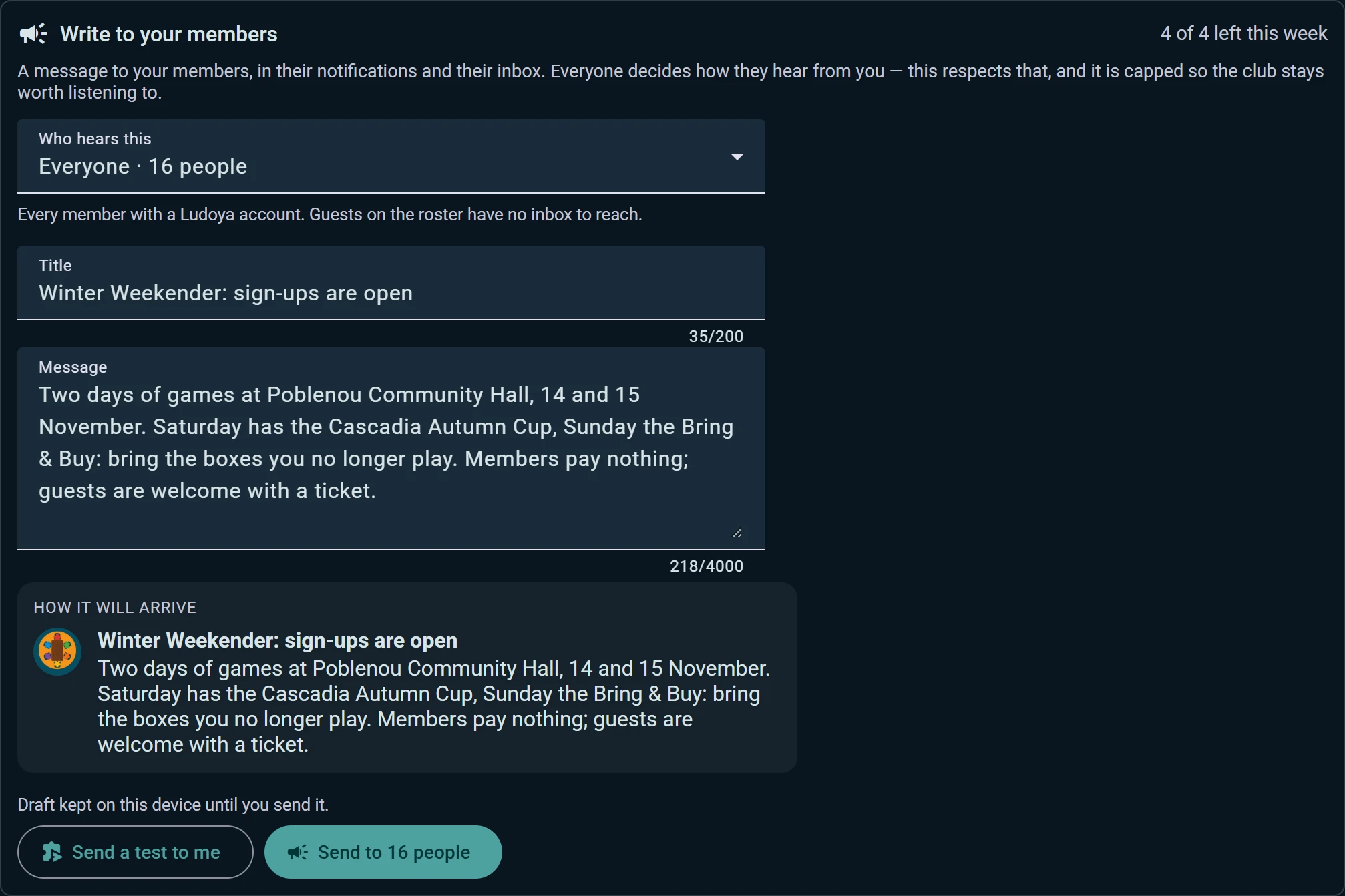
Announcements. Write to your members through their notifications and their inbox. Choose who hears this:
- everyone;
- organizers;
- regulars: three or more club nights in the last year, and still coming at their usual pace;
- regulars gone quiet: they used to come and have stopped, so they are not counted in Regulars;
- newcomers who never returned: they came once;
- members who never attended a night;
- members whose dues are owing;
- members who gave one answer to a join-form question.
Each choice shows how many people it reaches, and See who this reaches lists them by name before you write a word; each name opens that member's profile.
To write to everyone at one event, open the event from Events and use its own announcements. You see how a message will arrive before sending, can send a test to me first, and your draft is kept on the device until you send it. One a week, or four on the Club plan, so the club stays worth listening to.
Audit log. Every change an admin makes (a role, a tier, dues recorded, a setting) is written down and can't be edited: who, what and when. Filter it, or download it as a spreadsheet.
Events, Campaigns and Plays
- Events: upcoming, past and recurring. A weekly series is one row, not ninety: open its programme, move or cancel a single date, or pause and resume the series. Repeat the last one sets up the next night in one click.
- Campaigns: every campaign the club runs, with members and sessions. Campaigns nobody has played for a while are grouped apart so you can close or archive them in bulk, and join requests for all of them come to one queue.
- Plays: everything played at the club. Change the visibility, place or club of many plays at once, or delete them.
- Locations: every address the club runs at, with opening hours and spots. See Locations.
The club's Collection is the same inventory you use for your own games, managed for the club: see Collection.
Insights
Analytics shows how the club is doing over the last twelve months: members, who joined and who left, nights held and the average attendance per night, how full the tables were, the people who hold the club up, and which games fill tables and which are gathering dust on the shelf. Every chart downloads as a spreadsheet, and Write to these people turns the list of who has gone quiet, or of who came once and never returned, into an announcement to them.
What to play lists the games your members want to play, most wanted first, next to whether the club owns a copy and when it was last played. Schedule a game straight from its row.
Settings and Permissions
Settings holds the club's identity (name, logo, description, type), its social links, main location, account details, visibility and how people join. The description can also be changed right on the club's page: its admins see it under About, with a pencil that edits it there.
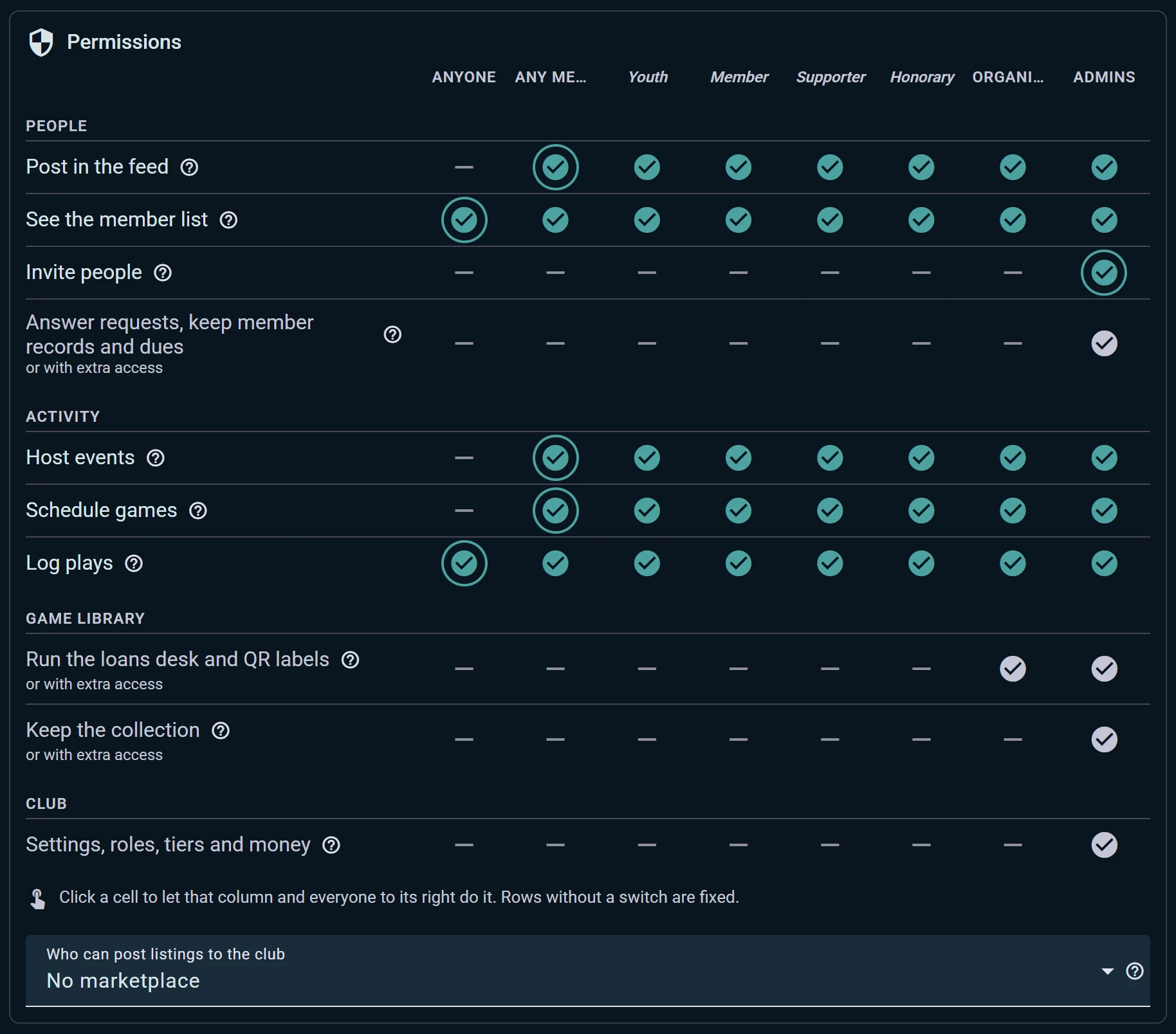
Permissions is one table. Rows are what people can do: post in the club's feed, see the member list, invite people, host events, schedule games, log plays, run the loans desk. Columns go from Anyone through members, each of your membership tiers and organizers, to Admins. Click a cell to let that column, and everyone to its right, do it. Rows without a switch are fixed.
This is also where you open the club's own second-hand market, with Who can post listings to the club, and its club chat, with Who can write in the club chat: every member, organizers or admins. Both start off. Turning the chat on puts every member in it at once, and the club's page gets a Club chat row; turning it off keeps the history, read-only.
Extra access. Some jobs don't need an admin. Give a member access to just the library or the member records, and they get those sections of the console and nothing else. Organizers can already run the events, and, on the Business plan, the table bookings desk.
Money, Integrations and Data
Plan and payouts shows the club's plan and when it renews, what it covers, and what the next plan would add. Sections the plan doesn't cover stay visible in the console, marked, and say which plan opens them. Under the plan, Invoices lists everything the club has paid Ludoya for it, newest first, with the plan each one paid for: open one for Stripe's invoice page, or download its PDF for the accountant, as often as you need. The association's name, address and tax ID go on its invoices: choose I'm purchasing as a business when you pay for the plan, or, if the club already pays, use Billing details under the invoices. Put the association's legal name in Name, not a person's. A Spanish association picks ES CIF as the tax ID type and types its CIF (G12345678), or ES VAT with ES in front (ESG12345678); either works. The details apply from the next invoice on; to have an earlier one reissued, write to app@ludoya.com. It's also where the club connects its Stripe account to be paid for tickets and card dues, and where it sees what its events have taken in tickets.
Integrations lists everywhere the club is plugged in: Telegram and Discord, with a test message for each link, the embeddable widgets for your website, the WordPress plugin and the public API key.
Data is one door in and out:
- Import members from a CSV or Excel file, with a row-by-row preview before anything is saved
- Export members, events, the collection and plays
- Import the collection or plays from Ludoya or from BoardGameGeek; the club's BGG connection lives here and belongs to its admins
- Answer a member's data request: download their record as a PDF, or erase what the club holds about them